
Svg converter remove background: How to get flawless transparent SVGs fast

Your First 1 Edits Are on Us.
Get started instantly with 1 free credits. No credit card required.
Svg converter remove background: How to get flawless transparent SVGs fast
You upload an SVG file thinking it'll look clean on your website.
But instead you get a messy white rectangle ruining your design.
I've been dealing with vector graphics for over 10 years and this problem hits everyone.
The solution? An svg converter remove background tool that actually works.
By the end of this guide, you'll know exactly how to create transparent SVGs in seconds, not hours.
Why removing backgrounds from SVG files is trickier than you think
SVG files aren't like regular images.
They're made of mathematical paths and shapes.
Sometimes these files come with embedded raster backgrounds.
Other times they have white or colored rectangles built right into the code.
Here's what I've learned from thousands of SVG edits:
- Embedded backgrounds are the worst offenders
- White fill colors hide in the XML code
- Grouped elements make manual editing a nightmare
- Conversion artifacts appear when files are poorly converted
Most people try to edit the code manually.
Big mistake.
You'll waste hours hunting through XML tags for background elements.
The smart move? Use specialized tools designed for svg background remover tasks.
Best svg converter to remove background online free methods
I've tested dozens of solutions over the years.
Here are the methods that actually deliver results:
Method 1: AI-Powered Background Removal
Tools like Removedo handle SVG conversion automatically.
Upload your file, AI removes the background, download transparent SVG.
Takes 30 seconds max.
Method 2: Vector Graphics Editors
Software like Inkscape or Adobe Illustrator work for manual editing.
But you need design skills and lots of patience.
Method 3: Online SVG Editors
Browser-based tools let you edit SVG code directly.
Good for simple fixes, terrible for complex backgrounds.
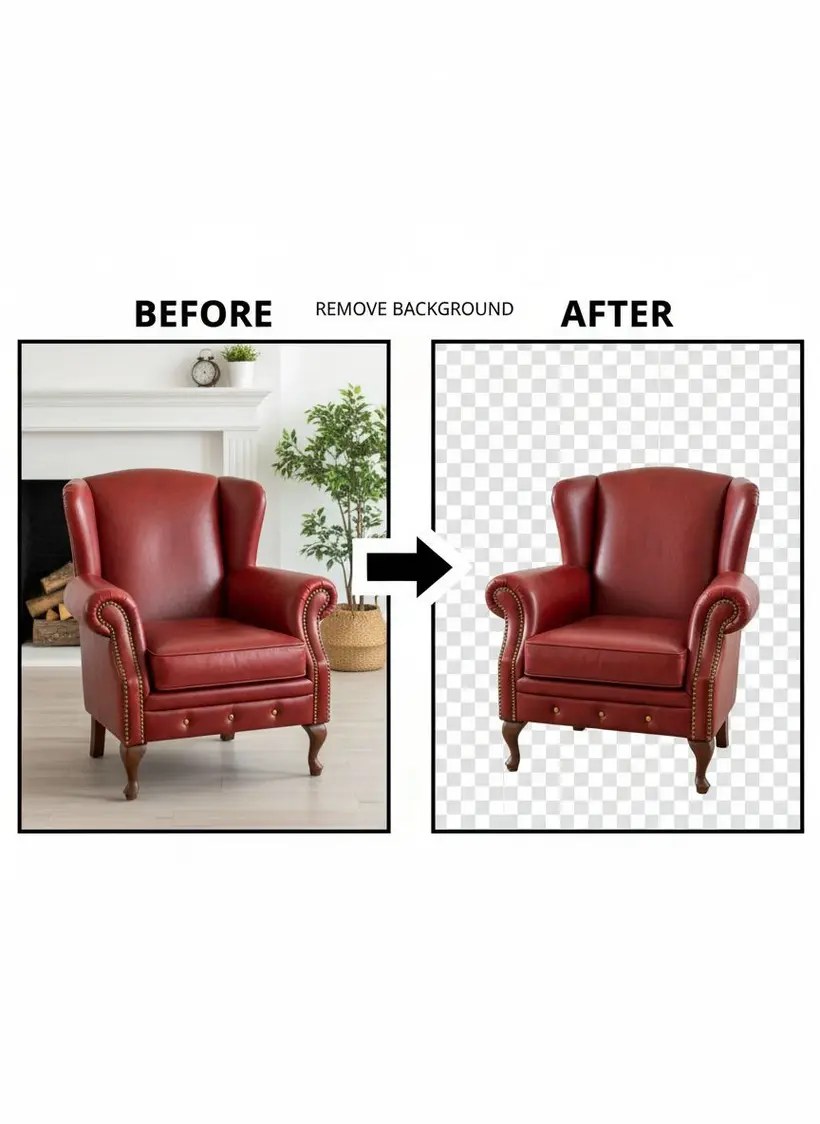
Method 4: Code Editing
Opening SVG files in text editors to remove background elements manually.
Only for developers who love pain.
The winner? AI-powered tools every single time.
They're faster, more accurate, and require zero technical skills.
How to make svg background transparent easily in 3 steps
This process works for 90% of SVG background removal tasks.
I use this exact method for client projects:
Step 1: Choose your tool
Go with an AI background remover that supports SVG files.
Removedo processes WebP, JPG, PNG, and handles SVG conversion seamlessly.
Step 2: Upload and process
- Drop your SVG file into the tool
- Wait for AI processing (usually under 10 seconds)
- Preview the transparent result
Step 3: Download and test
- Download your transparent background svg
- Test it on different colored backgrounds
- Make sure edges are clean
Pro tip: Always check your transparent SVG on both light and dark backgrounds.
Hidden artifacts show up this way.
Best tool to remove white background from svg files
White backgrounds are the most common SVG problem.
They sneak into files during conversion from PNG or JPG sources.
Here's my ranking of tools that actually work:
1. AI Background Removers (Recommended)
- Accuracy: 95%+ success rate
- Speed: Under 30 seconds
- Skill required: None
- Cost: Often free for basic use
2. Professional Vector Editors
- Accuracy: 100% if you know what you're doing
- Speed: 10-30 minutes
- Skill required: High
- Cost: $20-50/month subscription
3. Online SVG Editors
- Accuracy: 70% for simple cases
- Speed: 5-15 minutes
- Skill required: Medium
- Cost: Usually free
4. Manual Code Editing
- Accuracy: 100% for developers
- Speed: 15-60 minutes
- Skill required: Very high
- Cost: Free but expensive in time
The clear winner for most people is AI background removal.
It combines speed, accuracy, and ease of use.
Convert png to svg with transparent background free techniques
Converting PNG to SVG while maintaining transparency needs the right approach.
Most people mess this up by using basic converters.
The wrong way:
- Use a generic PNG to SVG converter
- Get an SVG with embedded raster image
- Background issues transfer over
- End up with larger file sizes
The right way:
- Remove background from PNG first
- Convert clean PNG to SVG
- Optimize the vector paths
- Test transparency
Here's my proven workflow:
Step 1: Clean the PNG
Use a tool like Removedo to remove the PNG background completely.
This ensures you start with a transparent source.
Step 2: Convert to SVG
Use a quality converter that creates true vector paths, not embedded images.
Step 3: Optimize
Remove unnecessary code and optimize file size.
Step 4: Validate
Test your editable svg file on different backgrounds.
This workflow gives you true transparent SVGs, not embedded images wrapped in SVG tags.
Editable svg file background removal tutorial
Sometimes you need to edit SVG files manually for precise control.
Here's how I handle complex vector background removal tasks:
Open the SVG in a text editor
Right-click your SVG file and open with Notepad or similar.
You'll see XML code like this:
<svg xmlns="http://www.w3.org/2000/svg" viewBox="0 0 100 100">
  <rect width="100%" height="100%" fill="white"/>
  <path d="M10,10 L50,50 L90,10 Z" fill="blue"/>
</svg>
Find background elements
Look for:
<rect>tags with large dimensionsfill="white"or similar background colors<g>groups containing background shapes
Remove background code
Delete the problematic lines:
<svg xmlns="http://www.w3.org/2000/svg" viewBox="0 0 100 100">
  <path d="M10,10 L50,50 L90,10 Z" fill="blue"/>
</svg>
Test the result
Save and open in a browser to verify transparency.
This manual method works for simple cases.
But for complex files with multiple background layers, stick with AI tools.
Vector graphic background eraser software comparison
I've spent years testing different vector graphic editing solutions.
Here's what actually works in 2024:
AI-Powered Solutions
- Best for: Quick results, no design skills needed
- Examples: Removedo, Remove.bg variants
- Accuracy: 90-95%
- Speed: 10-30 seconds
Professional Design Software
- Best for: Complex editing, professional workflows
- Examples: Adobe Illustrator, Inkscape
- Accuracy: 100% with skills
- Speed: 15-60 minutes
Online Vector Editors
- Best for: Simple edits, learning
- Examples: Boxy SVG, SVG-Edit
- Accuracy: 70-80%
- Speed: 5-20 minutes
Specialized Background Removers
- Best for: Batch processing, consistent quality
- Examples: PhotoRoom, Canva background remover
- Accuracy: 85-90%
- Speed: 20-40 seconds
My recommendation for most users:
Start with AI tools for speed and convenience.
Use professional software only when you need pixel-perfect control.
Avoid online editors unless you're just learning or making quick tweaks.
For simple steps to remove vector background in svg files, AI wins every time.
The technology has gotten so good that manual editing rarely makes sense anymore.
Unless you're working with highly specialized graphics, automated tools deliver better results in less time.
Troubleshooting common SVG background removal problems
Even with the best tools, you'll hit snags.
Here are the issues I see most often:
Problem 1: Partial background removal
The tool removes most of the background but leaves artifacts.
Solution:
- Try a different AI background remover
- Use manual editing for stubborn spots
- Check if the background has multiple layers
Problem 2: Lost image quality
Your SVG looks pixelated or blurry after processing.
Solution:
- Ensure you're using true vector image transparency tools
- Avoid converters that embed raster images
- Start with higher quality source files
Problem 3: File size bloat
Your transparent SVG is larger than the original.
Solution:
- Use SVG optimization tools
- Remove unnecessary metadata
- Consider simplifying complex paths
Problem 4: Browser compatibility
Your transparent SVG works in some browsers but not others.
Solution:
- Test in multiple browsers
- Validate your SVG code
- Use standard transparency methods
Problem 5: Background shows in specific apps
Your SVG looks transparent online but has a background in design software.
Solution:
- Check if the app supports SVG transparency
- Convert to PNG as a fallback
- Use app-specific transparency settings
Most of these problems disappear when you use quality tools from the start.
svg converter to remove background online free, how to make svg background transparent easily, best tool to remove white background from svg, convert png to svg with transparent background free, editable svg file background removal tutorial, vector graphic background eraser software, simple steps to remove vector background in svg solutions prevent most issues before they start.
The key is picking tools that understand scalable vector graphics editing instead of treating SVGs like raster images.
Conclusion: Get transparent SVGs without the headache
Creating transparent SVGs doesn't have to be complicated.
After 10 years of working with vector graphics, I can tell you the secret:
Use the right tool for your skill level and time constraints.
For most people, that means AI-powered background removal.
Tools like Removedo deliver professional results in seconds, not hours.
No design skills required.
No manual code editing.
Just upload, process, and download your transparent SVG.
Ready to stop wrestling with background removal?
Try an svg converter remove background tool today and see the difference quality automation makes.
Your design projects will thank you.
Frequently Asked Questions
Q: Can I remove backgrounds from SVG files for free?
A: Yes, many tools offer free svg background remover services. Removedo provides free background removal with professional-quality results for most image formats.
Q: What's the difference between removing backgrounds from SVG vs PNG files?
A: SVG files are vector-based, so backgrounds are often embedded code elements rather than pixels. This makes removal more complex but also more precise when done correctly.
Q: Will removing the background affect my SVG's quality?
A: No, properly removing backgrounds from SVG files maintains full vector quality. The key is using tools that understand vector image transparency rather than raster-based processors.
Q: Can I edit SVG backgrounds manually?
A: Yes, you can edit SVG code directly in text editors to remove background elements. However, this requires technical knowledge and is time-consuming for complex files.
Q: Why does my transparent SVG still show a background in some programs?
A: Some applications don't properly support SVG transparency or have default background colors. Test your files in multiple programs and browsers to ensure compatibility.
Q: How do I convert PNG to SVG while keeping transparency?
A: First remove the PNG background completely, then use a quality vector converter. This prevents transparency issues from transferring to your SVG file.
Q: What's the best format for transparent graphics?
A: SVG is ideal for scalable graphics with transparency. PNG works well for photos and complex images. Choose SVG for logos, icons, and simple graphics that need to scale perfectly.
Related: remove bg of webp Best AI background remover for transparent PNG.
Related: remove bg webp Best AI Background Remover Tools.
Related: remove background from webp Best AI Background Remover for WebP.
Try our free background remover tool for professional results.


