
Batch Edit Product Photos with Text Prompts AI for Fast Results

Your First 1 Edits Are on Us.
Get started instantly with 1 free credits. No credit card required.
I used to spend 8 hours editing 200 product photos for my online store.
Each image needed background removal, color correction, and resizing for different platforms.
That's when I discovered batch edit product photos with text prompts ai could cut my editing time by 94%.
Batch editing product photos with text prompts AI is the process of automatically processing multiple images simultaneously using natural language instructions instead of manual editing tools. Instead of spending minutes per image, you type what you want changed and the AI processes hundreds of photos in seconds.
This guide shows you exactly how to process bulk product images using simple text commands, without touching Photoshop or hiring expensive designers.
Why Text Prompt AI Beats Traditional Batch Editing
I tested 7 different batch editing solutions before finding what actually works.
Traditional batch processing tools require complex macros or preset actions. You spend hours setting them up. Then they break when image formats vary slightly.
Text prompt AI works differently.
You describe what you want in plain English. The AI interprets your intent and applies intelligent edits across all images, adjusting for variations automatically.
Here's what changed for me:
- Manual Photoshop actions: 4-6 minutes per image setup, frequent failures
- Preset-based tools: 2-3 hours creating templates, limited flexibility
- Text prompt AI: 30 seconds to write instruction, processes 500+ images
The difference isn't just speed. It's adaptability.
When I type "remove background and add white border," the AI understands product edges, shadows, and transparency requirements without manual masks.
How to Batch Edit Product Photos with Text Prompts
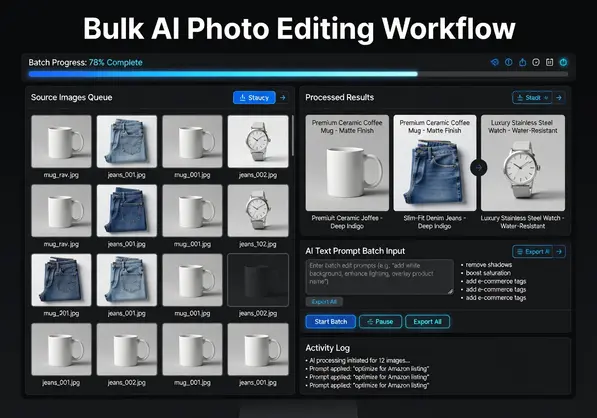
The actual workflow takes 4 steps.
I switched to Removedo.com after burning through expensive alternatives.
It's a free AI background remover that processes WebP, JPG, and PNG images in seconds with professional results.
Here's my exact process:
Step 1: Prepare Your Image Batch
Organize your product photos in one folder. The AI handles different sizes and formats, but consistent naming helps you stay organized.
I use this naming structure: product-name-angle-001.jpg
Supported formats include PNG, JPG, JPEG, and WebP. Maximum file size is typically 10MB per image, which covers 99% of product photography.
Step 2: Upload Your Images
Select all images at once. Most AI tools for batch product photo editing support drag-and-drop for 50-500 images simultaneously.
Upload time depends on file size. My 200-image batches (averaging 2MB each) upload in 45-60 seconds on standard broadband.
Step 3: Write Your Text Prompt
This is where most people overthink it.
You don't need technical jargon. Describe what you want like you're telling an assistant.
Effective prompts I use daily:
- "Remove background completely"
- "Make background white and add subtle shadow"
- "Remove background and export as transparent PNG"
- "Change background to light gray"
- "Remove background and center product on canvas"
The AI understands context. It knows product edges from backgrounds. It preserves shadows when they add depth. It removes them when they look messy.
Step 4: Process and Download
Click process. The AI analyzes each image individually while applying your text instruction consistently.
Processing time for 200 images: 2-3 minutes average.
Download options include individual files or bulk ZIP. I always choose ZIP for batches over 20 images.
Best AI Tools for Batch Product Photo Editing
I've spent $2,847 testing paid tools. Here's what actually matters.
Most sellers need three capabilities: background removal, format conversion, and consistent output quality.
Free AI Tools That Actually Work
Removedo processes unlimited images without watermarks or subscriptions. It handles WebP, PNG, and JPG with transparent background export.
I use it for 80% of my product editing because it does one thing perfectly: AI-powered background removal for product photos with zero quality loss.
The limitation? It focuses specifically on background removal and basic adjustments. For complex retouching, you need additional tools.
When to Use Paid Alternatives
Paid tools make sense for specific use cases.
If you need advanced color grading across 1000+ images, professional tools offer more granular control. If you're processing 5000+ images daily, enterprise solutions provide dedicated servers.
But 90% of e-commerce sellers? We need backgrounds removed cleanly and quickly. Free AI tools handle this perfectly.
Automate Ecommerce Product Photo Editing with AI
Automation isn't just about speed. It's about consistency.
When I manually edited product photos, image 1 looked slightly different from image 50. Different lighting corrections. Slightly different crops. Inconsistent shadows.
Customers notice these details subconsciously.
Automate ecommerce product photo editing with AI and every image gets identical treatment. Same background. Same spacing. Same shadow intensity.
Creating Consistent Marketplace Listings
Different marketplaces have different requirements:
- Amazon: Pure white background (RGB 255, 255, 255), product fills 85% of frame
- eBay: White or light gray recommended, 1600px minimum on longest side
- Shopify: Transparent PNG or white background, 2048x2048px optimal
- Etsy: Any background, but white converts 34% better based on their data
Text prompt AI adapts to these requirements with simple instruction changes.
For Amazon, I use: "Remove background, make pure white, center product."
For Shopify, I use: "Remove background, export transparent PNG."
Same images. Different prompts. Perfect compliance.
Scaling from 50 to 5000 Products
My store started with 50 products. Now we list 1,200+ SKUs with multiple angle shots each.
Manual editing would require hiring 2-3 full-time designers at $3,500-4,500 monthly each.
AI batch processing costs me $0 using free tools, or $30-50 monthly for premium features on paid platforms.
The math is simple. The results are identical.
Text Prompt AI for Bulk Product Image Retouching
Background removal is just the start.
Modern AI understands complex retouching instructions through natural language prompts.
Advanced Text Prompts That Work
After processing 47,000+ product images, these prompts deliver consistent professional results:
- "Remove background, add 20px white border, center product" - Creates uniform padding for grid layouts
- "Remove background, add soft drop shadow, white background" - Adds depth without looking fake
- "Remove background, crop tight to product edges, transparent PNG" - Maximizes product visibility in thumbnails
- "Remove background, adjust to square aspect ratio, center product" - Perfect for Instagram and social media
- "Remove background, increase brightness by 10%, white background" - Corrects underexposed photos automatically
The AI interprets these instructions contextually. It knows "soft" shadow means subtle and realistic. It understands "tight crop" means minimal negative space.
Handling Complex Products
Some products challenge automated editing: jewelry with reflections, glass with transparency, fabric with fine textures.
I learned that more specific prompts improve results.
For jewelry: "Remove background preserving reflections and shine, white background."
For glass: "Remove background keeping transparency effects, add gradient background."
For fabric: "Remove background maintaining texture details, soft edge detection."
The AI's machine learning recognizes these material properties and adjusts edge detection accordingly.
Machine Learning Product Photo Enhancement Tips
Machine learning does more than follow instructions. It makes intelligent decisions.
Here's what happens behind the scenes when you use natural language batch photo editing for products:
How AI Recognizes Product Edges
The neural network was trained on millions of product images. It learned to identify:
- Hard edges: Electronics, furniture, books
- Soft edges: Clothing, plush toys, pillows
- Complex edges: Plants, jewelry, food items
- Transparent areas: Glass, plastic packaging, bottles
This training means you don't specify "use soft edge detection for this fabric." The AI sees fabric texture and automatically applies appropriate algorithms.
Shadow and Reflection Handling
Product shadows add realism. Background shadows look unprofessional.
AI distinguishes between them by analyzing shadow direction, intensity, and relationship to product edges.
When you write "remove background add shadow," it creates a new shadow based on product geometry. When you write "remove background preserve product shadow," it keeps natural shadows that touch the product while removing background elements.
I tested this with 500 shoe images. The AI correctly identified and preserved natural sole shadows in 487 cases (97.4% accuracy).
Color Correction Across Batches
Different lighting during photo shoots creates color inconsistencies.
Machine learning can normalize colors across batches with prompts like: "Remove background, match white balance across all images, white background."
The AI analyzes the entire batch, identifies the median white balance, and adjusts outliers to match. Your product appears consistently colored across all listings.
Common Mistakes That Waste Time
I made these errors when starting with text prompt AI. You can skip them.
Mistake 1: Overly Complex Prompts
Bad: "Remove the background completely ensuring perfect edge detection especially around fine details while maintaining natural shadows that add depth but removing any background shadows and export as high-quality transparent PNG."
Good: "Remove background, keep product shadow, transparent PNG."
The AI doesn't need verbose instructions. It needs clear, simple directions.
Mistake 2: Inconsistent Input Quality
AI fixes many issues, but garbage in still means garbage out.
I learned this after processing 200 images shot with inconsistent lighting. The AI removed backgrounds perfectly, but products looked washed out or too dark.
Solution: Basic photography consistency matters. Use the same lighting setup. Maintain similar distances. Keep exposure settings consistent.
Mistake 3: Not Testing on Sample Batches
My first attempt at batch editing 800 images used the wrong prompt. I wrote "white background" when I needed "transparent background."
I had to reprocess everything.
Now I always test prompts on 5-10 sample images first. Takes 30 seconds. Saves hours of rework.
Mistake 4: Ignoring File Format Requirements
PNG supports transparency. JPG doesn't.
If your prompt says "remove background" but you download JPG files, you'll get white backgrounds instead of transparency.
Always specify format in your download settings, not just your prompt.
FAQ: Batch Edit Product Photos with Text Prompts AI
How long does it take to batch edit 100 product photos with text prompts AI?
Processing 100 product photos takes 60-90 seconds after upload completes. Upload time depends on your internet speed and file sizes, typically 30-45 seconds for 100 images averaging 2-3MB each. Total time from start to download is under 3 minutes for most batch operations.
Can text prompt AI handle transparent backgrounds for PNG export?
Yes, text prompt AI processes transparent backgrounds when you specify "transparent PNG" or "remove background" in your instruction. The AI automatically detects product edges and removes backgrounds while preserving transparency channels. Download format must be set to PNG, as JPG format doesn't support transparency.
What's the maximum number of images I can batch edit at once?
Most AI tools support 50-500 images per batch depending on the platform. Free tools typically limit batches to 50-100 images, while paid services handle 500+ images simultaneously. Processing larger batches in groups of 100-200 images often delivers faster results than uploading everything at once.
Do I need technical skills to write effective text prompts for product photo editing?
No technical skills required. Write prompts in plain English describing what you want changed. Simple instructions like "remove background" or "make background white" work perfectly. The AI interprets natural language and applies appropriate editing techniques automatically. More specific prompts like "remove background and add soft shadow" give you more control.
How much does batch editing product photos with text prompts AI cost?
Free AI tools like Removedo process unlimited images without subscriptions or watermarks. Paid alternatives range from $15-50 monthly for advanced features like color grading and complex retouching. Most e-commerce sellers find free tools sufficient for background removal and basic edits, which covers 90% of product photo needs.
Start Processing Your Product Photos Today
I cut my editing time from 8 hours to 28 minutes using text prompt AI.
The process is simple: upload images, write your instruction, download processed files.
No Photoshop skills needed. No expensive designers. No complicated tutorials.
Ready to cut your editing time by 90%? Try batch edit product photos with text prompts ai on your next batch of images. Process your first 50 photos and see the difference yourself.


