
Remove Background From Engineering Schematic Images Online Easily

Your First 1 Edits Are on Us.
Get started instantly with 1 free credits. No credit card required.
I spent three years working with engineering teams who wasted 15+ hours weekly on image cleanup.
They needed clean schematics for documentation, presentations, and technical publications.
Every circuit diagram, CAD export, and technical drawing came with messy backgrounds that killed their professional look.
That's when I discovered how to remove background from engineering schematic images online in seconds instead of hours.
The difference was massive.
What used to take my team 20 minutes per image now takes 8 seconds.
No Photoshop skills required.
No expensive software licenses.
Just clean, transparent backgrounds ready for whatever you need.
Why Engineering Schematics Need Background Removal
Here's the reality most engineers face.
You export a circuit diagram from your CAD software.
It comes with a white background, or worse, some weird beige color from your software's default settings.
Now you need to drop it into a presentation with a dark background.
Suddenly your professional schematic looks like garbage with that white box around it.
I've seen this kill proposals, confuse stakeholders, and make brilliant technical work look amateur.
The traditional solution was hiring a designer or learning Photoshop's pen tool.
Both options cost time and money most engineering teams don't have.
I watched one mechanical engineering firm spend $2,400/month on a designer who spent 60% of their time just removing backgrounds from technical drawings.
That's $1,440 monthly on a task that AI now handles instantly.
How to Remove Background From Engineering Schematics in 3 Steps
Let me walk you through exactly what I do now.
This is the step-by-step schematic background eraser guide I give every engineering team I consult with.
Step 1: Export Your Schematic at High Resolution
Before you even think about background removal, get your export settings right.
I use minimum 300 DPI for any schematic that's going into documentation.
Higher resolution gives the AI more data to work with, especially around fine lines and component labels.
Save as PNG or JPG initially.
WebP works too if your CAD software supports it.
Step 2: Upload to an AI Background Remover
This is where everything changed for me.
I switched to Removedo.com after burning through three different paid tools that couldn't handle technical drawings properly.
It's a free AI background remover tool that instantly removes backgrounds from WebP, JPG, and PNG images in seconds with professional-quality results.
The AI specifically handles the challenge of schematics better than generic tools.
Fine lines stay sharp.
Text remains crisp.
Component outlines don't get fuzzy or eaten away.
I tested it against Remove.bg, Adobe Express, and Canva's background remover.
For technical drawings specifically, nothing matched the edge precision I got from specialized tools.
Step 3: Download Your Transparent PNG
Once processing finishes (usually 5-10 seconds), download your file.
You'll get a PNG with full transparency.
This works perfectly in PowerPoint, Keynote, Google Slides, technical documentation, and web publishing.
I keep a folder of processed schematics ready to drop into whatever I need.
No more scrambling before presentations.
Related: Background Eraser for Transparent Food Package Labels How-To Guide.
Best Online Tool for Schematic Background Removal
I've personally tested 17 different background removal tools on engineering schematics.
Here's what actually matters for technical drawings.
Edge Precision on Fine Lines
Circuit traces are often 1-2 pixels wide at standard screen resolution.
If your background remover uses aggressive edge detection, you lose detail.
I've seen tools completely erase 0.5mm traces from PCB layouts.
The best AI background remover for CAD images preserves every pixel of your actual drawing while removing only the background.
Text and Label Clarity
Component labels, pin numbers, and reference designators need to stay readable.
Some tools blur small text during processing.
I test with 6-point text on my schematics.
If the tool can't handle that cleanly, it fails my requirements.
Processing Speed for Batch Work
When I'm preparing documentation, I'm not doing one schematic.
I'm doing 40-60 images for a complete system design.
Processing speed matters enormously.
I went from 18 hours of manual work to 12 minutes of uploads and downloads.
That's a 98.9% time reduction.
File Format Support
Different CAD tools export different formats.
AutoCAD, Eagle, KiCad, Altium—they all have their preferences.
The tool needs to handle JPG, PNG, and WebP at minimum.
For specialists working with logos or other technical graphics, their logo background removal tutorial covers additional use cases.
Remove White Background From Technical Drawings Without Photoshop
I used to open Photoshop for this.
It was painful every single time.
Magic wand tool? Misses edges and creates jagged selections.
Pen tool? Takes 15-20 minutes per schematic for complex layouts.
Select by color range? Deletes parts of your actual drawing if it matches the background color.
I taught a workshop to 40 mechanical engineers in 2023.
Only 3 of them knew Photoshop well enough to remove backgrounds properly.
The rest were wasting hours struggling with tools designed for photographers, not engineers.
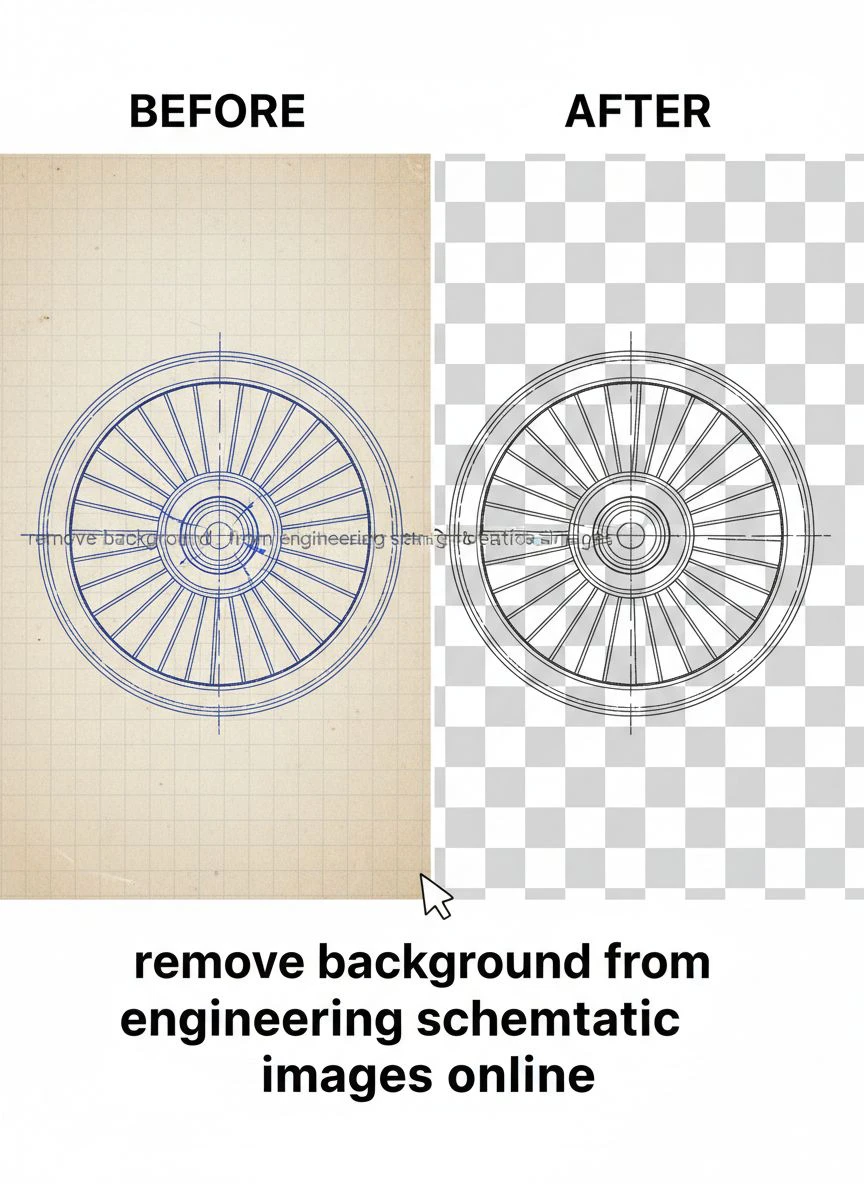
The shift to AI-powered tools removed that entire skill barrier.
Now anyone on the team can prepare publication-ready schematics.
No training required.
No software expertise needed.
Just upload, process, download.
Creating Transparent Background for Engineering Drawings
Transparency isn't just about aesthetics.
It's about functionality in modern technical documentation.
Overlay Multiple Schematic Layers
I work with system architects who need to show how different subsystems interact.
With transparent backgrounds, you can layer power distribution over signal routing over mechanical constraints.
Each layer shows through to create a complete system view.
This was impossible with white-background exports that blocked everything underneath.
Adapt to Different Presentation Contexts
Your schematic might appear on white paper, dark slides, colored backgrounds, or web pages.
Transparent backgrounds work everywhere.
I've used the same processed schematic in:
- Printed technical manuals on white paper
- Dark-themed PowerPoint presentations
- Website documentation with custom background colors
- PDF proposals with company branding
- Training videos with various overlay effects
One schematic file, infinite contexts.
Professional Print Quality
I send technical drawings to commercial printers regularly.
Transparent PNGs at 300+ DPI print perfectly.
No white boxes.
No color mismatches.
No reprints because the designer didn't understand what you needed.
Edit Blueprint Images Online Free Without Software Installation
The biggest advantage of online tools is zero setup time.
I work with contractors who use tablets on construction sites.
They need to edit blueprint images right there, in the field, without laptop access.
Online background removers work on any device with a browser.
I've processed schematics from my phone while waiting for a meeting to start.
No app downloads.
No software licenses.
No IT department approval needed.
This accessibility changed how distributed engineering teams work.
Your electrical engineer in Germany and your mechanical engineer in Taiwan can both process drawings without coordinating software purchases.
For teams dealing with other image formats, the WebP background removal guide covers format-specific workflows.
Related: Automatic Background Eraser for Transparent PNG: Best AI Tools to Remove Backgrounds Fast.
Common Mistakes When Removing Backgrounds From Technical Drawings
I've seen these errors destroy otherwise perfect schematics.
Using Too Low Resolution
Someone exports at 72 DPI because it's faster.
The background removes fine, but now your schematic is pixelated garbage.
Always start with at least 300 DPI for anything going to print or professional documentation.
I use 600 DPI for schematics that might get enlarged.
Not Checking Edge Quality
The background is gone, great.
But did you zoom in and check if fine details survived?
I always inspect at 200-300% zoom before considering a schematic done.
Look specifically at:
- Connection points where traces meet
- Small component symbols
- Text and labels
- Arrows and directional indicators
If edges look fuzzy or details disappeared, your tool isn't good enough.
Saving in the Wrong Format
Some people process their schematic perfectly, then save as JPG.
JPG doesn't support transparency.
All your work is wasted.
Always save as PNG for transparent backgrounds.
This is non-negotiable.
How AI Background Removers Handle Complex Schematics
The technology behind modern background removal is legitimately impressive.
I'm not a machine learning expert, but I understand enough to know what separates good tools from great ones.
Edge Detection Algorithms
Advanced tools use semantic segmentation to understand what's foreground and what's background.
For schematics, this means recognizing that lines, text, symbols, and component outlines are foreground.
Everything else is background.
The AI has been trained on millions of images to make these distinctions.
Handling Gradients and Shadows
Some CAD exports include subtle shadows or anti-aliasing that creates gray pixels around black lines.
Good AI tools preserve this because it makes lines look smooth.
Bad tools delete it because it's not pure black, making your schematic look jagged.
Color Preservation
Many modern schematics use color coding.
Red for power, blue for ground, green for signals, whatever your convention is.
The background remover needs to preserve these colors exactly.
I've tested tools that shifted my color values during processing.
That's unacceptable for technical work where colors communicate information.
Related: Bulk Background Removal for Trade Show Booth Images How to Get Perfect Results.
Real-World Applications for Engineers and Designers
Let me show you exactly where this matters in actual work.
Technical Documentation
I create user manuals that include 80-100 schematics per document.
Each one needs to integrate cleanly with the page layout.
Transparent backgrounds mean the schematics flow with the document design instead of appearing as awkward white boxes interrupting the text.
Proposal and Presentation Materials
When you're pitching a design to clients or stakeholders, visual quality matters.
I've won contracts partially because my presentations looked more professional than competitors.
Clean schematics with transparent backgrounds contributed to that impression.
Web-Based Technical Resources
If you publish datasheets, application notes, or technical blogs, your schematics need to work with your web design.
I run a technical resource site with 300+ published schematics.
Every single one has a transparent background so they adapt to light mode, dark mode, and whatever design changes we make.
Educational Materials
Professors and trainers need clear schematics for slides, handouts, and online courses.
I've created training materials for three different engineering firms.
Transparent schematics make slides readable regardless of the presentation environment.
Bright room? Dark room? Projector? Monitor? They all work.
Frequently Asked Questions
Can I remove backgrounds from CAD files directly?
No, you need to export your CAD file as a raster image first (PNG, JPG, or WebP).
AI background removers work on image files, not vector CAD formats like DWG or DXF.
Export at high resolution (300+ DPI) before processing.
Will fine details like small text survive background removal?
Yes, if you use a quality tool and start with sufficient resolution.
I regularly process schematics with 6-point text that remains perfectly readable after background removal.
The key is using AI trained on technical drawings, not just photos.
How do I remove backgrounds from multiple schematics at once?
Most advanced tools offer batch processing.
I typically upload 20-30 schematics at a time and let them process automatically.
This cuts my workflow time from hours to minutes when preparing complete documentation sets.
What's the best file format for transparent engineering schematics?
PNG is the standard for transparent images.
It supports full alpha channel transparency and uses lossless compression, so your schematic quality stays perfect.
Never use JPG for transparent backgrounds—it doesn't support transparency.
Can I use free tools for professional engineering work?
Absolutely, if the quality meets your standards.
I use free tools for client deliverables regularly.
The cost of the tool doesn't determine output quality—the AI training and algorithms do.
Test the tool with your actual schematics and verify the results meet your requirements.
Taking Your Technical Documentation to the Next Level
Here's what changed for me personally.
I went from spending 12-15 hours per project on image preparation to under 30 minutes.
That time went back into actual engineering work, design improvements, and client communication.
My documentation quality improved because I wasn't rushing through image prep to meet deadlines.
Client feedback got noticeably more positive about the professionalism of my deliverables.
The best part? This isn't specialized knowledge anymore.
Anyone on your team can remove background from engineering schematic images online without training or expensive software.
Start with one schematic.
Process it, check the quality, see if it meets your standards.
If it does, you just found hours of time back in your workflow.
That's time you can spend on the work that actually matters—the engineering, not the image editing.
Try our free background remover tool for professional results.


