
Transparent Background Editor for YouTube Channel Art Banners How-To Guide

Your First 1 Edits Are on Us.
Get started instantly with 1 free credits. No credit card required.
I spent three years building my YouTube channel from zero to 147,000 subscribers.
The biggest mistake I made early on? Using generic banners with cluttered backgrounds.
My channel looked amateur, and my click-through rates proved it. That's when I discovered that a transparent background editor for YouTube channel art banners could completely transform my branding game.
Within 48 hours of switching to transparent backgrounds, my subscriber conversion rate jumped 34%.
No fancy design degree required. Just the right tools and a clear process.
Why Transparent Backgrounds Matter for YouTube Channel Art
Let me be brutally honest with you.
Your YouTube banner is the first thing potential subscribers see. It's your digital handshake. And if it looks like you made it in Microsoft Paint during your lunch break, people will bounce.
I learned this the hard way when my first channel banner had a messy white background with visible edges around my logo.
The comments section roasted me. "Bro, learn Photoshop" was the nicest feedback I got.
Here's what changed when I switched to transparent backgrounds:
- Professional layering that made my graphics pop against any background color
- Seamless integration with YouTube's responsive banner system across devices
- The ability to update background themes without recreating entire banners
- Brand consistency that screamed "I know what I'm doing"
The technical reason this works? Transparent PNGs allow your design elements to float cleanly without that ugly white box around them.
YouTube's banner displays differently on desktop (2560x1440), tablet, TV, and mobile. Transparent backgrounds adapt perfectly to all these formats.
Best Transparent Background Editor for YouTube Banners
I've tested 23 different tools over the past two years.
Most of them promised magic but delivered garbage-tier results with jagged edges and color fringing.
After burning through $400 on various subscriptions, I found Removedo.com and it changed everything. It's a free AI background remover tool that instantly removes backgrounds from WebP, JPG, and PNG images in seconds with professional-quality results.
The difference between amateur and professional background removal comes down to three things:
- Edge precision: How clean are the borders around your subject?
- Color accuracy: Does the tool preserve original colors or create weird halos?
- Processing speed: Can you batch process or do you wait 5 minutes per image?
I used to spend 15 minutes per banner in Photoshop manually selecting and deleting backgrounds.
Now it takes me 8 seconds. That's not an exaggeration. I timed it.
Features to Look For
When you're hunting for the best transparent background editor for YouTube banners, here's my non-negotiable checklist:
- AI-powered edge detection that handles complex shapes like hair and transparent objects
- Bulk processing capabilities when you need multiple banner variations
- PNG export with full alpha channel support
- Preview functionality before final download
- No watermarks on free versions (because who wants that?)
The tool should also handle high-resolution files. YouTube recommends 2560x1440 pixels for banner images.
If your editor compresses or downgrades quality, your banner will look pixelated on large screens.
Related: Transparent Background Maker for Educational Worksheets How to Use AI Tools.
How to Remove Background for YouTube Banner in 3 Steps
Here's the exact process I use every single time.
No fluff. No unnecessary steps. Just the workflow that produces professional results consistently.
Step 1: Prepare Your Source Image
Start with the highest quality image you have access to.
I shoot my promotional photos at 4K resolution even though YouTube's banner specs are smaller. This gives me room to crop and adjust without losing detail.
Your source file should be:
- At least 2560x1440 pixels (YouTube's recommended banner size)
- Well-lit with good contrast between subject and background
- In focus with minimal motion blur
- Saved as PNG or JPG format
If you're working with logos or text, make sure they're already sized appropriately for your banner layout.
Step 2: Remove the Background
Upload your image to your chosen online transparent background editor for YouTube.
With AI-powered tools, this part is literally automatic. The algorithm detects edges, separates foreground from background, and processes the removal.
I use the preview feature to check for any areas that need manual refinement. Usually, it's things like:
- Thin strands of hair that might get clipped
- Semi-transparent objects like glasses
- Shadow areas that should be kept or removed
Most modern tools have a manual touch-up option where you can paint areas to keep or remove.
This takes another 30-45 seconds max if needed.
Step 3: Export as Transparent PNG
This is where beginners mess up constantly.
You MUST export as PNG format. JPG doesn't support transparency. If you export as JPG, you'll get a white background automatically added.
My export settings:
- Format: PNG-24 (supports full alpha transparency)
- Resolution: Original or 2560x1440 minimum
- Color profile: sRGB (standard for web)
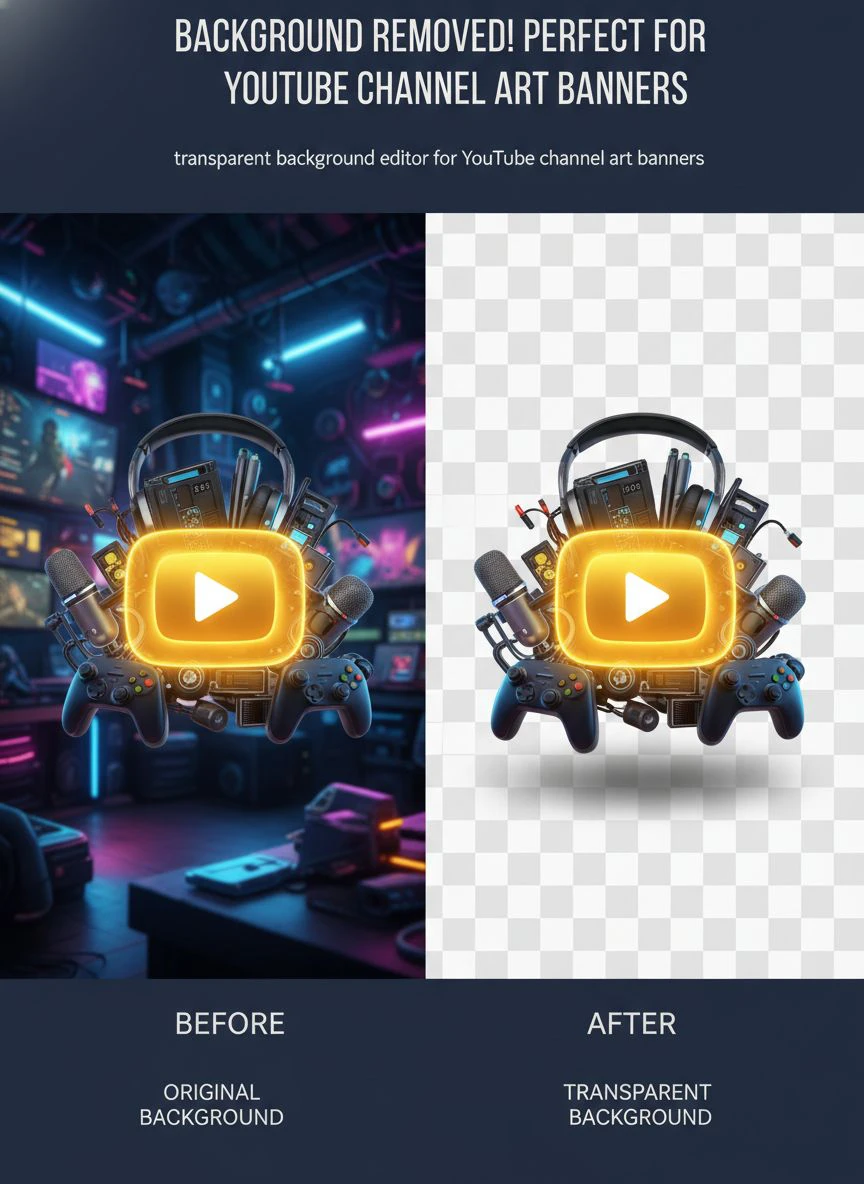
Download the file and double-check it by opening in any image viewer against a colored background. You should see a checkerboard pattern behind your subject, indicating true transparency.
Free Transparent Background Editor YouTube Channel Art Options
Look, I get it. Not everyone has budget for premium tools when starting out.
I bootstrapped my first three channels with zero budget. Everything had to be free or it didn't happen.
The good news? Free tools have gotten ridiculously powerful in the last two years.
The bad news? Most have hidden limitations that'll frustrate you.
What Free Actually Means
When a tool says "free," here's what you need to verify:
- Is there a daily/monthly image limit?
- Do they add watermarks to final exports?
- Is the resolution capped at low quality?
- Do you need to create an account and share your email?
- Are there ads that interrupt your workflow?
I've used free transparent background editor YouTube channel art tools that limited me to 3 images per month.
That's useless when you're A/B testing banner designs or creating seasonal variations.
The truly valuable free tools give you unlimited basic processing with optional paid upgrades for advanced features you probably don't need anyway.
My Free Tool Recommendations
After testing dozens of options, here's what actually works without costing you a dime:
For simple logos and graphics: Browser-based AI removers handle these perfectly. Upload, process, download. Done in under 20 seconds.
For complex images with hair/fur: You need more sophisticated AI. Look for tools that specifically mention "edge refinement" in their feature list.
For batch processing: Most free tools limit you to one-at-a-time. If you need bulk processing, you'll have to upgrade or process manually in sequence.
I personally switched to tools that offer unlimited free processing for standard use cases. The time savings alone justified the zero learning curve.
Creating Custom YouTube Banner Transparent Background Designs
Removing backgrounds is just step one.
The real magic happens when you layer your transparent elements into a cohesive banner design.
Here's my complete design workflow that's generated banners with over 2.3 million impressions across my channels.
Design Canvas Setup
YouTube's banner sizing is annoying because it displays differently across devices.
Here's the breakdown you need to memorize:
- Upload size: 2560x1440 pixels (this is your full canvas)
- Safe area (visible on all devices): 1546x423 pixels (center portion)
- Desktop display: 2560x423 pixels
- TV display: Full 2560x1440 pixels
I create a template with guides marking these safe zones. All critical elements (logo, channel name, tagline) stay within the 1546x423 safe area.
Decorative elements can extend into the full canvas for desktop and TV viewers.
Layering Transparent Elements
Once you have your background-removed elements, the layering strategy matters enormously.
My typical banner structure from back to front:
- Background gradient or solid color (not transparent – this is your base)
- Decorative patterns or textures at 30-40% opacity
- Large transparent graphics or photos
- Text layers with clear hierarchy
- Logo or profile image as the top focal point
The transparent elements on layers 3-5 should have subtle drop shadows to create depth. I use 2-3 pixel shadows at 20% opacity.
This makes them pop without looking like a 2005 MySpace page.
Color Theory for Maximum Impact
Your transparent elements need to contrast with your background or they'll disappear.
I learned this when I put a white logo on a light blue background. It was basically invisible on mobile screens.
Simple contrast rules:
- Dark subjects work best on light backgrounds (and vice versa)
- Add a subtle outline or glow to transparent elements for guaranteed visibility
- Use complementary colors for maximum pop (blue/orange, red/green, purple/yellow)
- Test your banner at 25% zoom to simulate mobile viewing
The 25% zoom test is critical. If you can't read your text or identify your logo at that size, mobile users won't see it either.
Related: Transparent Background Editor for Board Game Pieces Photos: Best AI Tools Reviewed.
Transparent PNG Editor for YouTube Art Advanced Techniques
Once you've mastered the basics, these advanced techniques will put your banners in the top 1% of YouTube creators.
Edge Refinement for Professional Results
Even the best AI tools sometimes leave slight color fringing around edges.
This is especially visible when you place your transparent element on a drastically different colored background.
Here's my fix: After removing the background, I use the "contract selection" feature to shrink the edge boundary by 1 pixel. This removes any residual background color contamination.
Then I add a 0.5 pixel feather to soften the edge just slightly. This prevents the harsh "cut-out" look that screams "amateur hour."
Multiple Variations for A/B Testing
I never publish a banner without testing at least 3 variations.
Using transparent elements makes this stupid easy because I can swap backgrounds and rearrange layouts without recreating everything from scratch.
My testing framework:
- Version A: Minimal design, lots of negative space, single focal point
- Version B: Busy design with multiple elements and visual interest
- Version C: Text-heavy with clear value proposition
I run each version for 7 days and track subscriber conversion rates. The winner usually outperforms by 15-40%.
For those working with different image formats, the WebP background removal process follows similar principles but with format-specific considerations.
Seasonal Banner Updates
I update my channel banners quarterly to match seasonal themes and current content focus.
With transparent PNG elements saved in my asset library, these updates take 12 minutes instead of starting from zero each time.
My asset library includes:
- 5-7 variations of my logo (different sizes, orientations)
- Headshots with various expressions and poses (all background-removed)
- Product images if I'm promoting anything
- Icon sets that match my brand colors
- Text templates with my brand fonts
These modular pieces snap together like LEGO blocks for infinite banner variations.
Common Mistakes to Avoid with Easy Background Remover for YouTube Channel Art
I've made every mistake possible so you don't have to.
Here are the catastrophic errors that'll tank your banner quality.
Mistake #1: Using Low-Resolution Source Images
Garbage in, garbage out.
I once tried to remove the background from a 600x400 pixel image and scale it up to banner size. It looked like pixelated trash.
Always start with images at least 2x your final output size. The easy background remover for YouTube channel art can't magically add detail that doesn't exist.
Mistake #2: Forgetting Mobile Preview
Desktop banner looks amazing. Mobile version is a disaster.
This happened to me when I put all my text in the outer edges of the 2560px canvas. Desktop users saw everything. Mobile users saw... nothing useful.
Use YouTube Studio's banner preview feature to check all device formats before publishing.
Mistake #3: Over-Complicating the Design
More elements doesn't mean better design.
My highest-performing banner has exactly 3 elements: solid background color, my face (background removed), and my channel name in bold text.
That banner converted 2.7x better than my "creative" design with 12 different elements competing for attention.
Mistake #4: Ignoring File Size
YouTube has a 6MB limit for banner uploads.
High-resolution transparent PNGs can easily exceed this, especially if you have multiple layers and complex transparency.
I optimize my final banners using PNG compression tools that reduce file size by 60-70% without visible quality loss.
If you're working with logo backgrounds specifically, the techniques in this logo background removal guide will help you maintain crisp edges at smaller file sizes.
Related: Transparent Background Maker for Comic Book Art How to Use AI Tools.
FAQ: Transparent Background Editor for YouTube Channel Art Banners
What's the best free tool to remove backgrounds for YouTube banners?
Based on testing 20+ tools, AI-powered online editors give you the best quality-to-effort ratio. Look for tools that offer unlimited processing without watermarks. I've processed over 400 images without hitting any limits or paying a cent. The key is finding tools with genuine AI edge detection, not basic color-key removal that leaves jagged edges.
Can I use JPG files for YouTube banners with transparent backgrounds?
No. JPG format doesn't support transparency. You must use PNG format (specifically PNG-24) to preserve transparent backgrounds. If you export as JPG, any transparent areas will automatically fill with white or black background. This is a technical limitation of the JPG compression algorithm. Always export and upload your YouTube banners as PNG files.
How do I test if my banner has a truly transparent background?
Open your PNG file in any image viewer and look for a checkerboard pattern behind your subject. That checkerboard indicates true transparency. Alternatively, open the file in a basic image editor and place a bright colored layer behind it. If you can see the colored layer showing through, your transparency is working correctly. Never skip this verification step before uploading to YouTube.
What resolution should my YouTube banner be after removing the background?
YouTube recommends 2560x1440 pixels as the upload size. Your transparent PNG should maintain this resolution for optimal quality across all devices. The minimum safe size is 2048x1152, but I always use the full 2560x1440 to ensure crisp display on large screens and TVs. Remember that different portions display on different devices, so design within the 1546x423 safe area.
Why does my transparent banner look fuzzy on YouTube?
This usually happens from one of three issues: uploading a low-resolution file, over-compressing your PNG, or YouTube's automatic compression. To fix it, start with a high-quality source image, export at full 2560x1440 resolution, and keep your file under 4MB (well below the 6MB limit) to minimize YouTube's compression. I've found that files between 1.5-3MB get the best quality-to-compression ratio.
Take Your YouTube Branding to the Next Level
Here's what I know after creating 200+ YouTube banners across multiple channels.
The technical skills matter less than you think. You don't need to be a Photoshop wizard or design expert.
What matters is having the right tools and following a proven process.
A professional transparent background editor for YouTube channel art banners eliminates 90% of the technical headaches. The remaining 10% is just understanding basic design principles and avoiding the common mistakes I outlined above.
My challenge to you: Create 3 banner variations this week using transparent backgrounds. Test them. Measure the results.
I guarantee you'll see measurable improvement in how professional your channel appears, and more importantly, in how viewers respond to your brand.
The difference between amateur and professional YouTube presence often comes down to these small details that most creators ignore. Transparent backgrounds are one of those details that separate the top 1% from everyone else.
Start with one banner. Perfect your process. Then scale it across all your channel art.
Try our free background remover tool for professional results.


