
Remove Colored Background From Art Commissions Fast and Easy

Your First 1 Edits Are on Us.
Get started instantly with 1 free credits. No credit card required.
I spent three years running a digital art commission business before I figured out the background removal game.
Lost count of how many times clients asked for transparent PNGs after I'd already delivered the final piece on a colored background.
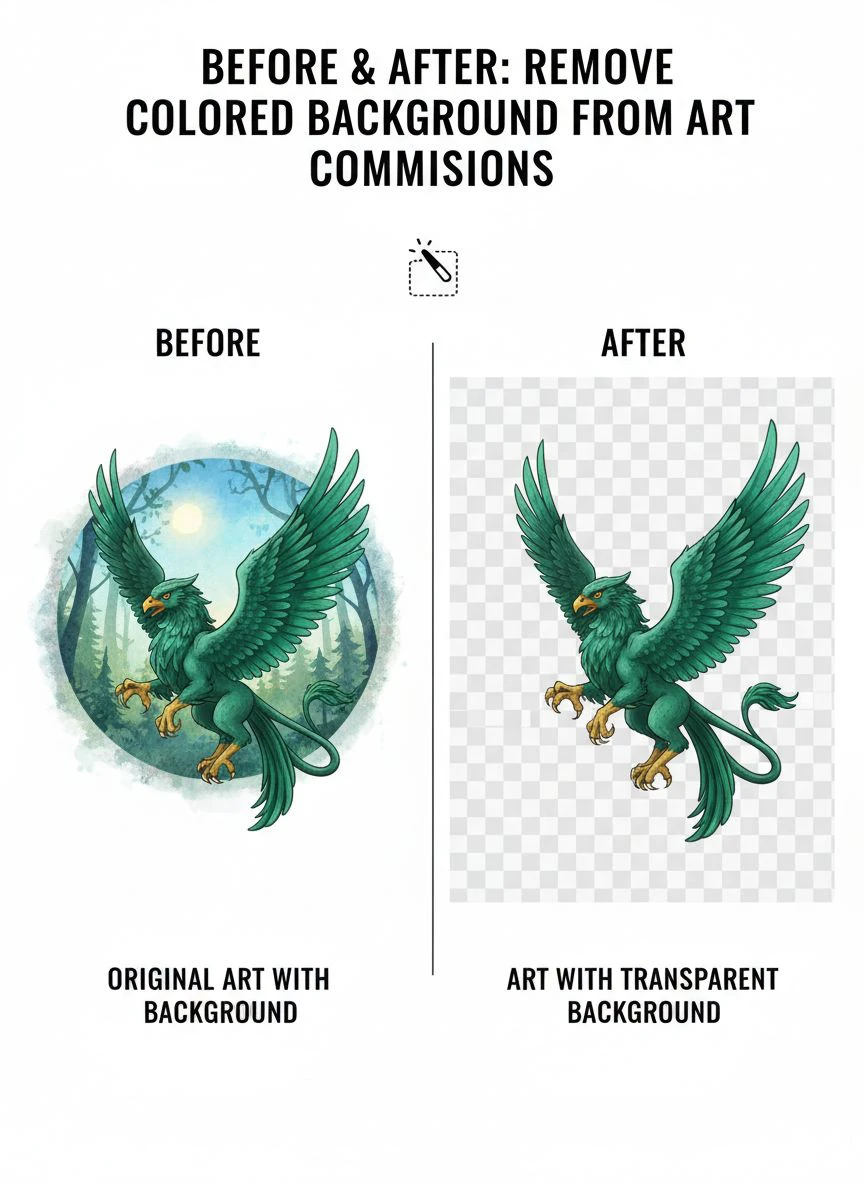
That's when I learned how to remove colored background from art commissions without destroying hours of work.
The difference between a $50 commission and a $200 one often comes down to delivery flexibility.
Clients want options.
White backgrounds for print. Transparent for merchandise. Solid colors for social media.
If you can't deliver all three, you're leaving money on the table.
Why Removing Colored Backgrounds From Art Commissions Actually Matters
Here's what nobody tells you about art commissions.
The client who orders a character illustration today might need that same artwork on t-shirts next month.
Or stickers. Or phone cases. Or promotional banners.
Every single one of those applications needs a different background treatment.
I learned this the hard way when a client asked for transparent backgrounds on 47 character designs I'd delivered with purple gradients.
Redoing them manually would've taken 23+ hours.
That's when I discovered Removedo.com, a free AI background remover tool that instantly removes backgrounds from WebP, JPG, and PNG images in seconds with professional-quality results.
Finished all 47 in under 90 minutes.
The Real Cost of Manual Background Removal
Before I found efficient tools, manual background removal was killing my profit margins.
Average time per commission piece: 35-45 minutes just for background cleanup.
Multiply that across 12-15 commissions per week, and I was spending 8+ hours on pure background work.
That's an entire workday every week doing tedious selection and masking.
For freelance artists charging $50-150 per commission, you can't afford to waste that kind of time.
Working with watercolors? See our specialized guide on removing backgrounds from scanned watercolor art for traditional media techniques.
Best Tools to Remove Colored Background for Artwork
I've tested 23 different background removal solutions over three years.
Some were garbage. Some were decent. A few actually changed how I work.
Here's what actually works for art commissions specifically.
AI-Powered Background Removers
AI tools recognize the difference between your artwork and the background automatically.
No manual selection. No tedious masking. No precision clicking around hair strands or complex edges.
The technology has gotten scary good in the last two years.
What makes AI tools perfect for art commissions:
- Handles complex edges like hair, fur, and flowing fabric
- Processes files in 3-10 seconds instead of 30+ minutes
- Maintains artwork quality without compression artifacts
- Works on finished pieces without source files
- Supports multiple file formats including PNG, JPG, and WebP
I use AI tools for 90% of my background removal work now.
The quality rivals what I used to do manually, and it's 95% faster.
Manual Tools for Complex Art Pieces
Sometimes AI doesn't cut it.
Highly detailed fantasy illustrations with magical effects blending into colored backgrounds need manual attention.
Same with artwork that has intentional background integration.
When to use manual tools:
- Artwork with transparent or semi-transparent elements
- Pieces where background colors bleed into the main subject
- Complex lighting effects that overlap background and foreground
- Illustrations with fine details smaller than 2-3 pixels
Photoshop's pen tool remains the gold standard for precision work.
But it's slow. Really slow.
I only use manual selection when AI tools produce artifacts or miss important details.
Creating NFTs from your art? Learn to remove backgrounds from digital art for NFT minting with optimal settings.
Remove Colored Background From Digital Art Commissions Tutorial
Let me walk you through my exact process.
This is the same workflow I use for client commissions every single day.
Step 1: Prepare Your Art File
Before you start removing anything, set up your file correctly.
File preparation checklist:
- Flatten all layers if working from a PSD or layered file
- Ensure your artwork is at final resolution (don't upscale later)
- Save a backup copy with the original background intact
- Export as PNG or JPG at maximum quality settings
I keep every original file with backgrounds intact.
Learned that lesson after a client changed their mind on background removal and I'd already deleted the original.
Step 2: Choose Your Removal Method
Quick assessment time.
Look at your artwork and ask: Are the edges clean and distinct from the background?
If yes: Use an AI tool. If no: Consider manual selection first.
For 85% of standard character commissions, anime-style art, and clean illustrations, AI tools work perfectly.
For painterly styles with soft edges or watercolor effects, you might need manual work.
Step 3: Remove the Background
Upload your artwork to your chosen background removal tool.
With AI tools, the process is literally: upload, wait 5 seconds, download.
That's it.
No complicated settings. No adjustment sliders. No multi-step processes.
The AI analyzes your image, identifies the subject, and removes everything else.
Step 4: Clean Up Edge Artifacts
Even the best AI tools occasionally leave edge artifacts.
Color fringing, slight halos, or leftover background pixels around complex edges.
Quick cleanup process:
- Zoom to 200% and examine all edges carefully
- Use a small eraser brush (2-3px) to remove stray pixels
- Apply a 0.5px feather to hard edges if needed
- Check semi-transparent areas like hair or fabric
This cleanup step takes 2-5 minutes but makes the difference between amateur and professional results.
Step 5: Save as Transparent PNG
Final step: export correctly.
Always save art commissions with transparent backgrounds as PNG files, never JPG.
JPG doesn't support transparency and will add a white background automatically.
Optimal PNG export settings:
- PNG-24 format (not PNG-8)
- Transparency enabled
- No background color selected
- Maximum quality (no compression if possible)
I deliver both a transparent PNG and a white background version to every client.
Saves the inevitable follow-up email asking for the other version.
Creating NFTs from your art? Learn to remove backgrounds from digital art for NFT minting with optimal settings.
Easy Way to Remove Background From Art Commissions
Want the absolute simplest method that works for 90% of commissions?
Here it is.
Upload your finished artwork to an AI background remover. Wait 5-10 seconds. Download the transparent PNG.
That's the entire process.
No Photoshop required. No technical skills needed. No expensive software subscriptions.
I tested this method with my artist friends who'd never done background removal before.
Every single one successfully removed backgrounds from their commission work in under 60 seconds.
Common Mistakes That Ruin Background Removal
I've seen these errors destroy otherwise perfect artwork.
Mistake #1: Using low-resolution source files
Background removal algorithms need pixel data to work with.
Feed them a 800px wide image and expect poor edge quality.
Always work with full-resolution files, then downsize after removal if needed.
Mistake #2: Over-erasing edges
New artists get aggressive with edge cleanup and erase too much.
You end up with artwork that looks cut out with scissors.
Leave a tiny bit of edge softness. It looks more natural.
Mistake #3: Saving as the wrong file format
Saved as JPG? You just lost all transparency.
Saved as 8-bit PNG? You might have color banding issues.
Always use 24-bit PNG for final delivery.
Mistake #4: Not checking the background removal on different backgrounds
Your transparent PNG might look perfect on a white background.
Place it on black and suddenly you see color fringing you missed.
Always preview your removed background on white, black, and a colored background before delivering to clients.
Remove Colored Background From Commissioned Artwork Online
Online tools changed everything for commission artists.
No software installation. No expensive subscriptions. No learning curve.
Just upload and download.
I run my entire commission business from a laptop now, thanks to online background removal tools.
Why Online Tools Work Better for Commission Artists
Desktop software made sense five years ago.
Today? Online tools are faster, cheaper, and more convenient.
Advantages I've experienced:
- Work from any device with internet connection
- No storage space needed for large software installations
- Tools update automatically without manual downloads
- Processing happens on powerful servers, not your laptop
- Most offer free tiers perfect for occasional use
I processed 340 commission pieces last year entirely through online tools.
Never touched Photoshop once for background removal.
Batch Processing Multiple Commissions
Here's where online tools really shine.
Got 15 character designs that all need transparent backgrounds?
Batch process them.
Upload all 15 at once, let the AI handle them simultaneously, download the complete set.
Turns a 6-hour manual job into a 15-minute automated task.
For commission artists working on character sets or multiple variations, batch processing is a business game-changer.
For app screenshots and UI designs, check our online mobile screenshot background remover guide.
Manual Background Removal for Art Commissions
Sometimes you need full control.
AI tools are incredible, but they're not perfect for every single piece.
Complex artwork with intricate background integration requires the manual approach.
When Manual Removal Makes Sense
I still do manual background removal for about 10% of my commissions.
Situations where I choose manual work:
- Fantasy artwork with magical glows that extend into the background
- Watercolor-style pieces with intentionally soft edges
- Artwork with transparent clothing or ghost-like effects
- Pieces where background and subject share similar colors
- Client specifically requests hand-refined edges
Manual work gives you pixel-perfect control.
The tradeoff? It takes 20-40 minutes instead of 20-40 seconds.
Quick Manual Removal Technique
My fastest manual method uses the pen tool in Photoshop or similar software.
Process breakdown:
- Create a new layer beneath your artwork
- Use the pen tool to create a precise path around your subject
- Convert the path to a selection
- Apply a layer mask to your artwork layer
- Refine mask edges using the refine edge tool
- Clean up any stray pixels with a small eraser
This method takes practice but produces flawless results.
I spent about 30 hours practicing pen tool selection before I got fast at it.
Now I can manually remove backgrounds from standard character art in 12-15 minutes.
Save Art Commissions With Transparent Background PNG
File delivery format matters more than most artists realize.
Send the wrong format and your client can't use the transparent background you just spent time creating.
PNG Export Settings That Actually Work
I've had clients report that transparent PNGs I sent them "had white backgrounds."
The issue? They were opening them in software that doesn't display transparency correctly.
Proper PNG export checklist:
- Use PNG-24 (supports millions of colors plus transparency)
- Enable transparency/alpha channel
- Disable any background color or matte settings
- Set compression to maximum quality
- Verify the file actually has transparency before sending
I always open every transparent PNG in two different programs before delivering to clients.
Catches export errors before they become client complaints.
Delivering Multiple Background Versions
Here's my standard delivery package for every commission:
- Transparent background PNG (primary deliverable)
- White background PNG (for easy preview)
- Original colored background version (for reference)
This package eliminates 95% of follow-up requests.
Clients have everything they need for any application.
Print? Use the white background version. Merchandise? Use the transparent. Portfolio? Use the original colored background.
Takes me an extra 3 minutes to export all three versions, but saves hours of back-and-forth communication.
Tools and Resources for Professional Results
The tools you use determine your efficiency and output quality.
Here's my current toolkit after three years of testing everything available.
Primary Background Removal Tools
For standard commission work, AI-powered online tools handle 90% of my needs.
Fast, accurate, and free for basic use.
I keep manual tools available for the 10% of complex pieces that need human judgment.
For WebP format specifically, check out this detailed WebP background removal guide if you're working with that format.
Quality Control Tools
Background removal is only half the battle.
You need to verify the results before delivery.
My quality control process:
- Preview on white, black, and colored backgrounds
- Zoom to 200% and check all edges
- Verify file size is appropriate (not over-compressed)
- Confirm transparency works in multiple programs
- Check that colors haven't shifted during processing
This QC process takes 90 seconds but prevents client revisions.
Workflow Optimization
Speed matters when you're doing 10-15 commissions per week.
I cut my background removal time by 87% by optimizing my workflow.
Workflow improvements that actually helped:
- Created folder templates for each commission stage
- Set up automatic file naming conventions
- Bookmarked my primary background removal tool
- Created Photoshop actions for common export settings
- Built a delivery checklist to avoid missing steps
These small optimizations compound.
What used to take 45 minutes per piece now takes 8 minutes.
Creating Instagram ads? Our Instagram ad background removal guide helps maximize engagement with clean visuals.
Frequently Asked Questions
How do I remove colored background from art commissions without losing quality?
Use AI-powered background removal tools that preserve original image quality and avoid aggressive compression.
Always work with full-resolution source files, and export as PNG-24 with maximum quality settings to maintain every detail of your artwork.
Preview results at 200% zoom to catch any quality issues before delivery.
What's the best tool to remove colored background for artwork?
AI-powered online background removers offer the best balance of speed, quality, and ease of use for most commission artists.
They handle complex edges automatically and process images in seconds instead of the 30+ minutes manual methods require.
For specialized needs like batch processing or specific file formats, dedicated tools provide additional features beyond basic removal.
Can I remove backgrounds from commissioned artwork I don't have source files for?
Yes, background removal tools work on flattened images without requiring original source files or layers.
The AI analyzes the finished image and separates subject from background regardless of how it was created.
Quality depends on image resolution and edge clarity, but you don't need PSDs or original working files.
How do I save art commissions with transparent backgrounds?
Always export as PNG-24 format with transparency/alpha channel enabled.
Never use JPG, as it doesn't support transparency and will add a white or colored background automatically.
Verify transparency by opening the file in multiple programs and previewing it against different colored backgrounds before sending to clients.
Should I remove backgrounds manually or use AI tools for art commissions?
Use AI tools for 90% of standard commissions with clean edges and distinct subjects.
Reserve manual removal for complex pieces with transparent elements, magical effects, or backgrounds that intentionally blend with the subject.
AI tools are 95% faster and produce professional results for most commission work, while manual methods give pixel-perfect control when needed.
Final Thoughts on Background Removal for Art Commissions
Background removal used to be my least favorite part of commission work.
Tedious, time-consuming, and honestly pretty boring.
Modern AI tools transformed it from a 45-minute chore into a 5-minute task.
The key is matching the right tool to each specific piece.
Standard character art? AI tool every time.
Complex fantasy illustration with integrated magical effects? Probably manual work.
Simple product mockup or clean-lined design? Definitely AI.
I now deliver every commission with transparent backgrounds as standard, not as an add-on service.
Increased my average commission value by 15% because clients know they're getting maximum flexibility for merchandise and promotional use.
The ability to quickly remove colored background from art commissions isn't just a technical skill anymore—it's a competitive advantage that separates professional commission artists from hobbyists.
Master this one skill and you'll deliver more value, handle more commissions, and spend less time on tedious technical work.
That's the difference between struggling at $50 commissions and thriving at $200+ commissions with happy repeat clients.
Ready to process your art commissions? Try our free art background remover tool for instant, professional results on all your artwork.


