
Remove Background Lunapic: How to Easily Erase and Edit Photos Online

Your First 1 Edits Are on Us.
Get started instantly with 1 free credits. No credit card required.
Remove Background Lunapic: How to Easily Erase and Edit Photos Online
I've been editing photos for over a decade, and I've watched countless tools come and go. When it comes to remove background Lunapic, there's a reason this web-based image editor has stuck around.
You know that frustrating moment when you need to cut out a product photo for your store, but Photoshop costs too much?
Or when you're trying to create a professional headshot with a transparent background, but every tool either mangles the edges or charges you per image?
I get it. I've been there.
That's exactly why Lunapic became my go-to recommendation for anyone who needs quick, reliable background removal without breaking the bank.
In this guide, I'll walk you through everything I've learned about using Lunapic's background eraser - from the basic automatic removal to advanced manual techniques that'll save you hours of tedious editing.
What Makes Lunapic Background Eraser Different from Other Tools
Here's what I love about Lunapic after testing dozens of background remover online tools.
It's completely free.
No account registration required.
Works directly in your browser.
Supports multiple file formats including PNG, JPG, and WebP.
But here's the kicker - Lunapic gives you both automatic AND manual control.
Most free background removal tools force you to accept whatever their AI spits out. Lunapic lets you fine-tune every edge, every pixel.
I remember working on a client's product photos last year. The automatic removal got 90% right, but the hair details needed manual touch-ups. With Lunapic's brush tools, I could fix those problem areas in minutes instead of starting over with a different tool.
The remove image background easily with Lunapic process becomes second nature once you understand the interface.
Step-by-Step Guide: How to Remove Background Lunapic
Let me break down the exact process I use every time.
Step 1: Upload Your Image
- Go to Lunapic.com
- Click "Upload" or drag your image directly
- Wait for the upload (usually takes 2-3 seconds)
Step 2: Navigate to Background Removal
- Look for "Edit" in the top menu
- Select "Transparent Background" or "Background Removal"
- Choose between automatic or manual removal
Step 3: Automatic Removal First
- Click "Auto Remove Background"
- Let Lunapic analyze your image
- Review the results
Step 4: Manual Refinement
- Use the eraser tool for problem areas
- Adjust brush size based on detail level
- Zoom in for precise edge work
Step 5: Save Your Work
- Choose PNG format for transparent backgrounds
- Download your edited image
- Keep the original file as backup
This Lunapic background eraser tutorial approach has never failed me, even with complex images like furniture with intricate details or people with flowing hair.
Automatic vs Manual Background Removal: When to Use Each
After years of testing, I've figured out exactly when each method works best.
Use Automatic Removal For:
- Simple product photos with clear edges
- Headshots with solid backgrounds
- Images with high contrast between subject and background
- Quick social media posts
Switch to Manual Removal For:
- Hair and fur details
- Transparent or glass objects
- Complex backgrounds with similar colors
- Professional photography projects
Here's a real example: I was editing photos for an online furniture store. The automatic tool handled solid wood chairs perfectly. But for a glass coffee table? I had to switch to manual mode and carefully trace each reflection and edge.
The free web-based image editor for background removal gives you this flexibility without forcing you into expensive software subscriptions.
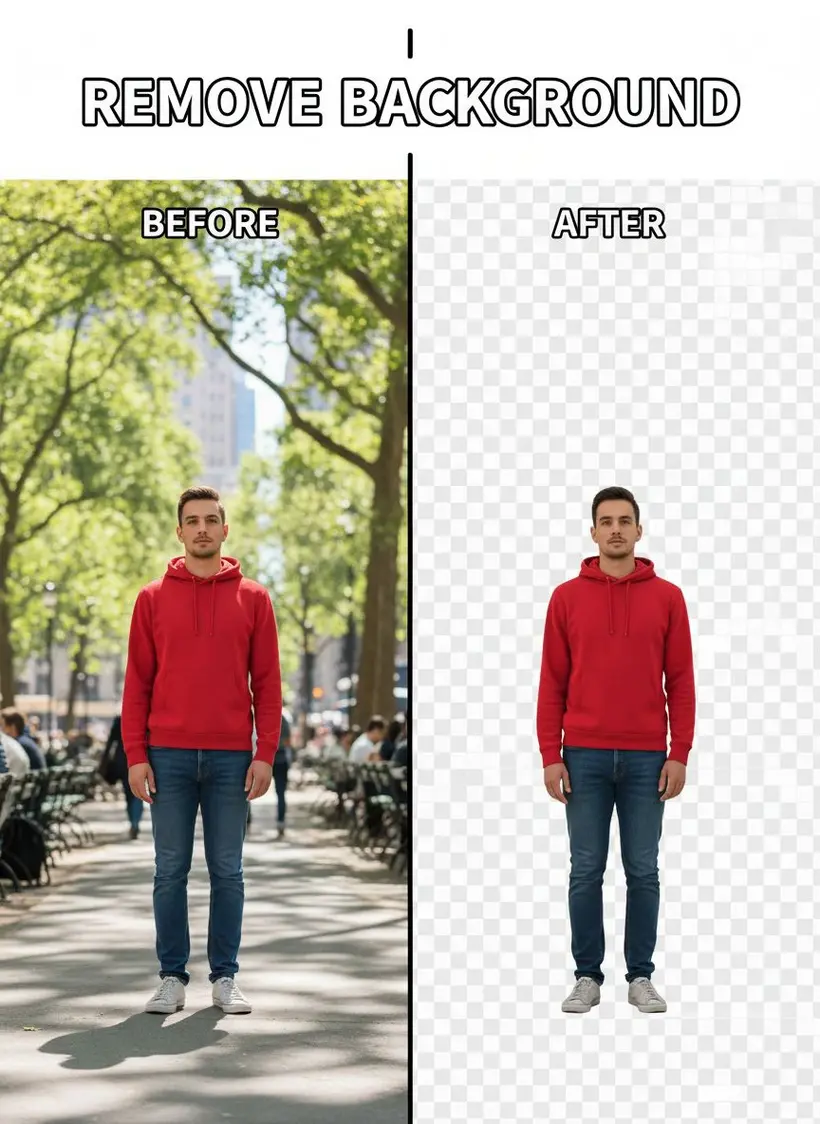
![Background removal process comparison showing automatic vs manual results]
Advanced Techniques for Perfect Transparent Background Creation
Want to know the tricks that separate amateur edits from professional results?
Edge Refinement Secrets:
- Always zoom to 200% for detail work
- Use a smaller brush size than you think you need
- Work in sections, not all at once
- Save frequently during long editing sessions
Dealing with Problem Areas:
- Hair: Use the "Hair" specific tool in advanced options
- Shadows: Decide early if you want to keep or remove them
- Reflections: Handle these manually for best results
- Fine details: Work with maximum zoom and patience
Color Matching Tips:
- Check your results against different backgrounds
- Use the "Feather" option for softer edges
- Adjust opacity for semi-transparent effects
The steps to create transparent background in Lunapic become muscle memory once you practice these techniques.
I learned this the hard way when a client rejected my first attempt at their product photos. The edges looked "cut out with scissors" instead of professionally edited.
Lunapic Cutout Tool Features and Hidden Gems
Most people never discover Lunapic's advanced features. Here are the ones that changed my workflow:
Magic Wand Tool:
- Perfect for solid color backgrounds
- Adjust tolerance for better selection
- Use with shift key for multiple selections
Brush Variations:
- Soft brush for organic edges
- Hard brush for geometric shapes
- Custom sizes from 1-50 pixels
Advanced Options:
- Feathering for natural edges
- Opacity control for transparency effects
- Color replacement mode
- Background pattern options
Batch Processing Workarounds:
While Lunapic doesn't offer official batch processing, I've developed a system:
- Open multiple browser tabs
- Use keyboard shortcuts for common actions
- Save templates for similar image types
The Lunapic cutout tool for pictures guide I wish someone had shown me years ago includes these time-saving features.
Common Mistakes and How to Avoid Them
I've made every mistake possible with background removal. Learn from my failures:
Mistake #1: Rushing the Upload
- Problem: Compressed images give poor results
- Solution: Use highest quality source images
Mistake #2: Ignoring Edge Quality
- Problem: Jagged, obvious cutout edges
- Solution: Always zoom in and refine manually
Mistake #3: Wrong File Format
- Problem: Saving as JPG loses transparency
- Solution: Always use PNG for transparent backgrounds
Mistake #4: Not Checking Different Backgrounds
- Problem: Edges that look good on white fail on dark backgrounds
- Solution: Test your cutout on multiple background colors
Mistake #5: Overusing Automatic Mode
- Problem: Accepting mediocre results instead of perfecting them
- Solution: Always refine automatic results manually
The how to erase background automatically in Lunapic process works great as a starting point, but manual refinement makes the difference between amateur and professional results.
Alternative Solutions: When Lunapic Isn't Enough
Look, I love Lunapic, but sometimes you need different tools for different jobs.
When to Consider Alternatives:
- Batch processing hundreds of images
- Advanced AI precision for complex scenes
- Commercial projects requiring perfection
- Time-sensitive workflows
My Top Alternative Recommendation:
For users who need more advanced AI-powered background removal, I recommend checking out Removedo.
Removedo offers:
- Instant AI background removal
- Support for WebP, JPG, and PNG formats
- Professional-quality results with preserved resolution
- Perfect for e-commerce and marketing projects
I use Removedo when I need lightning-fast results for commercial projects, and Lunapic when I want hands-on control for creative work.
Other Scenarios:
- Free AI background removal tools for volume work
- Logo background removal for branding projects
- WebP background removal for modern image formats
The simple photo editing app for background removal category has exploded in recent years, giving us more options than ever.
Conclusion: Master Background Removal Like a Pro
After a decade of photo editing, I can tell you that mastering remove background Lunapic techniques will solve 80% of your background removal needs.
The combination of free access, manual control, and decent automatic features makes Lunapic an essential tool in any editor's toolkit.
Remember the key points:
- Start with automatic removal, refine manually
- Use PNG format for transparent backgrounds
- Zoom in for detailed edge work
- Practice on different image types
- Don't rush the process
Whether you're running an e-commerce store, creating social media content, or just want to improve your photo editing skills, these techniques will save you time and money.
Ready to start removing backgrounds like a pro? Head over to Lunapic and practice with these techniques. For faster AI-powered results on commercial projects, try Removedo and see the difference professional-grade tools can make in your workflow.
Frequently Asked Questions
Q: Is Lunapic completely free to use?
A: Yes, Lunapic offers free background removal with no account registration required. Some advanced features may require creating a free account.
Q: What image formats does Lunapic support for background removal?
A: Lunapic supports JPG, PNG, GIF, and WebP formats. For transparent backgrounds, always save as PNG.
Q: How accurate is Lunapic's automatic background removal?
A: The automatic removal works well for simple backgrounds and clear subject edges. Complex images with hair, fur, or intricate details typically need manual refinement.
Q: Can I use Lunapic for commercial projects?
A: Yes, Lunapic allows commercial use of edited images. Always check their current terms of service for the most up-to-date information.
Q: What's the maximum file size Lunapic can handle?
A: Lunapic typically handles images up to 5MB. For larger files, compress the image first or consider alternative tools like Removedo.
Q: Does Lunapic work on mobile devices?
A: Yes, Lunapic works in mobile browsers, though the interface is optimized for desktop use. Detailed editing work is easier on larger screens.
Q: How do I fix jagged edges after background removal?
A: Use the manual eraser tool with a soft brush, zoom in to 200%, and carefully refine the edges. The feather option can also help smooth rough edges.
Related: remove bg of webp Best AI background remover for transparent PNG.
Related: remove bg webp Best AI Background Remover Tools.
Related: remove background from webp Best AI Background Remover for WebP.
Try our free background remover tool for professional results.
Need high-volume processing? View our pricing plans.


