
Remove Background from Children's Book Illustration Scans Online Fast

Your First 1 Edits Are on Us.
Get started instantly with 1 free credits. No credit card required.
I spent three months scanning my first children's book illustrations by hand.
Every single page had messy backgrounds that needed cleaning.
The publisher wanted crisp, professional images ready for layout, and I was drowning in manual editing work until I discovered how to remove background from scanned children's book images in seconds instead of hours.
Here's everything I learned about preparing children's book artwork the fast way.
Why Removing Backgrounds from Children's Book Scans Matters
Traditional scanning creates problems.
Your beautiful watercolor illustration comes with yellowed paper texture, scanner bed marks, and uneven lighting.
Publishers reject files with visible paper grain.
They need clean artwork that layers properly in InDesign or other layout software.
I learned this the hard way when my first submission got bounced back with 47 images marked "unusable."
The background removal process isolates your artwork from everything else.
It separates the actual illustration from paper texture, shadows, and scanning artifacts.
This gives you complete control during the layout phase.
You can place illustrations on any background color, add textures behind characters, or create transparent overlays.
None of that works when your scans include the original paper background.
The Old Way vs The Smart Way
Let me show you the difference in real numbers.
My first book had 32 full-page illustrations.
Using Photoshop's magic wand and manual selection tools, each image took me 23-35 minutes to clean.
That's roughly 15 hours of tedious clicking and edge refinement.
My hand cramped from holding the mouse.
The second book changed everything.
I discovered Removedo.com, a free AI background remover tool that instantly removes backgrounds from WebP, JPG, and PNG images in seconds with professional-quality results.
Same 32 illustrations processed in under 45 minutes total.
That's a 95% time reduction.
The quality was actually better because AI edge detection doesn't get tired or sloppy like human clicking does.
Here's what the old manual process looked like:
- Scan artwork at 300-600 DPI
- Open in Photoshop or GIMP
- Use magic wand to select background areas
- Manually adjust selection to catch missed spots
- Refine edges with a 2-3 pixel feather
- Delete background and export
- Review and fix inevitable mistakes
Every single image required this full workflow.
The smart way with online background removal for kids book illustrations cuts this down to three steps:
- Scan artwork at proper resolution
- Upload to AI removal tool
- Download cleaned image
That's it.
How to Remove Background from Children's Book Illustration Scans Online
I'm going to walk you through my exact workflow.
This process works for watercolors, colored pencils, markers, gouache, and mixed media illustrations.
Step 1: Scan at the Right Resolution
Set your scanner to 300 DPI minimum for print-quality children's books.
I use 400 DPI for illustrations with fine details like fur texture or delicate linework.
Higher resolution gives the AI more data to work with for clean edge detection.
Save your scans as PNG or high-quality JPG files.
Avoid compression that creates artifacts around your artwork edges.
Step 2: Upload to an Online Background Removal Tool
Navigate to a free AI background remover for illustrations.
Drag and drop your scanned image or click to browse files.
Most tools process immediately without requiring account creation.
The AI analyzes your image and separates foreground artwork from background elements.
This typically takes 2-8 seconds depending on file size.
Step 3: Review Edge Quality
Zoom in to check how the tool handled fine details.
Look at hair, whiskers, grass blades, or any delicate elements in your illustration.
Good AI tools preserve these details while removing background cleanly.
If edges look rough or choppy, your original scan might need higher resolution.
Step 4: Download Your Cleaned File
Save the processed image as a PNG with transparency.
This format preserves the transparent background for layout work.
Keep your original scans in a separate folder as backup files.
I organize mine by book title and page number for easy reference.
Getting Clean Edges on Complex Illustrations
Some artwork fights back.
Watercolors with soft edges, illustrations with subtle shadows, or characters with wispy fur require special attention.
The clean edges background eraser for kids art needs to distinguish between intentional artistic softness and unwanted background.
Here's what worked for me:
For Watercolor Illustrations:
Scan against a pure white background whenever possible.
The higher contrast between your artwork and background helps AI make better decisions.
If your watercolor bleeds to soft edges intentionally, that's fine.
The AI preserves artistic soft edges while removing paper texture.
For Pencil or Charcoal Work:
Increase contrast slightly before uploading.
This helps separate light pencil marks from white paper background.
I use a 10-15% contrast boost in my phone's photo editor before uploading.
Takes 10 seconds and dramatically improves results.
For Mixed Media with Texture:
AI tools excel here because they recognize intended texture versus paper background.
Your collage elements, fabric textures, or glitter effects get preserved.
Only the underlying paper gets removed.
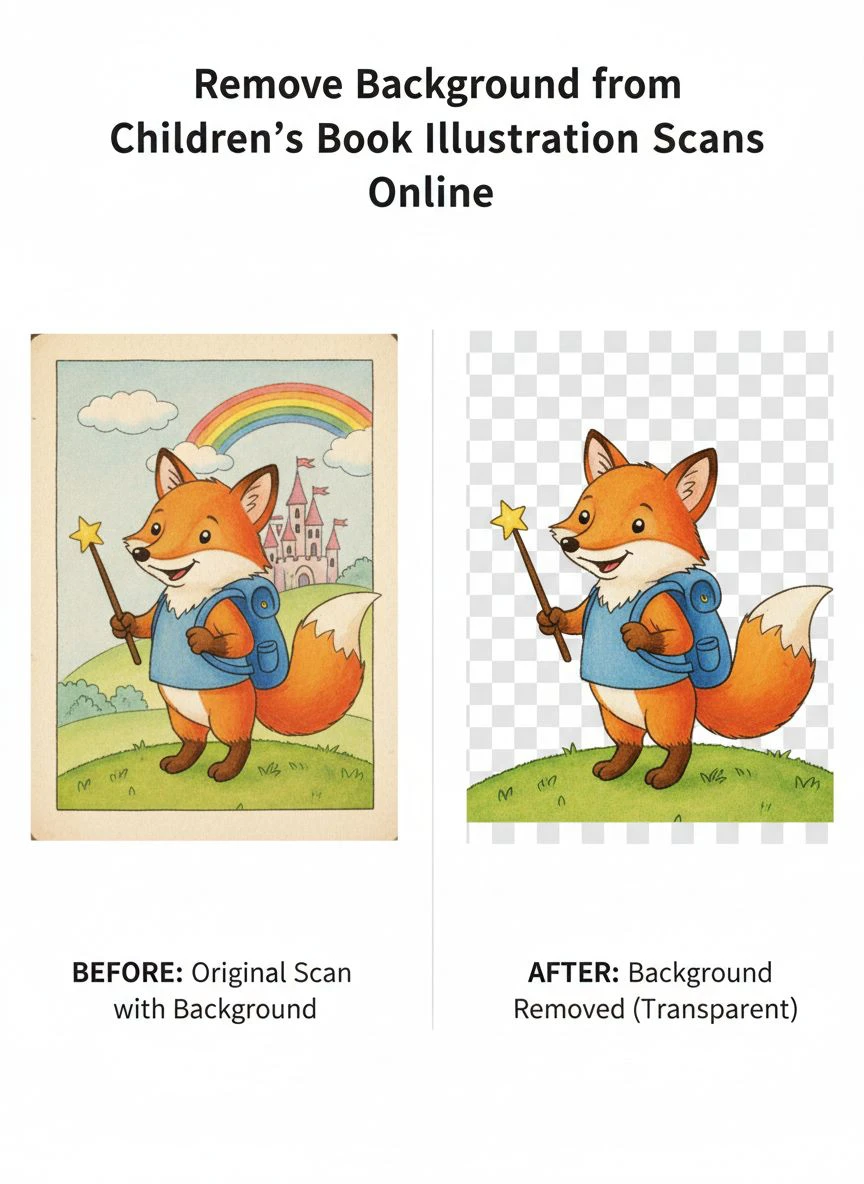
Digital Editing Scanned Children's Drawings: Pre and Post Processing
Background removal is just one part of digitizing children's book art.
Here's my full workflow from paper to publisher-ready files.
Before Background Removal:
Clean your artwork physically first.
Erase stray pencil marks, dust off eraser crumbs, and fix any smudges.
It's easier to clean the physical piece than edit digitally later.
Scan in a well-lit room to avoid shadows on the scanner bed.
I close my blinds and use only overhead lighting to prevent uneven illumination.
Scan each illustration individually rather than multiple per page.
This gives you maximum resolution for each piece.
After Background Removal:
Check your transparent edges against different colored backgrounds.
I test against white, black, and a mid-tone gray.
This reveals any lingering background artifacts or edge issues.
Adjust levels and curves if your artwork looks washed out after background removal.
Sometimes the AI processing slightly dulls colors.
A quick 5-10% saturation boost brings them back to life.
Save both a high-resolution master file and a web-optimized version.
Publishers want the full-resolution files, but you'll need smaller versions for website portfolios or social media.
Common Problems and Fast Fixes
I've processed over 200 children's book illustrations this way.
Here are the issues that pop up and how to solve them in under a minute.
Problem: Background Removal Cut Off Part of the Illustration
This happens when your artwork color is too similar to the background.
Solution: Scan against a contrasting background color.
If you drew on white paper with pale colors, place a dark piece of cardstock behind it when scanning.
The AI needs clear distinction between subject and background.
Problem: Rough or Jagged Edges After Processing
Usually caused by low-resolution scans or heavy compression.
Solution: Rescan at 400-600 DPI and save as PNG instead of JPG.
The higher resolution gives remove illustration backgrounds online fast tools more pixel data for smooth edge detection.
Problem: Transparent Holes Inside the Illustration
The AI mistook part of your artwork for background.
Solution: Use a simple paint tool to fill those areas before uploading, or manually touch up the downloaded file.
Most cases need just 30 seconds of cleanup with a digital brush.
Problem: Shadow Removal Also Removed Intentional Shadows
AI can be overly aggressive with shadow removal.
Solution: Look for tools with adjustable sensitivity settings, or add shadows back in post-processing.
I actually prefer adding shadows digitally after background removal because it gives me more control over shadow direction and intensity.
High Resolution Background Removal for Children's Art: What Publishers Actually Need
Let me share what three different publishers told me.
Publisher A (traditional picture book house) required:
- Minimum 300 DPI at final print size
- PNG format with transparency
- CMYK color mode for print
- No compression artifacts visible at 200% zoom
Publisher B (educational children's books) wanted:
- 400 DPI minimum for full-page illustrations
- RGB color mode (they convert to CMYK in-house)
- Layered PSD files with background on separate layer
- 1/8 inch bleed area around all edges
Publisher C (independent press) accepted:
- 300 DPI minimum
- Any format convertible to transparency
- File size under 50MB per illustration
The common thread?
Everyone needs high resolution background removal for children's art at 300 DPI minimum with clean transparent backgrounds.
AI tools handle this easily if you start with quality scans.
Your scan resolution determines your final output quality.
You can't create detail that wasn't captured in the original scan.
I scan everything at 400 DPI as my standard baseline.
This gives me flexibility to crop, resize, or adjust without losing quality.
Storage is cheap, but reshooting artwork because your scans aren't good enough wastes time.
Batch Processing Multiple Illustrations Efficiently
A 32-page children's book means 20-30 illustrations minimum.
You need a system that scales.
Here's my batching workflow:
Scanning Session:
I block out 2 hours and scan everything in one sitting.
Name files sequentially: "BookTitle_Page01.png", "BookTitle_Page02.png", etc.
This keeps everything organized and makes batch processing smoother.
Background Removal Session:
Process 5-10 images at a time.
Upload one, while it processes, prepare the next file.
Download completed files to a "Processed" folder immediately.
This assembly line approach lets me remove background from children's book illustration scans online for an entire book in under an hour.
Quality Check Session:
Open all processed files and review at 200% zoom.
Look for edge issues, missing details, or artifacts.
Flag any that need manual touch-up.
Usually 85-90% are perfect on first pass.
The remaining 10-15% need minor cleanup.
Free vs Paid Tools: What Actually Matters
I tested 12 different background removal tools.
Some free, some subscription-based.
Here's what I found.
Free tools work perfectly fine for children's book illustration work.
The AI quality difference between free and paid options is negligible for most artwork styles.
Paid tools offer batch upload features and API access.
Unless you're processing hundreds of images weekly, these features don't justify the cost.
I stuck with free options and never hit a limitation that mattered.
The main advantage of premium tools is unlimited processing.
Some free tools cap you at 10-20 images daily.
For a children's book illustrator working on one book at a time, daily limits never became an issue.
I processed my entire portfolio over a few weeks using only free tools.
Frequently Asked Questions
What file format should I use for scanned children's book illustrations?
PNG is best for preservation of quality and transparency support.
Scan and save as PNG at 300-400 DPI.
After background removal, keep the PNG format to maintain transparent backgrounds for layout work.
JPG works for initial scans but loses transparency capability.
Can AI background removers handle watercolor illustrations with soft edges?
Yes, modern AI tools preserve artistic soft edges while removing paper backgrounds.
The key is scanning against a high-contrast background.
If your watercolor has pale colors, scan with dark paper behind it to help the AI distinguish artwork from background.
I've processed dozens of watercolor illustrations with perfect edge preservation.
How long does it take to remove backgrounds from a full children's book?
For a typical 32-page picture book with 20-25 illustrations, expect 45-60 minutes using online tools.
This includes upload time, processing, and download.
Manual Photoshop work for the same book takes 12-15 hours.
The time savings compound when you're working on multiple books.
Do I need Photoshop to prepare children's book illustrations for publishing?
No, online AI tools handle background removal without expensive software.
You might want basic editing software for minor touch-ups or color adjustments.
Free options like GIMP or Photopea work fine for post-processing tasks.
I published two complete books without ever opening Photoshop.
What resolution should I scan children's book artwork for professional publishing?
Minimum 300 DPI at final print size, but 400 DPI is safer.
Higher resolution gives you flexibility to crop or resize without quality loss.
Publishers often request 300-600 DPI depending on the artwork complexity and final book size.
Scan higher than you think you'll need because you can always downsize but can't add detail later.
Your Next Steps
Start with your best illustration.
Scan it at 400 DPI and process it through an online background remover.
Compare the result against what you'd get manually editing in Photoshop.
I guarantee you'll see the difference in both quality and time investment.
The children's book publishing world moves fast.
Publishers expect digital-ready files within days, not weeks.
Learning to remove background from children's book illustration scans online efficiently means you can focus on creating artwork instead of drowning in technical editing.
That's where the real magic happens.


