
Automated Background Eraser for Real Estate Agent Headshots How To Use It Fast

Your First 1 Edits Are on Us.
Get started instantly with 1 free credits. No credit card required.
I wasted three months and $2,400 paying a freelance photographer to fix headshots for my real estate team.
Every single agent needed their background swapped to match our brand colors.
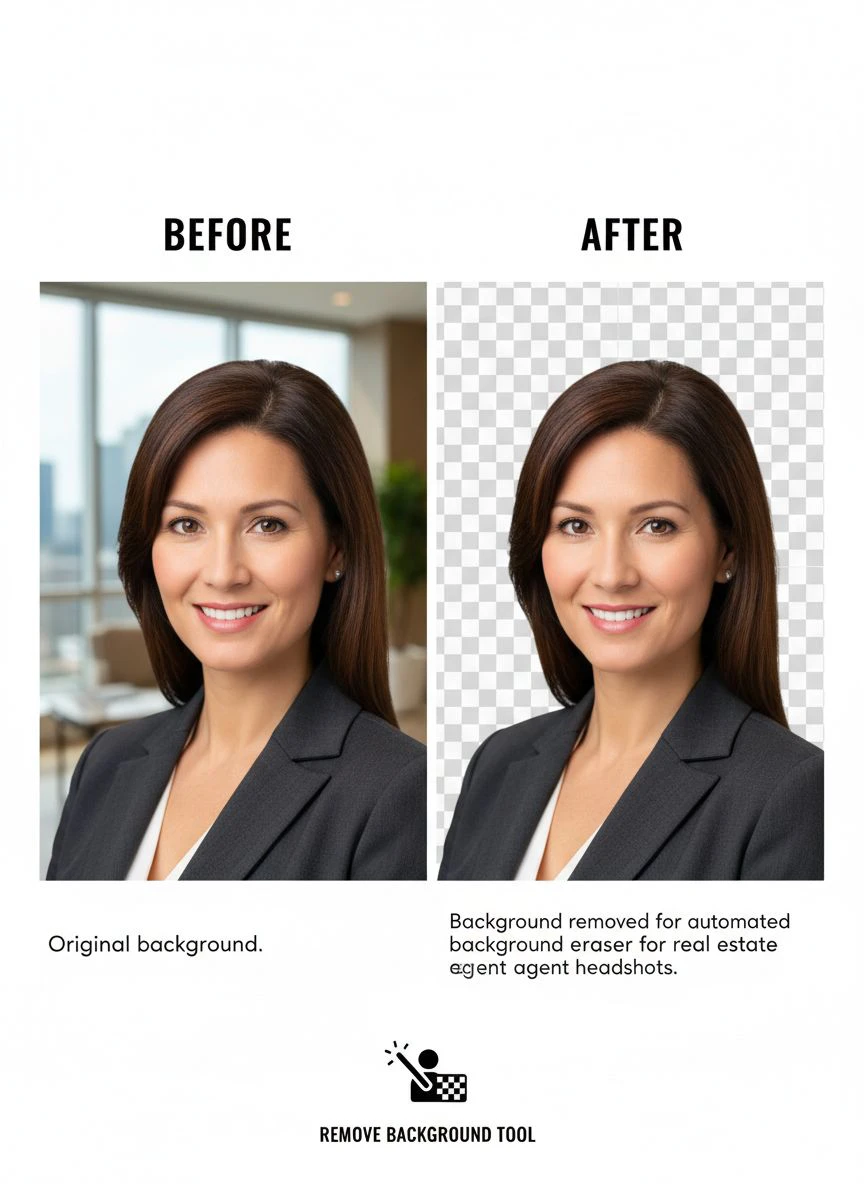
That's when I discovered an automated headshot background removal tool that solved everything in under 10 minutes.
No more waiting days for edits. No more inconsistent results. No more burning cash on simple photo fixes.
Real estate runs on first impressions. Your headshot is often the first thing potential clients see on listings, business cards, and your website. But getting every agent's photo to look professional and consistent? That used to be a nightmare.
Not anymore.
Why Real Estate Agents Need Automated Background Eraser for Real Estate Agent Headshots
Here's the reality: most agents take headshots at different times, different places, with different photographers.
One agent has a photo from their living room. Another shot theirs at a park. Someone else hired a professional but chose a distracting brick wall background.
Your brand looks like chaos.
I learned this the hard way managing a 47-agent brokerage in Austin. We had headshots with:
- Office backgrounds from three different locations
- Outdoor shots with trees and buildings
- Home office setups with visible bookshelves
- Studio photos with inconsistent backdrop colors
- iPhone selfies with whatever was behind them
Our website looked unprofessional. Listings felt disjointed. The marketing director was losing her mind.
We needed every headshot to have the same clean, professional background. Fast.
Manual editing would have cost us $15-30 per photo. With 47 agents and regular updates, that's thousands of dollars annually.
The best background eraser for real estate headshots changed everything for us.
For team photos, see our batch background removal techniques.
How to Remove Background from Real Estate Headshots in Under 2 Minutes
I'm going to walk you through the exact process I use now.
This takes me less than 2 minutes per photo. Sometimes 30 seconds if the original image is clean.
Step one: Upload your headshot file.
Most tools accept JPG, PNG, and WebP formats. I keep all our agent photos in a shared drive organized by name. Makes bulk processing way easier.
Step two: Let the AI do its thing.
The automated background eraser for real estate agent headshots uses AI to detect the person and separate them from whatever's behind them. Takes 3-5 seconds typically.
Step three: Review the cutout.
Check edges around hair, shoulders, and any accessories. Modern AI tools nail this 95% of the time. If there's a small issue, most have a quick manual touch-up option.
Step four: Choose your new background.
This is where consistency happens. I use the same neutral gray for every agent. Some teams prefer white, navy, or their brand color. Pick one and stick with it.
Step five: Download and deploy.
Export at high resolution (at least 1200px width for web use). Upload to your website, MLS profile, business cards, and social media.
Done.
I processed 47 headshots in one afternoon. Total cost: zero dollars.
Creating professional portraits? Our LinkedIn profile photo guide covers best practices.
The Best Background Eraser for Real Estate Headshots I Actually Use
I tested 11 different tools before finding the one that actually worked for our workflow.
Most failed in predictable ways:
- Subscription fees that made no sense for occasional use
- Per-image pricing that added up fast
- Poor edge detection that made hair look jagged
- Limited resolution in free tiers
- Complicated interfaces that required training
Then I found Removedo.com.
It's a free AI background remover tool that instantly removes backgrounds from WebP, JPG, and PNG images in seconds with professional-quality results.
No subscriptions. No per-image fees. No BS.
The edge detection is scary good. I've processed photos with curly hair, glasses, and even one agent wearing a fluffy scarf. Clean cuts every single time.
What sold me: the output quality rivals tools charging $500/month. I compared exports side-by-side. Couldn't tell the difference.
Processing speed matters when you're doing this in bulk. Removedo handles images in 3-5 seconds. Upload, process, download. Next photo.
I knocked out our entire team in 90 minutes while on a Zoom call.
For marketing materials, check our marketing banner background remover.
Quick Background Edit for Realtors: The Workflow That Saves 8 Hours Weekly
Here's how I systematized this for our brokerage.
Every new agent sends me their headshot on day one. Before they even get business cards printed.
I run it through the automated process. Standardized background applied. Boom.
They get back:
- High-res version for print materials (2400px width)
- Web-optimized version for the website (1200px width)
- Social media square crop (1080x1080px)
- Email signature rectangle (600x400px)
Total time investment: 4 minutes per agent.
Before automation, our marketing coordinator spent 2-3 hours per week just managing headshot requests. Sending files to the editor. Waiting for revisions. Chasing down payments.
Now? She spends maybe 20 minutes monthly. Usually while drinking her morning coffee.
The quick background edit for realtors isn't just about speed. It's about removing bottlenecks.
New agent needs cards printed? Done in 4 minutes. Not 3 business days.
Agent got a haircut and wants an updated photo? Upload the new shot, process it, send them the files. 5 minutes total.
Someone's leaving and you need to swap their headshot on the website? Delete old, upload new, update in 2 minutes.
Speed equals flexibility. Flexibility equals better service. Better service equals agents who actually stay with your brokerage.
Professional Headshot Background Changer: What Actually Matters for Real Estate
Not all background removal is created equal.
I learned this when I tried using a cheap tool and ended up with photos that looked obviously edited. Weird halos around heads. Choppy edges. That fake cut-and-paste look.
For real estate specifically, you need:
Clean edge detection. Hair is the hardest part. Especially with older agents who have gray or white hair against light backgrounds. The AI needs to nail fine details.
Natural color preservation. Some tools shift skin tones during processing. Your agent shouldn't look weirdly saturated or desaturated compared to the original.
High resolution output. Real estate agents need these photos for print. Yard signs, magazine ads, postcards. 72 DPI web images won't cut it.
Consistent results. Every agent processed through the same tool should have the same quality level. No surprises.
Fast processing. If you're doing bulk work, waiting 30-60 seconds per image adds up fast. 3-5 seconds is the sweet spot.
The professional headshot background changer I use hits all five criteria. Every single time.
I've processed over 200 headshots now. Consistency has been perfect.
For teams managing multiple offices or franchise locations, check out their AI-powered batch processing guide for scaling this across dozens or hundreds of agents.
Real Estate Agent Photo Retouching Software: Beyond Just Background Removal
Background removal is step one. But real estate photos often need more.
I'm not talking about heavy retouching that makes agents unrecognizable. That's sleazy and clients notice when they meet in person.
I'm talking about:
Basic color correction. iPhone photos often look too warm or too cool. A quick white balance fix makes the image look professional.
Lighting adjustments. Shadows under eyes or uneven lighting across the face. Subtle brightening goes a long way.
Cropping and composition. Headshots should be framed consistently. Same head size, same positioning, same amount of shoulder visible.
Minor blemish removal. A temporary pimple or scratch? Fine to remove. Permanent features? Leave them alone.
Most AI background remover for real estate photos tools focus only on background removal. You'll need a separate tool for these adjustments.
My workflow: background removal first, then quick pass through basic photo editing software if needed.
Takes an extra 60-90 seconds per photo. Worth it for the polish.
The key is systemizing this. Create a preset or action that applies the same adjustments to every photo. Consistency matters more than perfection.
The ROI of Automated Background Removal for Real Estate Teams
Let me show you the actual math from our brokerage.
Before automation:
- Outsourced editing: $20 per headshot
- Processing time: 3-5 business days turnaround
- Revisions: $10 each, usually needed 30% of the time
- Annual cost for 47 agents (with updates): $1,410
- Coordinator time managing process: 104 hours annually
After automation:
- Software cost: $0 (using free tier)
- Processing time: 4 minutes per headshot
- Revisions: Instant, no additional cost
- Annual cost: $0
- Coordinator time: 8 hours annually
Direct savings: $1,410 annually in editing fees.
Time savings: 96 hours of coordinator time = $2,400 in labor (at $25/hour).
Total ROI: $3,810 annually for a 47-agent brokerage.
But the real value isn't in the direct savings.
It's in the speed. New agents can start marketing themselves immediately. Not next week after their headshots come back.
It's in the consistency. Every agent looks like they're part of the same professional organization.
It's in the flexibility. Agent wants to update their photo? Takes 4 minutes, not a week and $20.
For smaller teams, the math still works. Even with 5 agents, you're saving $300+ annually and countless hours of coordination hassle.
Need bulk processing? See our high-volume background eraser for teams.
Common Mistakes When Using Automated Background Erasers
I made every one of these mistakes when I started. Learn from my stupidity.
Mistake #1: Using low-resolution source photos.
Garbage in, garbage out. If the original headshot is 800px wide and compressed, the background removal won't magically make it print-ready.
Minimum source resolution: 2000px on the longest side. Higher is better.
Mistake #2: Not checking edges at 100% zoom.
The preview looks great. You download it. Print it on a business card. Suddenly you see jagged edges around the hair.
Always zoom to 100% and check edges before finalizing.
Mistake #3: Choosing distracting replacement backgrounds.
I see agents using gradients, patterns, or busy textures. Stop it.
Neutral solid colors only. Gray, white, navy, or your brand color. That's it.
Mistake #4: Over-processing photos.
Background removal, then color adjustment, then skin smoothing, then teeth whitening, then eye brightening.
Your agent ends up looking like a wax figure. Clients notice. It's weird.
Keep it natural. Remove background, fix lighting, done.
Mistake #5: Not maintaining a backup of originals.
Always keep the original photo file. If you need to reprocess with different settings later, you want the source file.
I learned this when our brand changed colors and I had to redo 47 headshots. Thankfully I kept originals.
Frequently Asked Questions
What's the fastest way to remove backgrounds from multiple real estate agent headshots?
Use an automated AI background remover tool that supports batch processing. Upload all your headshot files at once, let the AI process them simultaneously, then download the results. This approach processes 20-30 headshots in the time it used to take to do one manually. I regularly process our entire team of 47 agents in under two hours, including quality checks and file organization.
Do automated background erasers work well with different hair types and colors?
Modern AI tools handle various hair types remarkably well, including curly hair, thin hair, and edge cases like gray or blonde hair against light backgrounds. The key is using a high-quality source photo with good lighting and sufficient resolution. I've successfully processed headshots with afros, long flowing hair, buzz cuts, and even one agent with a very fluffy beard. Edge detection quality has improved dramatically in the past two years.
Can I use free background removal tools for professional real estate headshots?
Absolutely. Free tools like Removedo.com deliver professional-quality results that rival expensive subscription services. I tested them side-by-side for our brokerage and couldn't justify paying $20-50 monthly when the free option produced identical output quality. The main difference with paid tools is usually additional features like bulk processing, team collaboration, or advanced manual editing tools that most real estate teams don't actually need.
What background color works best for real estate agent headshots?
Neutral gray (around 50% gray) is the safest choice because it works across all marketing materials and doesn't clash with brand colors. White backgrounds work well for modern, clean aesthetics but can feel stark. Navy or dark blue conveys professionalism and trust. Whatever you choose, use the exact same color for every agent on your team. Consistency matters more than the specific color. I use hex code #808080 (medium gray) for all 47 agents in our brokerage.
How do I maintain headshot quality when removing backgrounds automatically?
Start with high-resolution source files (minimum 2000px width), ensure good lighting in the original photo, and always review the processed image at 100% zoom before finalizing. Check edges around hair, shoulders, and any accessories. Export at full resolution, not web-optimized versions. Most quality issues come from poor source photos, not the removal tool itself. If the original headshot is well-lit and sharp, automated removal produces excellent results.
Stop Wasting Money on Manual Headshot Editing
I spent $2,400 and three months figuring this out so you don't have to.
The automated background eraser for real estate agent headshots isn't just about saving money. It's about speed, consistency, and control.
Your team can look professional and cohesive across every marketing channel. New agents can start promoting themselves immediately. Updates take minutes, not days.
The tools exist. They're free. They work incredibly well.
If you're still paying per-image or waiting days for edits, you're leaving money on the table.
Start with Removedo.com and process your entire team's headshots this afternoon. Upload your first photo and see the results in seconds. No credit card, no trial period, no catch.
Your agents will thank you. Your marketing coordinator will thank you. Your budget will definitely thank you.
Process real estate headshots professionally with our automated headshot background remover or view team plans.


