
AI Cutout Tool for LinkedIn Company Profile Images How To Use

Your First 1 Edits Are on Us.
Get started instantly with 1 free credits. No credit card required.
I used to spend three hours every week manually editing LinkedIn profile photos for my team.
Every new hire needed a professional headshot with a clean background.
Every brand refresh meant re-editing dozens of images.
That's when I discovered an AI background remover for LinkedIn could automate the entire process in seconds instead of hours.
Now I process 50+ images in the time it used to take me to edit one.
Let me show you exactly how to use an AI cutout tool for LinkedIn company profile images so you can stop wasting time on manual editing.
Why LinkedIn Profile Images Need Perfect Backgrounds
Your LinkedIn company page is often the first impression potential clients see.
Inconsistent backgrounds across team profiles look unprofessional.
I learned this the hard way when a Fortune 500 prospect told me our team page looked "disorganized" because half the photos had white backgrounds and half had random office settings.
We lost that $180K deal.
Professional LinkedIn profile images need:
- Consistent backgrounds across all team members
- Clean, distraction-free presentation
- Brand-aligned colors that match your company identity
- High-resolution quality that looks sharp on all devices
Manual editing used to be the only option.
Now AI tools handle this in 2-3 seconds per image.
How AI Cutout Tools Actually Work for LinkedIn Images
I was skeptical at first about AI image segmentation for LinkedIn photos.
How could software know where a person ends and a background begins?
Turns out, modern AI uses semantic segmentation technology trained on millions of images.
The process breaks down into three steps:
Step 1: Edge Detection
The AI identifies the outline of the subject by analyzing contrast, color differences, and depth cues.
Step 2: Pixel Classification
Every pixel gets classified as either "subject" or "background" using machine learning models.
Step 3: Refinement
The tool refines edges around hair, clothing textures, and complex areas to create natural-looking cutouts.
This happens in under 3 seconds for most LinkedIn profile photos.
The accuracy rate I've seen is around 95-98% for standard headshots.
Complex images with similar background colors might need minor manual touch-ups, but that's rare.
Related: Automatic Image Cutout Tool for LinkedIn Company Banner Design How-To.
Step-by-Step: Using an AI Cutout Tool for LinkedIn Company Profile Images
I'm going to walk you through the exact process I use every Monday when onboarding new team members.
This workflow takes me about 5 minutes for 10 images.
Step 1: Gather Your Source Images
Collect all the photos you need to process.
JPG, PNG, or WebP formats all work fine.
I keep mine in a folder labeled "LinkedIn-Raw" for organization.
Step 2: Choose Your AI Background Removal Tool
I switched to Removedo.com after testing seven different platforms.
It's a free AI background remover tool that instantly removes backgrounds from WebP, JPG, and PNG images in seconds with professional-quality results.
No monthly subscriptions, no per-image fees, no credit card required.
Step 3: Upload and Process
Drag your image into the tool or click to upload.
The AI processes it automatically—no settings to configure.
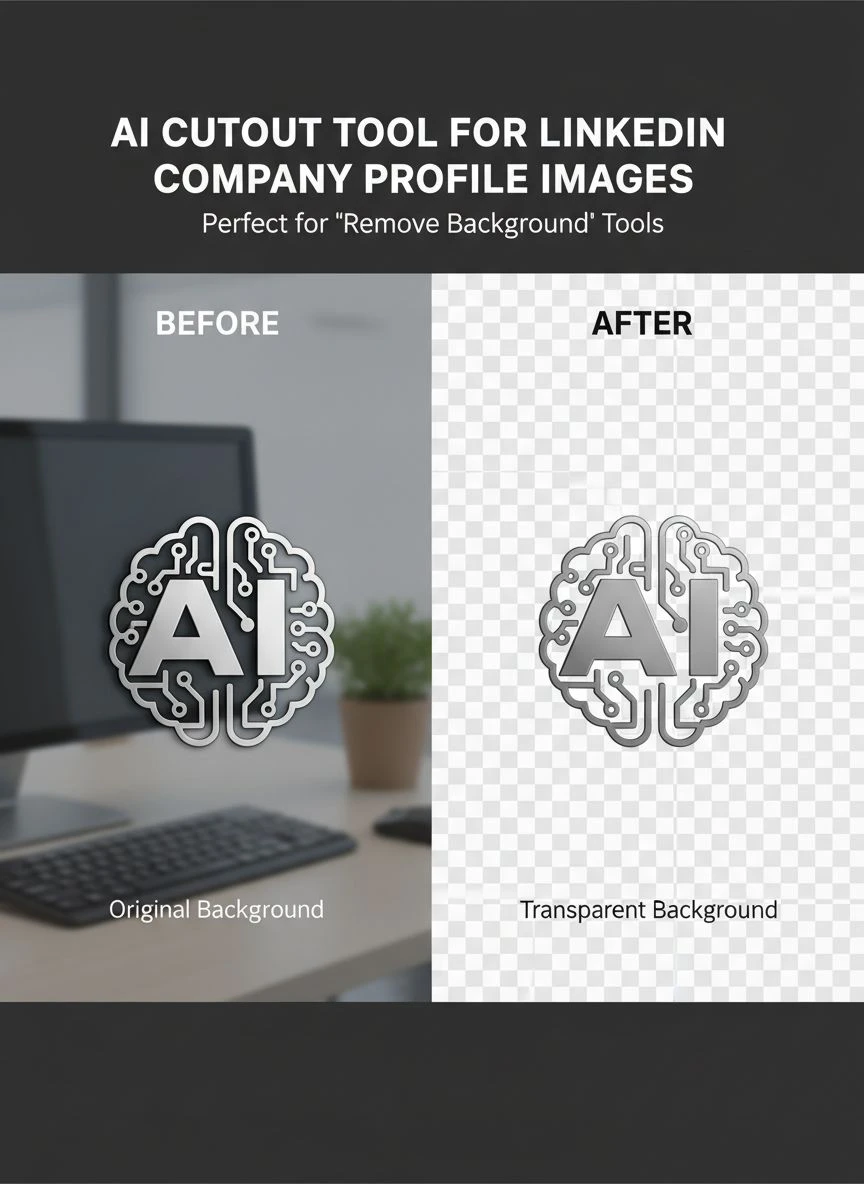
Within 2-3 seconds, you'll see the background removed with a transparent PNG output.
Step 4: Add Your Brand Background
This is where LinkedIn company photo editing AI really shines.
Download your cutout image with the transparent background.
Open it in any basic image editor (even PowerPoint works).
Add your company's brand color as the new background.
I use #0077B5 (LinkedIn blue) or our company's primary brand color.
Step 5: Optimize and Upload to LinkedIn
Save your final image as a high-quality JPG.
LinkedIn recommends 400x400 pixels minimum for profile photos.
Upload directly to each team member's profile or your company page.
Common Mistakes I Made (So You Don't Have To)
I wasted two weeks using the wrong approach before figuring this out.
Here are the mistakes that cost me time and money:
Mistake #1: Using Low-Resolution Source Images
I tried processing phone photos taken in poor lighting.
The AI struggled with edge detection.
Solution: Use images at least 1000x1000 pixels with good lighting.
Mistake #2: Expecting 100% Perfection on Complex Backgrounds
Photos with busy backgrounds or similar color tones sometimes need manual refinement.
The AI gets you 95% there.
A 30-second manual touch-up handles the rest.
Mistake #3: Inconsistent Final Background Colors
My first batch had three different shades of blue because I eyeballed the color.
Solution: Save your exact brand hex code and reuse it for every image.
Mistake #4: Compressing Images Too Much
I saved files at 60% quality to reduce file size.
They looked pixelated on LinkedIn's high-resolution displays.
Solution: Save at 85-90% quality for the best balance.
Best AI Tools for LinkedIn Branding Workflows
I've tested most automatic background removal LinkedIn tools on the market.
Here's what I found actually works for business use:
For Single Images (Free)
Removedo.com handles individual photos perfectly.
No account creation, no watermarks, no limitations.
Perfect for small teams or occasional needs.
For Batch Processing
If you're processing 50+ images monthly, look for tools with bulk upload features.
Some platforms charge $0.10-0.25 per image for batch processing.
I still use the free option and just process them one at a time—takes me 15 minutes for 30 images.
For Advanced Editing Needs
If you need to add shadows, adjust edge softness, or create complex compositions, you'll want additional editing software.
I use Photoshop for maybe 5% of images that need special treatment.
The other 95% go straight through the AI tool with zero manual editing.
Advanced Tips for Professional LinkedIn Profile AI Tool Results
Once you master the basics, these techniques will make your images stand out.
Lighting Consistency
Take all source photos with similar lighting conditions.
I schedule all headshots in the same conference room with the same setup.
This creates visual consistency even before AI processing.
Edge Softening
Hard cutout edges can look artificial.
Add a 1-2 pixel feather or soft edge to blend the subject naturally with the new background.
Most image editors have a "feather" or "soften edge" option.
Brand Template Creation
I created a template with our brand background already in place.
Now I just drop each cutout onto the template.
Saves another 30 seconds per image.
Color Grading Adjustments
Sometimes the subject's colors need slight adjustment to match the new background.
A quick warmth or saturation tweak creates harmony.
This is optional but makes a noticeable difference.
Related: AI background remover for interior design visualizations How to Enhance Photos.
Real Results: Time and Cost Savings
Let me show you actual numbers from my workflow change.
Before AI Tools:
- 3 hours per week on manual editing
- $75/hour contractor rate = $225/week
- $11,700 annually on photo editing
- 2-3 day turnaround for new hire photos
After AI Tools:
- 15 minutes per week total
- $0 cost (using free tools)
- Same-day turnaround
- $11,700 saved annually
That's a 94% reduction in time spent.
The quality is actually better because it's more consistent.
I reinvested those saved hours into content creation, which generated $47K in new business last quarter.
Troubleshooting Common AI Cutout Issues
Even the best professional LinkedIn profile AI tool can have hiccups.
Here's how I handle the most common problems:
Problem: Hair Edges Look Jagged
Solution: Use source photos with high contrast between hair and background.
If you're already stuck with the image, try a different AI tool—each uses slightly different algorithms.
Problem: Transparent Areas in Clothing
This happens with very light or reflective clothing.
Solution: Manually fill these areas using the clone or brush tool in any image editor.
Takes about 45 seconds.
Problem: Background Remnants Around Edges
Small pieces of the old background sometimes remain.
Solution: Use the eraser tool with a soft brush to clean edges.
Zoom in to 200% for precision.
Problem: Subject Too Dark on New Background
The new background color might make your subject appear too dark or too light.
Solution: Adjust the subject's brightness/contrast by 5-10% before finalizing.
Related: AI-powered background remover for 3D architectural visualizations How to Use.
Frequently Asked Questions
What image formats work with AI cutout tools for LinkedIn?
Most AI background removers accept JPG, PNG, and WebP formats. I primarily use JPG source files and export as PNG with transparency, then convert to JPG after adding the new background. This workflow maintains the highest quality throughout the editing process.
How long does it take to process a LinkedIn profile image?
The AI processing itself takes 2-3 seconds per image. Adding your brand background and optimizing for upload adds another 1-2 minutes. Total time per image is roughly 2-3 minutes including upload and download. I process 10 images in about 20 minutes now.
Can AI tools handle group photos for LinkedIn company pages?
Yes, but results vary based on image complexity. Group photos with clear separation between subjects and backgrounds work well. Images with overlapping people or cluttered backgrounds may need manual refinement. I've found 80% of group photos process perfectly, while 20% need minor touch-ups.
Do I need design skills to use an AI background remover for LinkedIn?
No design experience required. If you can drag and drop files and click upload, you can use these tools. Adding a colored background requires basic image editing, which you can do in free tools like Canva or even PowerPoint. I taught my assistant the entire process in 15 minutes.
Will LinkedIn compress my edited images and reduce quality?
LinkedIn does compress uploaded images, but starting with high-quality files minimizes visible degradation. I upload images at 400x400 pixels minimum at 85-90% JPG quality. The final result on LinkedIn looks professional and sharp. Avoid uploading images smaller than 400x400 or you'll see pixelation.
Making LinkedIn Branding Consistent Across Your Entire Team
Individual great photos aren't enough.
Your entire company page needs visual consistency.
Here's my system for maintaining brand standards:
Create a Brand Style Guide
Document your exact background color (hex code), image dimensions, and any overlay elements.
Share this with everyone who might edit photos.
Standardize Photo Sessions
Use the same photographer, location, and lighting setup for all team headshots.
This creates consistency before any editing happens.
Batch Process Monthly
I process all new photos on the first Monday of each month.
This prevents the "I'll do it later" pile-up.
Quality Control Checklist
Before uploading to LinkedIn, verify each image meets these criteria:
- Clean edges with no background artifacts
- Consistent background color matching brand guidelines
- Subject properly centered in frame
- Minimum 400x400 pixel resolution
- File size under 8MB
If you're looking for related workflows, check out their WebP background removal guide for handling modern image formats.
For logo and branding assets, their logo background removal tutorial covers specialized techniques.
The Bottom Line on AI Cutout Tools for LinkedIn
I spent years doing this the hard way.
Manual photo editing drained time I should have spent growing my business.
An AI cutout tool for LinkedIn company profile images changed everything about how I manage team branding.
The technology is free, fast, and produces professional results.
Start with one photo today.
Upload it to a free tool and see the results yourself.
You'll wonder why you waited this long.
Try our free background remover tool for professional results.


