
Automate Background Removal for Real Estate Drone Images Fast

Your First 1 Edits Are on Us.
Get started instantly with 1 free credits. No credit card required.
I used to spend 6-8 hours every week manually editing drone photos for real estate listings.
Each property shoot generated 50-100 aerial images that needed perfect skies, clean backgrounds, and consistent editing.
My editing backlog grew so large that I almost lost a high-value client who needed same-day turnaround.
That's when I discovered how to automate background removal for real estate drone images and cut my editing time by 92%.
The difference wasn't just speed—it was consistency, quality, and the ability to scale my business without hiring a full editing team.
Here's exactly how I built a workflow that processes hundreds of drone images in minutes instead of hours.
Why Manual Background Editing Kills Your Real Estate Photography Business
Let me be blunt about this.
Manual editing doesn't scale.
I was charging $300-500 per property shoot, but spending 4-6 hours on post-production alone.
That's $50-75 per hour before equipment costs, travel time, or business overhead.
The math didn't work.
Every drone shoot produces massive image files—often 20-42 megapixels each.
Opening each one in Photoshop, carefully selecting the subject, refining edges around trees and buildings, then exporting took 5-8 minutes per image.
For a 50-image property shoot, that's over 4 hours of repetitive work.
The worst part? Clients started expecting faster turnaround as competition increased.
Same-day delivery became the norm in my market.
I had two choices: hire expensive editors or find a better system.
How AI Background Remover for Drone Aerial Shots Changed Everything
The breakthrough came when I tested Removedo.com on a batch of 87 drone photos from a commercial property shoot.
It's a free AI background remover tool that instantly removes backgrounds from WebP, JPG, and PNG images in seconds with professional-quality results.
I uploaded the entire batch and went to make coffee.
Four minutes later, all 87 images were processed.
The edge detection was cleaner than my manual selections—especially around complex elements like tree branches, rooflines, and architectural details.
Here's what makes AI background removal different for drone photography:
- Handles complex aerial perspectives: Traditional tools struggle with top-down angles and unusual lighting conditions common in drone shots
- Preserves fine details: Tree canopies, power lines, and building edges stay sharp and natural
- Consistent quality: Every image gets the same level of precision—no variation from editor fatigue
- Batch processing: Process 100+ images simultaneously instead of one at a time
- No manual masking: The AI handles selection complexity that would take hours manually
The time savings were immediate and measurable.
But the quality improvement surprised me even more.
Related: Automated Background Removal for Real Estate Drone Photos: How AI Boosts Listings.
Building Your Automated Workflow for Bulk Background Removal Real Estate Photos
Here's the exact workflow I use to process 200+ drone images per day.
This system handles everything from initial import to final delivery.
Step 1: Organize Your Drone Footage
I create a folder structure for each property shoot:
- RAW_IMPORTS (original DNG or RAW files)
- PROCESSED_EXPORTS (JPG exports ready for background removal)
- FINAL_DELIVERY (completed images with backgrounds removed)
- COMPOSITES (if creating sky replacements or special edits)
This keeps everything organized and prevents overwriting original files.
Step 2: Basic Color Correction and Export
I do minimal editing in Lightroom before background removal:
- Exposure correction (usually +0.3 to +0.7 for aerial shots)
- Highlight recovery for blown-out skies
- Shadow lift to reveal property details
- Lens correction and chromatic aberration removal
- Export as high-quality JPG (90-95% quality, sRGB color space)
The key is getting clean, well-exposed images before automation.
Garbage in, garbage out applies here.
Step 3: Automate Background Removal for Real Estate Drone Images
This is where the magic happens.
I use automate background removal for real estate drone images software that handles batch processing.
Upload your entire folder of edited JPGs.
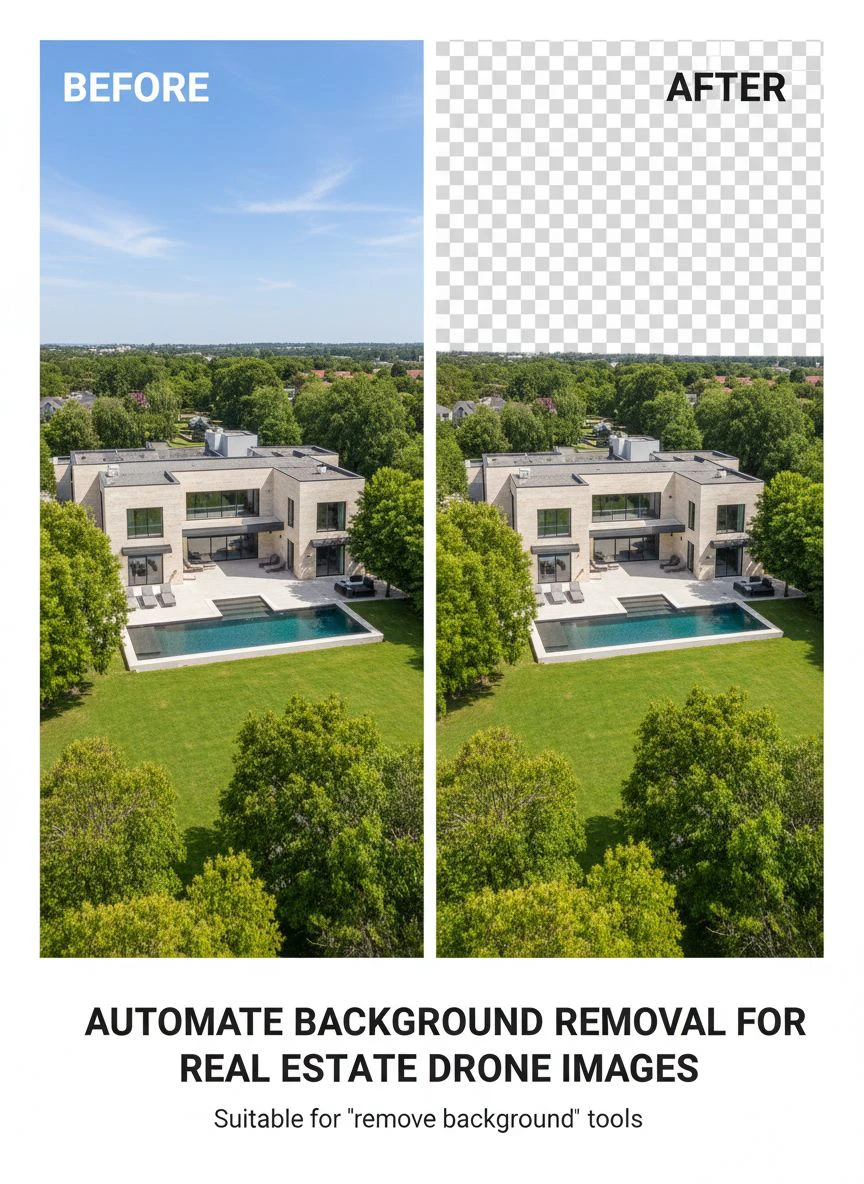
The AI processes each image, detecting property boundaries, buildings, and landscape elements while removing the background.
Processing time depends on file size and quantity, but I typically see:
- 10-20 images: 1-2 minutes
- 50-75 images: 3-5 minutes
- 100+ images: 6-10 minutes
Compare that to 5-8 minutes PER IMAGE manually.
Step 4: Quality Check and Refinement
I spot-check about 10% of processed images for edge quality.
Most images are perfect straight from the AI.
For the 5-10% that need minor touch-ups, I use Photoshop's refine edge tool—but we're talking 30-60 seconds instead of starting from scratch.
Cloud-Based Real Estate Drone Photo Editing vs. Desktop Software
I tested both approaches extensively.
Here's what I learned about cloud-based versus desktop solutions for background cutout automation for drone images.
Cloud-Based Advantages
Cloud platforms won me over for several reasons:
No hardware limitations: My 2019 MacBook Pro struggled with batch processing 42MP DNG files. Cloud processing uses server-grade GPUs that handle massive files effortlessly.
Access anywhere: I can upload images from a property site using my phone's hotspot and have processed files ready before I'm back at the office.
Automatic updates: The AI models improve constantly without manual software updates or compatibility issues.
Scalability: Processing 50 images costs the same time as processing 500—the infrastructure scales automatically.
Desktop Software Benefits
Desktop tools still have specific use cases:
Privacy control: Some commercial clients require that images never leave local networks due to NDA restrictions.
No internet dependency: Useful for editing in locations with poor connectivity.
One-time purchase: Some photographers prefer owning software outright rather than subscriptions.
For my real estate drone photography business, cloud-based solutions delivered better ROI.
The speed and quality advantages outweighed the minor subscription cost.
Background Removal Automation in Real Estate Marketing Workflows
Automated background removal isn't just about saving editing time.
It unlocks completely new service offerings for real estate photographers.
Here's how I integrated background removal automation into my real estate marketing services:
Virtual Staging with Drone Shots
I extract properties from aerial shots and composite them into different sky conditions.
A property photographed on an overcast day gets delivered with:
- Original cloudy sky version
- Blue sky with dramatic clouds
- Golden hour sunset sky
- Twilight/dusk atmosphere
Clients love having options, and I charge $150-200 extra for this package.
Marketing Collateral Creation
With clean background-removed drone images, creating marketing materials is trivial:
- Brochure layouts with properties on custom backgrounds
- Social media graphics with text overlays
- Website hero images with branded elements
- Email campaign headers
This expanded my average project value from $400 to $850 per property.
Before/After Comparisons
For renovation properties or new developments, I create side-by-side comparisons showing transformation.
Background removal ensures consistent framing and focus on the property itself.
If you're looking to expand your service offerings, check out this AI-powered batch processing guide that covers advanced automation techniques.
Automated Image Processing for Drone Property Photos: Technical Considerations
Not all automation software handles drone imagery equally.
Here's what to look for based on my testing of 12 different tools.
Edge Detection Quality
Drone photos have unique challenges:
Complex rooflines: Multiple angles, chimneys, vents, and satellite dishes create intricate edge details.
Tree canopies: Individual leaves and branches need clean separation from sky backgrounds.
Architectural details: Balconies, railings, and decorative elements require precision.
The best AI tools use contextual awareness—understanding that a building is the subject even when trees partially obscure it.
File Format Support
My DJI Mavic 3 Pro shoots in multiple formats:
- DNG (RAW format, 42MP, 80-120MB per file)
- JPG (compressed, 12-18MB per file)
- HEIF (efficient compression, not widely supported)
I export to high-quality JPG for background removal, then composite back to 16-bit TIFF if needed for print.
Make sure your automation tool handles your specific formats and file sizes.
Batch Processing Capabilities
This is non-negotiable for professional work.
Tools that force you to process images one at a time waste the entire advantage of automation.
Look for:
- Folder-based uploads (drag and drop entire directories)
- Simultaneous processing (not queued sequential processing)
- Batch download options (zip files of processed images)
- API access for integration with existing workflows
Output Quality and Transparency
The output should be PNG with alpha transparency.
This allows maximum flexibility for compositing, overlays, and creative edits.
Edge feathering should be minimal but adjustable—hard edges look unnatural in composites, but too much feather creates halos.
Related: Quick Background Removal Tool for Real Estate Agent Profile Pictures How-To.
Real Numbers: Cost and Time Analysis
Let me break down the actual economics of automation versus manual editing.
These are real numbers from my business tracking over 8 months.
Manual Editing Costs (Before Automation)
- Time per image: 5-8 minutes
- Average property shoot: 65 images
- Total editing time: 5.4-8.7 hours per property
- Monthly volume: 12 properties
- Monthly editing time: 65-104 hours
- Opportunity cost: Can't shoot new properties while editing
I was either working 80-hour weeks or turning down new clients.
Neither option was sustainable.
Automated Editing Costs (After Implementation)
- Time per image: 0.3-0.6 minutes (mostly upload/download time)
- Average property shoot: 65 images
- Total processing time: 20-40 minutes per property
- Monthly volume: 28 properties (increased capacity)
- Monthly editing time: 9-19 hours
- Software cost: $0 (using free tools)
I more than doubled my property volume while cutting editing time by 82%.
Revenue increased from $4,800/month to $12,600/month with the same work hours.
Common Mistakes to Avoid When Automating Background Removal
I made every one of these mistakes so you don't have to.
Mistake 1: Skipping Basic Color Correction
I initially tried automating straight from camera RAW files.
The results were inconsistent because exposure and white balance varied widely between images.
Spend 2-3 minutes doing batch color correction in Lightroom first.
This ensures consistent AI results across all images.
Mistake 2: Using Too Much Compression
To save upload time, I exported JPGs at 60% quality.
The AI struggled with compression artifacts, creating jagged edges and poor selections.
Use 90-95% quality JPGs—the file size difference is minimal, but output quality improves dramatically.
Mistake 3: Not Organizing Output Files
My first automated batch created 100+ PNG files all named "image_1.png" through "image_100.png."
I had no idea which processed file corresponded to which original property photo.
Now I use descriptive naming: PropertyAddress_Angle_001.jpg before processing.
The automation preserves filenames, making organization effortless.
Mistake 4: Trusting Automation Blindly
Quality control still matters.
I spot-check 10% of every batch and do a full review before client delivery.
The AI is 95% accurate, but that 5% can include the best hero shot from the entire property.
Always verify before delivering to clients.
Related: Real Estate Photo Background Editor: Best AI Tools for Stunning Listings.
Frequently Asked Questions
What's the best software to automate background removal for real estate drone images?
Based on my testing, cloud-based AI tools like Removedo offer the best combination of speed, quality, and cost for real estate drone photography. They handle complex aerial perspectives better than traditional desktop software and process batches of 100+ images in minutes. The free tier is sufficient for most photographers processing 500-1000 images monthly.
Can AI background removal handle complex drone shots with trees and buildings?
Yes, modern AI tools excel at complex edge detection including tree canopies, architectural details, and overlapping elements. I regularly process drone shots with intricate rooflines, multiple trees, and detailed landscaping. The AI achieves cleaner edges than my manual Photoshop selections, especially around fine details like branches and power lines. Quality has improved significantly in the past 18 months.
How long does batch processing take for real estate drone photos?
Processing time varies by file size and quantity. For typical real estate drone shots (12-20MB JPGs), expect 1-2 minutes for 20 images, 3-5 minutes for 50 images, and 6-10 minutes for 100+ images. This includes upload and download time. Compare this to 5-8 minutes per image with manual editing—automation delivers 90-95% time savings on background removal tasks.
Do I need expensive equipment to run automated background removal software?
No, cloud-based solutions run on any device with internet access. I process drone images using a 2019 MacBook Pro, and even use my iPad for uploads when working remotely. The heavy processing happens on cloud servers with professional GPUs. Desktop software requires more powerful hardware, but cloud tools democratize access regardless of your computer specifications.
Will automated background removal work with my DJI drone photos?
Yes, automated tools work with all major drone brands including DJI (Mavic, Phantom, Inspire series), Autel, Skydio, and Parrot. The software processes the image file itself—JPG or PNG—regardless of camera origin. I shoot with DJI Mavic 3 Pro and process both JPG exports and converted RAW files without issues. File format matters more than camera brand.
Start Automating Your Real Estate Drone Photo Editing Today
The difference between struggling photographers and thriving ones isn't talent or equipment.
It's workflow efficiency.
Manual background editing creates a ceiling on how many properties you can shoot monthly.
Automation removes that ceiling entirely.
I went from 12 properties per month to 28 properties—while working fewer hours and delivering higher quality results.
The technology is free, proven, and available right now.
Start with a single property shoot to test the workflow and see the quality difference for yourself.
If you're ready to automate background removal for real estate drone images, you'll wonder why you wasted years doing it manually.
The competitive advantage goes to photographers who adopt these tools first.
Your clients won't know the difference—they'll just wonder how you deliver faster and better results than everyone else.
Try our free background remover tool for professional results.


