
Webcam with Background Removal: How to Get AI-Powered Video Effects Fast

Your First 1 Edits Are on Us.
Get started instantly with 1 free credits. No credit card required.
<p>H2: title </p> to <H2> title </H2>
Webcam with Background Removal: How to Get AI-Powered Video Effects Fast
Picture this: You're about to hop on that important video call when you realize your room looks like a tornado hit it.
Your laundry's everywhere, dishes are stacked high, and there's no time to clean up.
I've been there countless times in my 10 years working with video technology.
That's where a webcam with background removal becomes your secret weapon.
No more scrambling to find the perfect spot in your house.
No more awkward explanations about your messy background.
Just professional-looking video calls every single time.
I'm going to show you exactly how to get this working in minutes, not hours.
Why Traditional Green Screens Are Dead (And What Replaced Them)
Let me tell you something that changed everything for me.
Back in 2018, I was still lugging around a massive green screen setup for client calls.
It was a nightmare.
The lighting had to be perfect, wrinkles would show through, and don't even get me started on the setup time.
Then AI technology flipped the script entirely.
Now you can get ai background removal for webcams without any physical equipment.
Here's what makes modern background removal software superior:
• Zero setup time - Launch the app and you're ready
• Perfect edge detection - AI recognizes hair, clothing details, and movement
• Real-time processing - No lag or delayed effects
• Works in any lighting - Bright room, dim office, doesn't matter
The technology analyzes your image 30+ times per second.
It identifies you versus everything else with scary accuracy.
And it does this while you're moving, talking, and gesturing naturally.
Top 3 Webcam Background Removal Software That Actually Work
After testing dozens of options, three platforms consistently deliver professional results.
Snap Camera by Snap Inc.
This free powerhouse integrates directly with Zoom, Microsoft Teams, and virtually every video conferencing platform.
Snap Camera offers:
- Thousands of virtual backgrounds and AR lenses
- Real-time video effects that track your movement
- Background blur options for subtle professionalism
- Zero cost (completely free)
I use this for casual client calls where I want to add personality without being distracting.
ManyCam - The Live Streaming Champion
If you're doing live streaming webcam background replacement, ManyCam is unbeatable.
Features that matter:
- Chroma key alternative technology
- Multiple virtual camera outputs
- Works with OBS Studio, YouTube Live, and Twitch
- Advanced video production tools built-in
This is my go-to for webinars and live presentations where quality can't be compromised.
XSplit VCam - The AI Specialist
For pure webcam virtual background no green screen performance, XSplit VCam leads the pack.
What sets it apart:
- Military-grade AI background detection
- HD virtual backgrounds that look photorealistic
- Works flawlessly with Skype, Discord, and newer platforms
- Minimal system resource usage
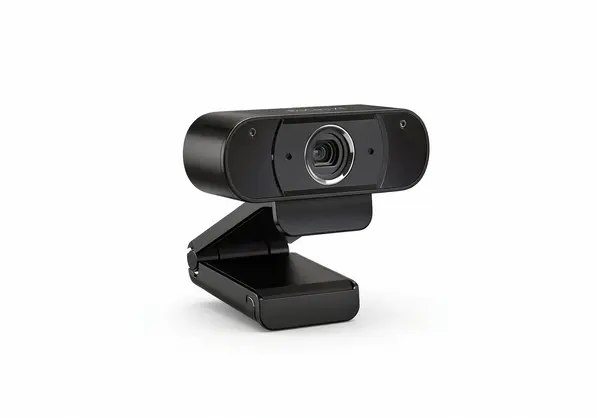
How to Set Up Real-Time Webcam Background Blur in Under 5 Minutes
Most people overcomplicate this process.
I'm going to walk you through the fastest method that works every time.
Step 1: Choose Your Software
Download one of the three options above based on your needs:
- Casual video calls → Snap Camera
- Live streaming → ManyCam
- Professional meetings → XSplit VCam
Step 2: Install and Configure
Launch the application and select your webcam as the input source.
Most software will automatically detect your camera.
If not, go to settings and manually select it from the dropdown menu.
Step 3: Select Background Effect
For real-time webcam background blur:
- Look for "Blur" or "Background Blur" option
- Adjust intensity from subtle to heavy blur
- Test the effect by moving around
For virtual backgrounds:
- Browse the background library
- Select a professional office, clean room, or branded background
- Adjust positioning if needed
Step 4: Connect to Your Video Platform
In Zoom, Microsoft Teams, or your preferred platform:
- Go to video settings
- Change camera source to your background removal software
- Test video before joining calls
The entire process takes 3-5 minutes once you know the steps.
Best Webcam Software for Background Removal: Feature Comparison
Not all background removal tools are created equal.
Here's what I've learned testing these platforms extensively:
Performance Metrics That Matter:
| Feature | Snap Camera | ManyCam | XSplit VCam |
|---|---|---|---|
| CPU Usage | Light | Medium | Light |
| Edge Detection | Good | Very Good | Excellent |
| Hair Detail | Fair | Good | Excellent |
| Movement Tracking | Good | Very Good | Excellent |
| Background Library | Massive | Limited | Curated |
Best Use Cases:
- Creative professionals → Snap Camera for personality and variety
- Content creators → ManyCam for streaming and recording flexibility
- Business professionals → XSplit VCam for reliability and quality
Hidden Gotchas to Watch Out For:
Some software claims "unlimited backgrounds" but loads them from the internet.
This creates lag during calls when your connection hiccups.
Always test during peak internet usage times in your area.
For mission-critical calls, I keep Removedo bookmarked for quick background removal of static images I might need.
How to Remove Background from Webcam Video Like a Pro
The difference between amateur and professional background removal comes down to optimization.
Lighting Setup That Actually Works:
Position yourself 3-6 feet from your background wall.
This distance prevents shadows and gives the AI clear separation between you and what's behind you.
Use soft, even lighting on your face.
A simple ring light or window lighting works better than harsh overhead fluorescents.
Camera Positioning Secrets:
Place your camera at eye level or slightly above.
This angle helps the software distinguish your shoulders and torso from background elements.
Avoid sitting too close to the camera - give yourself arm room.
Clothing Choices That Matter:
Solid colors work better than busy patterns.
Avoid green if you're using any chroma key features (even as backup).
High contrast between your clothing and skin helps edge detection.
Testing Your Setup:
Record a 30-second test video before important calls.
Move your hands, turn your head, and gesture naturally.
Check for:
- Clean edges around your silhouette
- No flickering or jumping effects
- Smooth tracking when you move
If something looks off, adjust your lighting or camera angle before troubleshooting software settings.
Virtual Backgrounds for Video Conferencing Apps: Platform-Specific Tips
Each video platform handles external background removal software differently.
Zoom Integration:
Zoom has built-in background features, but external software often performs better.
To use your webcam background removal software:
- Join meeting
- Click video settings (arrow next to video button)
- Select your background removal software as camera source
- Disable Zoom's built-in background features to avoid conflicts
Microsoft Teams Setup:
Teams works seamlessly with most background removal applications.
The key is launching your background software before opening Teams.
Teams will automatically detect the virtual camera and list it as an option.
Google Meet and Newer Platforms:
Newer platforms sometimes struggle with virtual camera detection.
If your background removal software doesn't appear:
- Refresh your browser
- Grant camera permissions again
- Try launching the software with administrator privileges
Discord and Gaming Platforms:
Gaming-focused platforms usually have the best compatibility.
Discord, in particular, works flawlessly with all major background removal software.
This makes sense since gamers have been using virtual cameras for streaming for years.
Troubleshooting Common Webcam Background Removal Issues
Even the best software hits snags sometimes.
Here are the problems I see most often and their quick fixes:
"My edges look choppy or pixelated"
This usually means your computer is struggling with real-time processing.
Quick fixes:
- Close unnecessary browser tabs and applications
- Lower the background removal quality setting
- Restart the software and try again
- Check if your webcam drivers need updating
"The background keeps flickering"
Inconsistent lighting is the usual culprit.
Move away from windows with changing light.
Turn off automatic brightness adjustment on your camera.
Use consistent artificial lighting instead of relying on natural light.
"Software doesn't appear in my video call app"
This is a virtual camera detection issue.
Try this sequence:
- Close your video calling app completely
- Launch background removal software first
- Reopen your video calling app
- Check camera settings again
"Performance is laggy during calls"
Background removal is CPU-intensive.
If you're experiencing lag:
- Use background blur instead of virtual backgrounds
- Close streaming services like Netflix or YouTube
- Check your internet speed - slow connections compound the problem
- Consider upgrading your computer if this is a regular issue
Making Your Choice: What Works Best for Your Situation
After 10 years in this space, I've learned that the "best" solution depends entirely on your specific needs.
For Quick Professional Calls:
XSplit VCam wins hands down.
It's reliable, looks professional, and just works without fuss.
Worth the small cost if video calls are part of your regular work.
For Creative Content:
Snap Camera gives you the most options.
The massive library of effects and backgrounds keeps things fresh.
Perfect for content creators who want to maintain brand personality.
For Serious Live Streaming:
ManyCam is the only choice that scales.
Multiple camera angles, advanced effects, and rock-solid stability.
If your income depends on video quality, this is your answer.
The future of webcam with background removal is moving toward even more sophisticated AI processing.
We're already seeing real-time relighting, automatic color correction, and background replacement that adapts to your movement.
But today's tools are already powerful enough to solve the background problem completely.
No more excuses for unprofessional video calls.
No more anxiety about your messy room.
Just download one of these solutions, spend 5 minutes setting it up, and never worry about your video background again.
Your future self will thank you when you're confidently joining calls from anywhere, knowing you look professional every single time.
Frequently Asked Questions
Q: Does webcam background removal work on older computers?
A: Most modern background removal software works on computers from 2016 or newer. Older machines might struggle with real-time processing, but background blur typically works better than full virtual backgrounds on limited hardware.
Q: Can I use multiple background removal effects at the same time?
A: No, running multiple background removal applications simultaneously will cause conflicts and poor performance. Choose one software solution and stick with it for each session.
Q: Do I need a high-end webcam for background removal to work properly?
A: While higher resolution cameras provide better results, most background removal software works fine with standard 720p webcams. The AI processing is more important than camera quality for basic background replacement.
Q: Will background removal software work with my smartphone as a webcam?
A: Yes, if you're using apps that turn your phone into a webcam (like DroidCam or EpocCam), background removal software will treat it like any other camera input.
Q: How much internet bandwidth does webcam background removal use?
A: The background removal processing happens locally on your computer, so it doesn't use extra internet bandwidth. However, it may increase CPU usage, which could indirectly affect call quality on slower connections.
Q: Can I create custom backgrounds for my webcam software?
A: Most professional background removal software allows you to upload custom background images. Make sure your custom backgrounds are high resolution (1920x1080 or higher) for the best results.
Related: How to Perfect Background Removal Logos Products: Complete Guide.
Related: Background Remover for Vintage Poster Digitization Projects How-To Guide.
Related: pexels background removal How to get free AI transparent PNGs.
Try our free background remover tool for professional results.


