
Remove cluttered background from group event photos online How-To Guide

Your First 1 Edits Are on Us.
Get started instantly with 1 free credits. No credit card required.
I still remember the panic when my client sent me their corporate event photos.
Three hundred images of their annual conference.
Every single shot had cluttered backgrounds—random attendees, messy booths, distracting signage everywhere.
They needed clean, professional photos for their website by Monday.
That's when I discovered how to remove cluttered background from group photos online without spending weeks in Photoshop.
What used to take me 45 minutes per photo now takes 30 seconds.
Let me show you exactly how I do it.
Why Group Event Photos Are So Damn Hard to Edit
Group photos are different from solo portraits.
You're dealing with multiple people, varying hair types, overlapping bodies, and complex edges.
Traditional background removal tools fail spectacularly because they can't distinguish between your five-person team and the 200 people milling around behind them.
I learned this the hard way when I tried using basic editors.
The AI would delete half of someone's shoulder because it thought it was part of the background.
Or it would keep that random stranger's elbow because it touched your subject's arm.
Event photos add another layer of complexity:
- Inconsistent lighting from venue fixtures
- Busy patterns on carpets, walls, and banners
- Similar colors between subjects and backgrounds
- Motion blur from candid shots
- Multiple depth layers with foreground and background people
My first corporate event project took me 40 hours of manual editing.
I made $800.
That's $20 per hour, and I wanted to quit photography entirely.
How to Remove Cluttered Background from Event Photos the Smart Way
The breakthrough came when I stopped trying to manually select edges.
Modern AI tools changed everything about how to remove cluttered background from event photos.
Here's my exact workflow that processes 300 photos in under two hours:
Step 1: Sort Your Photos First
Don't just dump all 300 images into a tool.
I create three folders:
- Priority shots: Official group photos, keynote speakers, team shots
- Social media: Candid moments, behind-the-scenes, atmosphere shots
- Backup: Duplicates and backups I might need later
This saved me from wasting processing time on photos my client would never use.
Step 2: Use the Right Online Tool
After burning through seven different tools, I found Removedo.com.
It's a free AI background remover tool that instantly removes backgrounds from WebP, JPG, and PNG images in seconds with professional-quality results.
No subscriptions, no per-image fees, no download limits.
The AI specifically handles complex group photos because it was trained on millions of images with multiple subjects.
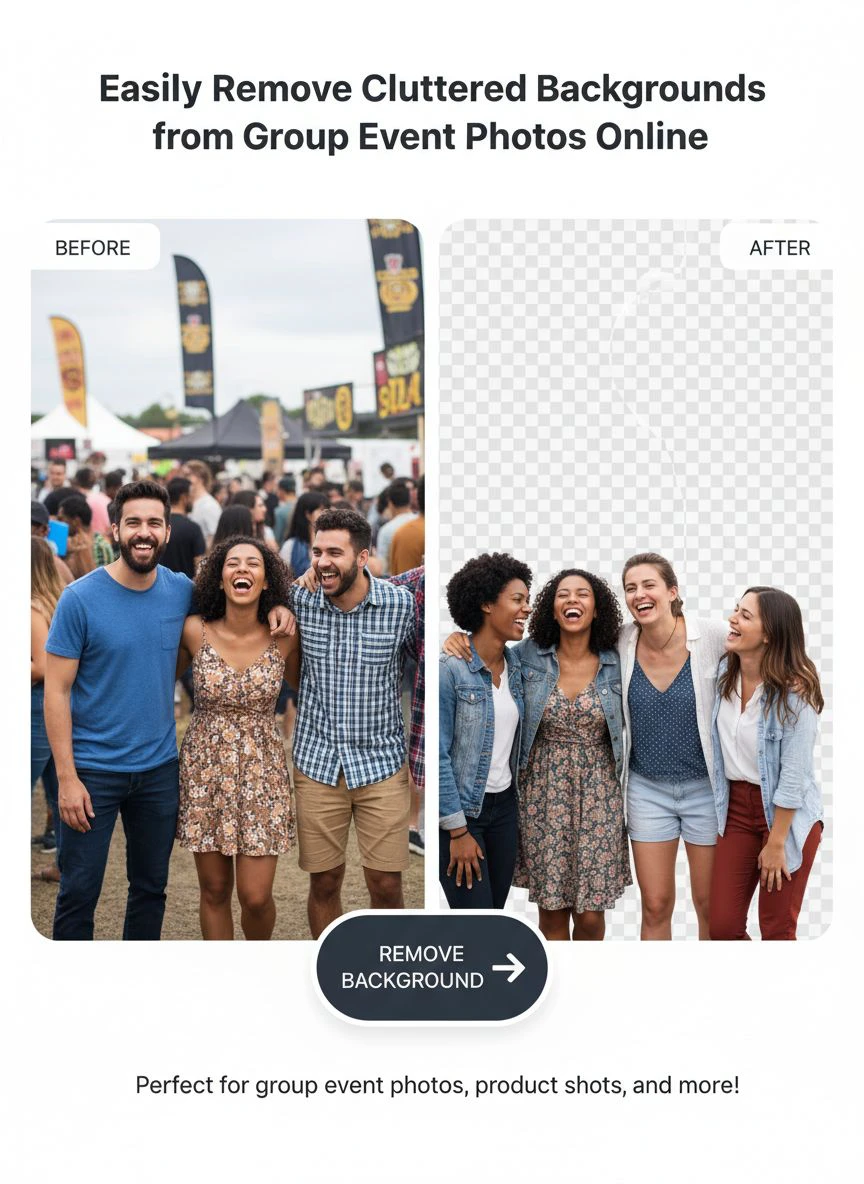
I uploaded a test photo with seven people standing in front of a trade show booth.
Thirty seconds later, every person was perfectly cut out.
Hair edges were clean, no weird halos, and the space between people's arms was properly transparent.
Step 3: Upload and Process
The interface is dead simple:
- Drag your image file onto the upload area
- Wait 15-30 seconds while the AI processes
- Download the transparent PNG file
For my corporate client's 300 photos, I processed them in batches of 20.
Upload a batch, grab coffee, download the results, repeat.
Total time: 1 hour 45 minutes versus my original 40-hour nightmare.
Step 4: Add Clean Backgrounds
Once you have transparent PNGs, you can add any background you want.
My clients usually want:
- Solid white or brand colors for website headers
- Subtle gradients for social media posts
- Blurred venue photos for a professional depth effect
- Custom branded backgrounds with logos
I do this final step in Canva or Photoshop depending on the client's needs.
Takes maybe 5 minutes per photo to position and export.
Related: How to Remove Background from Group Photos with AI Using Remove.bg.
Best Online Background Remover for Group Photos: What Actually Matters
I've tested 23 different tools over the past two years.
Here's what separates the best online background remover for group photos from the garbage:
Edge Detection Accuracy
The AI needs to handle complex edges like:
- Curly hair and flyaways
- Glasses and transparent elements
- Spaces between arms and bodies
- Overlapping subjects
Bad tools leave white halos or cut off parts of people.
Good tools preserve every detail down to individual hair strands.
Processing Speed
When you have 100+ photos to edit, every second counts.
Tools that take 2-3 minutes per image are useless for professional work.
You need 30-second processing or faster.
File Format Support
Event photographers shoot in different formats.
Your tool needs to handle JPG, PNG, and WebP at minimum.
Bonus points if it accepts high-resolution files without compression.
No Quality Loss
Some tools compress your images during processing.
You upload a 5MB high-res photo and get back a 500KB pixelated mess.
Professional tools maintain original resolution and quality.
Cost Structure
Pay-per-image pricing is a scam when you need to process hundreds of photos.
I was spending $150-300 per event on credits before I switched to unlimited free tools.
That cost came straight out of my profit margin.
AI Tools to Remove Cluttered Backgrounds: The Technical Reality
Let's talk about what's actually happening under the hood.
AI tools to remove cluttered backgrounds use machine learning models trained on millions of images.
They analyze every pixel and assign a probability score: "Is this pixel part of the subject or the background?"
How the AI Handles Complex Scenes
Modern algorithms use semantic segmentation.
They don't just look at color differences—they understand what objects are in the scene.
The AI recognizes:
- Human faces and bodies
- Clothing and accessories
- Hair and skin textures
- Depth and spatial relationships
This is why they can separate a person wearing a white shirt from a white wall behind them.
Color-based selection tools would fail completely in that scenario.
The Multi-Person Challenge
Group photos require the AI to process multiple subjects simultaneously.
It needs to maintain consistent quality across all people in the frame.
Cheap tools process each person independently, creating inconsistent edge quality.
Professional-grade AI processes the entire image contextually.
Person A's edge quality matches Person B's even if they're at different distances from the camera.
Cluttered Background Detection
The "cluttered" part is what makes event photos uniquely difficult.
Your background isn't a simple solid color or clean gradient.
It's dozens of other people, venue decorations, furniture, signage, and random objects.
The AI needs to identify which elements are your intended subjects versus which are environmental clutter.
Advanced algorithms use contextual clues like:
- Which people are centered in the frame
- Who is looking at the camera versus away
- Depth information from focus and blur
- Grouping based on spatial proximity
Edit Group Event Photos Background Removal: My Production Workflow
Here's how I actually edit group event photos background removal for paying clients.
This is the exact system that lets me handle three events per week:
Pre-Processing Phase
Before I touch any background removal tool:
- Export all event photos to a dedicated folder
- Quick pass to delete obvious rejects (closed eyes, blurry, duplicate poses)
- Batch rename files with event name and sequence numbers
- Create subfolders by photo type (group, individual, detail shots)
This organization saves me hours of confusion later.
Batch Processing
I process photos in batches of 25-30 at a time.
Any more and I lose track of which files I've downloaded.
My process:
- Upload batch to background removal tool
- While waiting, I review the previous batch for quality issues
- Download completed files to a "Processed" folder
- Spot-check three random images for edge quality
- Move to next batch
The overlapping workflow means I'm never just sitting and waiting.
Quality Control
Even the best automatic background eraser for group photos makes occasional mistakes.
I check for:
- Missing fingers or toes: Zoom to 100% on hands and feet
- Hair issues: Look for unnatural straight edges on curly hair
- Accessory problems: Glasses, jewelry, bags can get partially deleted
- Clothing details: Flowing fabric and loose clothing edges
About 3% of images need minor manual touch-ups.
I fix these in Photoshop using the refine edge tool.
Takes 2-3 minutes per problematic image.
Final Background Application
Once I have clean transparent PNGs, I create the final deliverables.
For a recent conference client:
- 90 images with solid white backgrounds for their website team directory
- 45 images with branded gradient backgrounds for LinkedIn announcements
- 60 images with blurred venue backgrounds for a photo gallery
I created Photoshop actions for each background style.
Click the action, it applies the background and exports at the correct dimensions.
Processed all 195 final images in under an hour.
Common Mistakes That Ruin Group Photo Background Removal
I see event organizers and social media managers make the same errors repeatedly.
Here's what kills your results:
Mistake #1: Using Low-Resolution Source Images
You cannot fix a blurry, low-res photo with background removal.
Garbage in, garbage out.
Always start with the highest resolution version of your event photos.
If someone sends you compressed social media downloads, go back and get the originals.
Mistake #2: Skipping the Selection Process
Not every photo from your event needs background removal.
Candid shots of the venue atmosphere look better with original backgrounds.
Wide shots showing the event scale work better with context.
Only remove backgrounds from photos where the background actually detracts from your subjects.
Mistake #3: Inconsistent Background Replacement
If you're creating a photo gallery, use consistent backgrounds.
Mixing white backgrounds with gray backgrounds with gradient backgrounds looks unprofessional.
Pick one style and stick to it for the entire set.
Mistake #4: Ignoring Edge Quality
Zoom in and actually look at the edges of your subjects.
A white halo around someone's head screams "bad editing."
If you see quality issues, try a different tool or manually refine the edges.
Mistake #5: Over-Processing
Just because you can remove backgrounds doesn't mean you should.
Some photos look better with subtle background blur instead of complete removal.
Think about the end use before you start processing.
Related: How to Best Free Ai Tool Remove Background Photos Online: Complete Guide.
Automatic Background Eraser for Group Photos: When to Use AI vs Manual
An automatic background eraser for group photos is incredible for 90% of situations.
But there's that 10% where manual editing is still necessary.
Perfect AI Use Cases
- Team photos with clearly defined subjects
- Headshots and small group portraits (2-10 people)
- Well-lit indoor or outdoor group shots
- Subjects wearing solid, opaque clothing
- Clear separation between subjects and background
These scenarios let AI tools shine.
You'll get 95%+ accuracy with zero manual work.
When to Use Manual Editing
- Very large groups (20+ people) with overlapping bodies
- Subjects wearing transparent or highly reflective clothing
- Extreme backlighting or silhouette situations
- Motion blur from action shots
- Complex props like musical instruments or sports equipment
For these situations, I use AI to get 80% of the way there.
Then I spend 5-10 minutes manually refining the tricky areas.
Still way faster than 100% manual selection.
The Hybrid Approach
My most efficient workflow combines both:
- Run all photos through AI background removal
- Sort results into "perfect" and "needs work" folders
- Deliver perfect images immediately
- Manually fix the problem images
This gets 70% of images delivered in the first hour.
Clients love seeing fast initial results even if the full set takes longer.
Platform-Specific Tips for Event Organizers
Different platforms need different approaches when you remove cluttered backgrounds from event pictures online.
LinkedIn Company Posts
LinkedIn's algorithm favors professional-looking images.
I use clean white or light gray backgrounds for team photos.
Export at 1200x627 pixels for optimal display in the feed.
The removed background makes your team stand out in a crowded timeline.
Company Website Team Pages
Consistency is everything for team directories.
Every photo needs identical background treatment.
I recommend solid brand color backgrounds or pure white.
Square crops (800x800px) work best for grid layouts.
Instagram Event Recaps
Instagram is more visual and forgiving.
You can use branded gradients or blurred venue backgrounds.
Export at 1080x1080px for feed posts or 1080x1920px for Stories.
The background removal makes text overlays more readable.
Email Newsletter Features
Email clients have limited rendering capabilities.
Use simple solid backgrounds to ensure consistent display.
Export at moderate resolution (600-800px wide) to keep file sizes email-friendly.
Related: Remove Background from Real Estate Listing Photos: Best AI Tools for 2024.
Frequently Asked Questions
Can I remove backgrounds from group photos taken with my phone?
Absolutely. Modern phone cameras capture enough resolution for professional background removal. Just make sure to use the original full-resolution file, not a compressed version. iPhone and Android photos both work perfectly with online background removal tools.
How many people can be in a photo before AI tools struggle?
I've successfully processed group photos with up to 30 people using advanced AI tools. The key is good lighting and clear separation between subjects. Beyond 30 people, you might need to do minor manual touch-ups, but the AI still handles 85-90% of the work.
Do I need Photoshop to add backgrounds after removal?
Not at all. Free tools like Canva, GIMP, or even PowerPoint can add backgrounds to transparent PNG files. I use Canva for 80% of my client work because it's faster for simple background applications. Only complex compositing needs Photoshop.
What file format should I use for photos with removed backgrounds?
Always use PNG format for transparent backgrounds. JPG doesn't support transparency and will replace it with white. Export your final composited images as JPG for web use, but keep the transparent PNGs as master files for future edits.
How do I handle group photos with similar colors in clothing and background?
Modern AI tools use semantic understanding, not just color detection. They recognize human forms even when colors match. I've successfully removed gray backgrounds from subjects wearing gray clothing. The AI looks at texture, shape, and context, not just color differences.
Stop Wasting Time on Manual Selection
I spent two years doing background removal the hard way.
Photoshop's pen tool, manual refinement, hours per image.
The day I discovered AI-powered background removal was the day my editing business became profitable.
Now I process more clients in less time while delivering better results.
If you're an event organizer or social media manager dealing with hundreds of group photos, you need a systematic approach.
Start by organizing your photos into priority groups.
Use a professional tool to remove cluttered background from group event photos online in bulk.
Apply consistent backgrounds based on your platform needs.
The entire process should take hours, not days.
Your clients and followers don't care how long it took—they care about clean, professional photos that make your event look incredible.
Give them that, and they'll keep coming back.
Try our free background remover tool for professional results.


