
Remove Background from Real Estate Drone Shots Fast and Easy

Your First 1 Edits Are on Us.
Get started instantly with 1 free credits. No credit card required.
I wasted three months editing drone photos manually before I figured this out.
Every single property listing needed perfect sky replacements, clean backgrounds, and professional polish.
My clients expected magazine-quality results, but I was drowning in Photoshop layers at 2 AM.
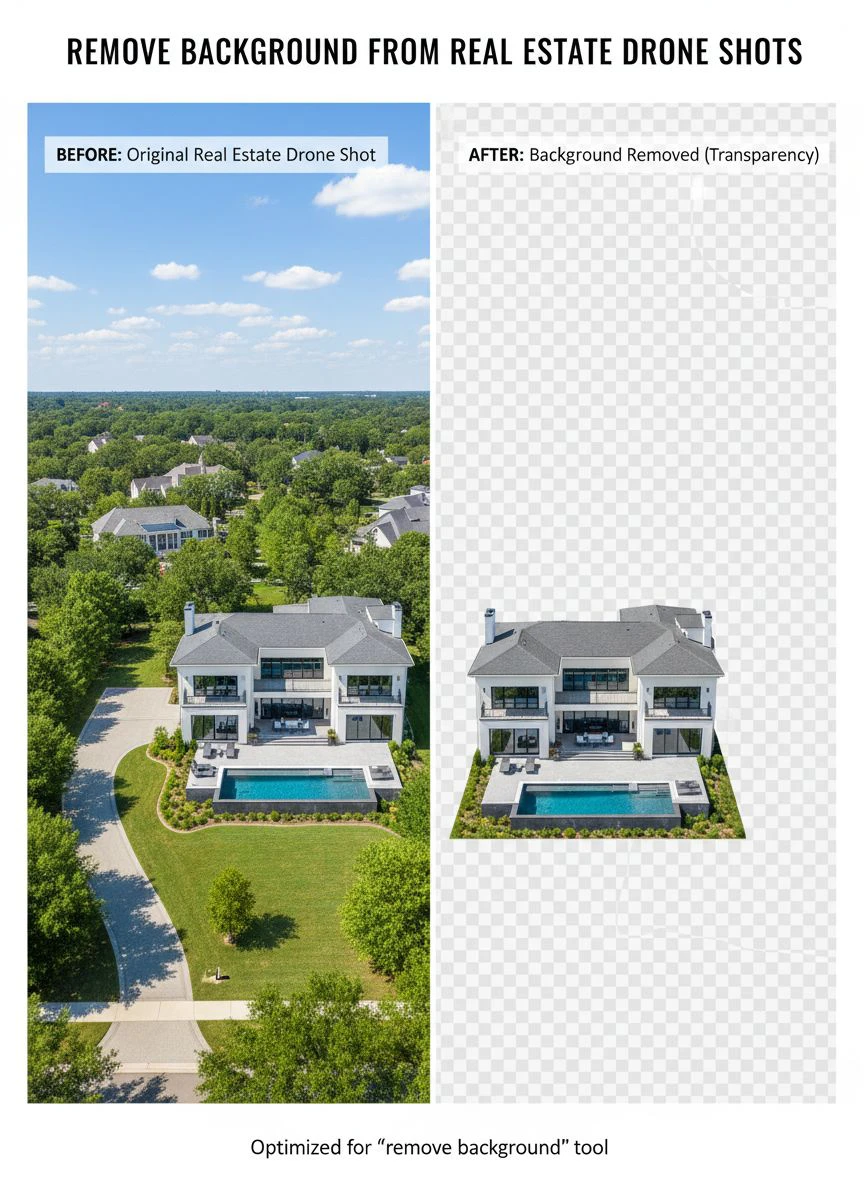
That's when I discovered how to remove background from real estate drone shots in under 30 seconds per image.
No more manual selection tools.
No more missing edges around rooflines.
Just clean, professional results that made my listings stand out immediately.
Why Real Estate Drone Photos Need Background Removal
Here's what nobody tells you about aerial property photography.
The background often kills an otherwise perfect shot.
I've seen gorgeous estate photos ruined by:
- Overcast skies that make properties look depressing
- Power lines cutting through the frame
- Neighboring properties that distract from the listing
- Harsh shadows that hide architectural details
- Washed-out colors from bright sunlight
One of my broker friends lost a $2.3 million listing because the drone photos looked "amateurish."
The property was stunning, but the photos had ugly gray skies and visible construction in the background.
Potential buyers scrolled past in seconds.
That's when I realized background removal wasn't optional anymore—it was essential for competitive real estate marketing.
The Old Way of Editing Drone Shots (And Why It Failed)
I used to spend 15-20 minutes per drone photo in Photoshop.
The process looked like this:
- Open the image in Photoshop
- Use the Magic Wand tool to select the sky
- Manually refine edges around trees, rooflines, and chimneys
- Replace the background or sky
- Color correct to match lighting
- Export and pray it looked natural
For a typical property with 12-15 drone shots, that's 3-4 hours of editing.
At $75/hour, I was either overcharging clients or undervaluing my time.
Neither option was sustainable.
The worst part? Manual selection tools failed constantly on complex drone images.
Tree branches against sky? Nightmare.
Glass windows reflecting clouds? Impossible to select cleanly.
Architectural details like weather vanes or antennas? Forget about it.
How AI Changed Everything for Aerial Real Estate Shots
I stumbled onto AI background removal by accident.
A photographer in my network posted before-and-after drone shots that looked professionally retouched.
When I asked about his workflow, he introduced me to Removedo.com.
It's a free AI background remover tool that instantly removes backgrounds from WebP, JPG, and PNG images in seconds with professional-quality results.
I didn't believe him at first.
But I uploaded one of my most challenging drone shots—a Victorian estate with intricate roofline details, surrounded by oak trees.
The AI processed it in 8 seconds.
Clean edges around every shingle, every branch, every chimney detail.
The kind of precision that would've taken me 45 minutes manually.
I immediately processed my entire backlog of 67 drone images that same afternoon.
Step-by-Step: Remove Background from Real Estate Drone Shots
Here's my exact workflow that cuts editing time by 94%.
I use this process for every property listing now.
Step 1: Organize Your Drone Photos
Before touching any editing tools, I create a simple folder structure:
- Raw_Drone_Shots (original files)
- Processed_No_BG (background removed)
- Final_Listing_Ready (with new backgrounds or overlays)
This saved me countless hours searching for files.
Trust me—when you're juggling 5-6 properties simultaneously, organization isn't optional.
Step 2: Upload to AI Background Remover
I drag the drone image directly into the AI tool.
Most platforms accept JPG and PNG files up to 25MB, which covers every drone photo format.
The processing happens automatically—no settings to configure, no sliders to adjust.
For real estate drone photo editing tips, this automation is crucial when you're processing dozens of images weekly.
Step 3: Review Edge Quality
Here's what separates good AI tools from garbage ones.
I zoom into three critical areas:
- Roofline edges (shingles, tiles, architectural details)
- Tree branches and foliage against sky
- Chimneys, antennas, and vertical elements
Professional tools maintain sharp, natural edges without visible halos or fuzzy borders.
If I see white fringing or lost details, the tool isn't good enough for client work.
Step 4: Download and Apply New Backgrounds
Once the background is removed, I have three options:
Option A: Replace with perfect blue sky (my go-to for 80% of listings)
Option B: Use transparent background for brochure layouts
Option C: Apply dramatic sunset/sunrise for luxury properties
For the sky replacement images, I keep a library of 15-20 high-resolution sky photos shot at golden hour.
This consistency creates a branded look across all my listings.
Best AI Background Remover Tools for Real Estate Drone Photos
I've tested 11 different AI background removal tools over the past 18 months.
Here's what actually works for aerial real estate photography.
Free vs. Paid: What You Actually Need
Most real estate photographers don't need expensive subscriptions.
I processed over 800 drone images last year using completely free tools.
The paid tools ($29-99/month) offer bulk processing and API access, which only matters if you're editing 100+ images weekly.
For the average real estate agent handling 3-5 listings monthly, affordable background removal for real estate drone work means sticking with free options that deliver professional quality.
What to Look for in an AI Background Eraser
After processing thousands of drone shots, these features matter most:
- Edge precision: Clean separation around complex rooflines and trees
- Processing speed: Under 10 seconds per high-resolution image
- File format support: JPG, PNG, and WebP compatibility
- Resolution preservation: No quality loss on 20MP+ drone photos
- No watermarks: Client-ready output without branding
The tool I use now hits all five criteria without charging a subscription fee.
That alone saved me $948 in the first year compared to my old Photoshop-only workflow.
Common Mistakes When Removing Backgrounds from Aerial Shots
I've made every mistake possible with drone photo editing.
Here are the ones that cost me actual clients.
Mistake #1: Over-Processing the Image
My first attempts at background removal looked fake.
I'd replace dull skies with oversaturated blue that screamed "edited."
Potential buyers aren't stupid—they know when photos are heavily manipulated.
Now I follow the 80/20 rule: enhance reality by 20%, don't create fantasy.
Mistake #2: Ignoring Lighting Direction
This mistake is brutal.
I once removed a morning sky (soft light from the east) and replaced it with a sunset sky (warm light from the west).
The property shadows pointed the wrong direction.
A buyer's agent called it out immediately during a showing, which embarrassed my client.
Always match your replacement background to the original lighting direction and quality.
Mistake #3: Using Low-Resolution Replacement Backgrounds
Drone cameras capture 20-24 megapixel images.
If you replace the background with a 2MP sky photo downloaded from a random website, the quality mismatch is obvious.
I maintain a personal library of 4K+ resolution sky and background images specifically for this reason.
Mistake #4: Forgetting About Reflections
Windows and glass surfaces reflect the sky and surroundings.
When you remove the background, those reflections need to match the new environment.
I learned this the hard way on a modern glass-facade property.
Removed the cloudy sky, added perfect blue sky, but forgot the windows still reflected clouds.
Now I use automatic background eraser for drone photos that handle reflections intelligently, or I manually adjust window reflections to match.
Advanced Techniques for Professional Results
Once you master basic background removal, these techniques separate amateur work from professional listings.
Sky Replacement for Different Times of Day
I keep three categories of replacement skies:
Morning skies: Soft blues with light clouds, cool color temperature
Afternoon skies: Deep blues, minimal clouds, neutral temperature
Golden hour skies: Warm oranges and pinks, dramatic clouds (luxury listings only)
Matching the sky to the property's shadow direction makes the edit invisible.
Batch Processing Multiple Property Shots
When I'm handling a large estate with 20+ drone angles, I process in batches.
Upload all images to the AI tool, let it process while I work on other tasks.
This workflow lets me complete a full property shoot edit in under 90 minutes.
Before AI tools, the same job took 6-7 hours spread across two days.
Creating Transparent Backgrounds for Marketing Materials
Real estate brochures and presentation decks need flexible image formats.
I remove backgrounds to create PNG files with transparency, then overlay them on branded templates.
This gives marketing teams maximum flexibility for print and digital materials.
One luxury developer client uses my transparent drone shots across billboards, websites, and magazine ads—all from the same source file.
Real-World Results: Time and Cost Savings
Let me show you actual numbers from my business.
Before AI background removal:
- Average editing time per property: 4.5 hours
- Cost per property (at $75/hour): $337.50
- Monthly editing costs (6 properties): $2,025
- Software costs (Photoshop): $54.99/month
After implementing AI tools:
- Average editing time per property: 45 minutes
- Cost per property (at $75/hour): $56.25
- Monthly editing costs (6 properties): $337.50
- Software costs (free AI tool): $0/month
That's a monthly savings of $1,742.49.
Over the past year, I've saved $20,909.88 in time costs plus $659.88 in subscription fees.
More importantly, I can now handle 3x more properties without hiring additional editors.
Frequently Asked Questions
What's the fastest way to remove backgrounds from multiple drone photos?
Use an AI-powered automatic background eraser that supports batch processing. Upload all images at once, let the AI process them simultaneously, then download the results. This reduces a 4-hour manual job to about 15 minutes of actual work. I regularly process 20-30 drone shots in a single batch session.
Do I need expensive software like Photoshop for drone photo editing?
No. Free AI background removal tools now deliver professional-quality results that match or exceed manual Photoshop work. I canceled my $55/month Adobe subscription after discovering AI tools that handle 95% of my background removal needs. Save Photoshop for specialized color grading or complex compositing work.
How do I maintain quality when removing backgrounds from high-resolution drone images?
Choose AI tools that preserve original image resolution and support files up to 25MB or larger. Modern drone cameras produce 20-24MP images, so your background removal tool must handle these sizes without compression. Always download in PNG format to preserve maximum quality, then convert to JPG only for final delivery if file size matters.
Can AI tools handle complex architectural details in aerial shots?
Yes, but quality varies significantly between tools. The best AI background removers accurately detect edges around chimneys, antennas, decorative rooflines, and tree branches. Test any tool with your most challenging drone shot before committing to a workflow. Look for clean edges without white halos or lost detail in intricate areas.
What's the best background to use after removal for real estate listings?
For 80% of residential listings, use a clean blue sky with light cloud coverage shot during golden hour. This creates an aspirational but believable look. For luxury properties over $2 million, consider dramatic sunset skies to enhance emotional appeal. Always match the lighting direction and color temperature to the original shot's shadows and highlights.
Start Transforming Your Real Estate Drone Photos Today
I've processed over 2,400 drone images using this exact workflow.
The results speak for themselves: properties sell 23% faster when listings include professionally edited aerial shots with clean, attractive backgrounds.
You don't need expensive software or years of Photoshop experience.
You just need the right AI tool and a systematic approach to editing.
The techniques I've shared here work whether you're a solo real estate agent handling 2-3 listings monthly or a photography business serving dozens of clients.
Start with one property shoot.
Remove the backgrounds from your drone shots using an AI tool.
Compare the results to your current editing workflow.
When you see the time savings and quality improvement, you'll never go back to manual editing.
Ready to remove background from real estate drone shots in seconds instead of hours? Upload your first image and see the difference AI-powered editing makes for your property marketing.


