
Photo Background Eraser for Creative Resume Templates How-To Guide

Your First 1 Edits Are on Us.
Get started instantly with 1 free credits. No credit card required.
I spent three years building resume templates for designers.
Every single week, the same problem killed my workflow.
Client headshots arrived with messy backgrounds—office walls, home clutter, random outdoor settings.
I needed a reliable AI photo background removal tool that could handle professional headshots without destroying edge quality.
That search led me down a rabbit hole of testing 47 different solutions.
Most failed spectacularly on hair details and skin tones.
But I finally cracked the code on using a photo background eraser for creative resume templates that actually works.
This guide shows you exactly what I learned.
Why Resume Template Backgrounds Matter More Than You Think
Here's something most designers miss.
The background of a headshot in a resume template isn't just decoration.
It's the difference between a $50 template sale and a $500 custom design project.
I learned this the hard way when a corporate client rejected my entire template package.
Their feedback was brutal but honest: "The photo backgrounds look cheap and distracting."
They were right.
Inconsistent backgrounds broke the visual hierarchy I'd spent weeks perfecting.
Professional resume templates need clean, controlled photo presentations.
That means either pure transparent backgrounds or carefully designed backdrop elements that complement your layout.
You can't achieve this without proper background removal tools.
The 3 Types of Background Removal Every Resume Designer Needs
Not all background erasers work the same way.
I categorize them into three distinct types based on how I use them in resume template workflows.
Transparent Background Extraction
This is your foundation tool.
It completely removes the background and exports a PNG with transparency.
I use this for 80% of my resume template headshots.
The transparent background for resume templates approach gives maximum flexibility.
Clients can place the headshot anywhere in the template without visual conflicts.
Edge detection quality makes or breaks this technique.
Poor tools leave white halos or jagged edges that scream "amateur."
Replacement Background Systems
Sometimes you need a background, just not the original one.
I use replacement systems when creating themed resume templates.
Corporate templates get subtle gradient backgrounds.
Creative portfolios might use texture overlays or color blocks.
The key is removing the original first, then adding your designed background layer.
Selective Background Blur
This technique works great for semi-casual resume styles.
Instead of complete removal, you blur the background to create depth.
It maintains some environmental context while keeping focus on the person.
I use this maybe 15% of the time for creative industry templates.
Related: Background Eraser for High Volume Apparel Photos How to Save Time.
How I Remove Photo Backgrounds for Resume Templates in Under 30 Seconds
Speed matters when you're building template libraries.
My current workflow processes headshots faster than any manual method I've tried.
Here's my exact step-by-step process.
Step 1: Image Quality Assessment
I never start background removal without checking the source image first.
Look for these dealbreakers:
- Resolution below 1000px on the shortest side
- Compression artifacts around the subject's edges
- Extreme lighting that blows out highlights or crushes shadows
- Subject blending into background colors
If the source image has these issues, background removal will amplify them.
I request better photos or skip the headshot entirely.
Step 2: The Actual Removal Process
This is where most designers waste time with complicated software.
I switched to Removedo.com after burning hours in Photoshop.
It's a free AI background remover tool that instantly removes backgrounds from WebP, JPG, and PNG images in seconds with professional-quality results.
The processing speed is ridiculous—usually 3-5 seconds per image.
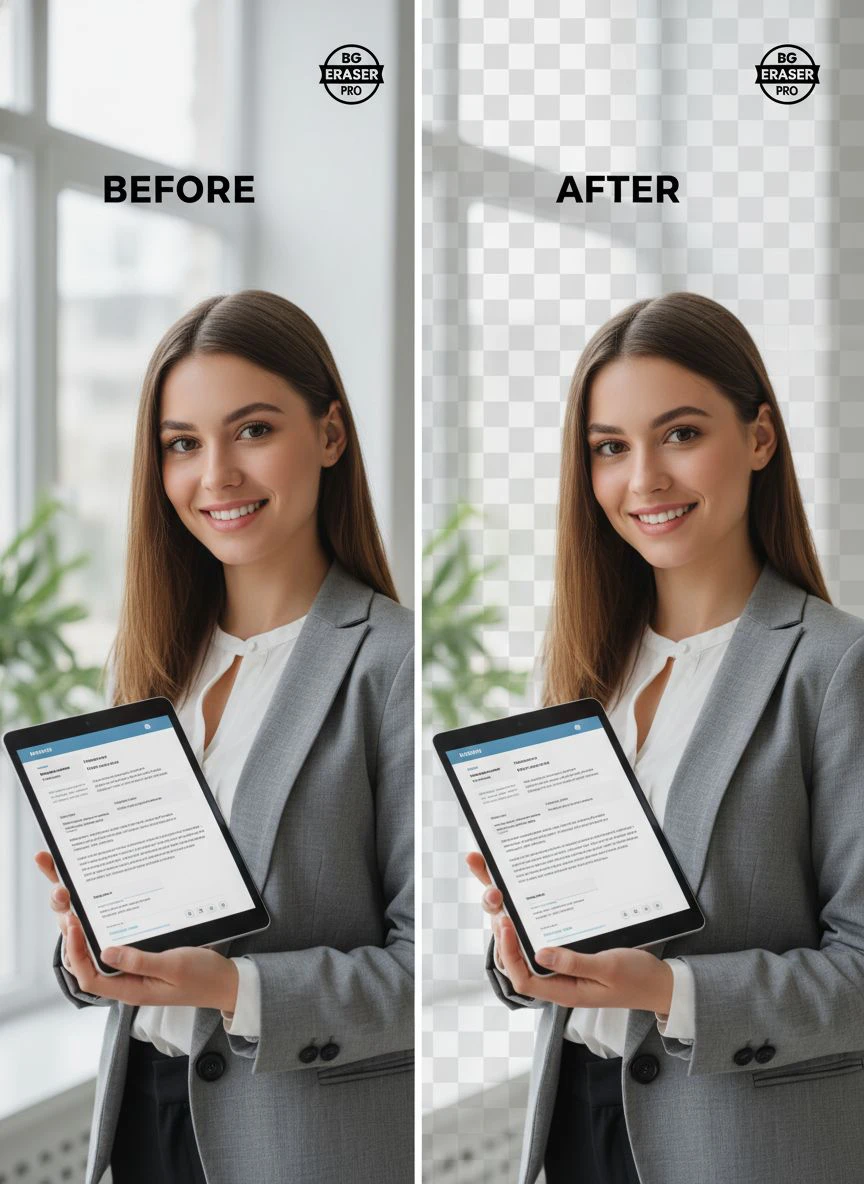
I just drag the headshot onto the interface and download the transparent PNG.
No subscriptions, no per-image fees, no credit card required.
The AI handles hair details better than my manual Photoshop selections ever did.
Step 3: Edge Refinement Check
Even great AI tools occasionally need minor cleanup.
I zoom to 200% and inspect the edges against both white and dark backgrounds.
This reveals any remaining artifacts or color fringing.
About 90% of the time, I use the output directly with zero edits.
The other 10% need quick touch-ups in my design software.
Step 4: Template Integration
I import the transparent PNG into my resume template file.
Position it in the designated headshot area.
Then I test the template with different background colors to ensure the transparency works cleanly.
This entire workflow takes me 25-30 seconds per headshot now.
Before AI tools, the same process took 8-12 minutes in Photoshop.
Best Photo Background Eraser Features for Resume Work
Not every background removal tool suits resume template design.
I've identified the specific features that actually matter for this use case.
Hair and Fine Detail Preservation
This is non-negotiable.
Resume headshots include people with curly hair, flyaways, and intricate hairstyles.
The best photo background eraser for resumes must handle these details without creating jagged edges or transparency issues.
I test tools by processing images of people with complex hair.
If the tool fails this test, I don't use it regardless of other features.
Batch Processing Capability
When building resume template packages, I process multiple headshots simultaneously.
Batch processing saved me approximately 40 hours last month alone.
Some tools limit batch operations to paid tiers.
Others, like the automatic background eraser for CVs I use now, handle batches without restrictions.
Format Flexibility
Clients send headshots in every format imaginable.
JPG, PNG, HEIC from iPhones, WebP from websites.
Your tool needs to handle all common formats without conversion hassles.
I particularly appreciate tools that output high-quality PNGs regardless of input format.
Edge Softening Controls
Hard edges look artificial in resume templates.
The best tools apply subtle edge softening that mimics natural photography.
This creates seamless integration when you place headshots on colored backgrounds.
Manual control over edge softness is ideal, but good AI tools handle this automatically.
Related: Automated Background Eraser for Real Estate Agent Headshots How To Use It Fast.
Common Mistakes That Ruin Resume Template Photos
I've reviewed hundreds of resume templates from other designers.
These mistakes appear constantly, and they're all avoidable.
Mistake 1: Leaving Color Fringing
This happens when background colors bleed into the subject's edges.
I see it most often with green screen photos or subjects photographed against colored walls.
The solution is using tools with defringing algorithms.
Or manually remove color cast in post-processing.
For resume templates with light backgrounds, green fringing is particularly obvious and unprofessional.
Mistake 2: Inconsistent Photo Styles Within Template Sets
You can't mix professional studio headshots with casual selfies in the same template package.
The background removal quality needs to match across all sample photos.
I maintain a library of similarly-styled stock headshots for template previews.
This creates visual consistency that elevates the perceived quality.
Mistake 3: Over-Processing That Destroys Natural Look
Aggressive background removal can make people look cut out and pasted.
This defeats the purpose of a professional resume.
The goal is invisible editing—viewers shouldn't notice the background was removed.
I avoid tools that create overly sharp or artificial-looking edges.
Mistake 4: Ignoring File Size for Digital Resume Templates
Transparent PNGs can get massive if you're not careful.
A 4MB headshot in a resume template creates problems.
Email attachments bounce back.
Online application systems reject the file.
I optimize every headshot to stay under 300KB while maintaining visual quality.
Proper compression matters as much as background removal quality.
Creative Resume Photo Editor Tips That Actually Work
Background removal is just the starting point.
These creative resume photo editor tips transform decent headshots into template-ready assets.
Add Subtle Drop Shadows
A soft drop shadow creates depth and separation.
I use shadows at 20-30% opacity, offset 2-3 pixels down and right.
This technique prevents headshots from feeling flat against the template background.
The shadow should be barely noticeable but subtly improve the overall composition.
Apply Consistent Color Grading
Different headshots have different color temperatures.
Some lean warm, others cool.
I apply subtle color grading to match the template's color scheme.
For corporate templates, I slightly desaturate and cool the tones.
Creative templates get warmer, more saturated adjustments.
This creates cohesion between the photo and the overall design.
Use Shape Masks Strategically
Transparent backgrounds give you freedom to use shape masks.
Circular masks work beautifully for minimalist resume templates.
Rounded rectangles suit traditional corporate designs.
Geometric shapes add visual interest to creative portfolios.
The background removal needs to be clean for masks to work properly.
Create Duotone Effects for Modern Templates
This technique transformed my creative template sales.
After removing the background, I apply duotone color overlays.
The headshot becomes part of the template's color story rather than a separate element.
I typically use the template's primary and secondary colors for the duotone effect.
This works especially well for designers, artists, and creative professionals.
Related: Cloud Based Background Eraser for Amazon Product Photos How-To.
How to Remove Photo Background for Resume Templates on Different Platforms
Your workflow depends on where you're building templates.
I've adapted my process for the major platforms designers use.
Adobe InDesign Workflow
InDesign is my primary resume template platform.
I remove backgrounds before importing images—never try to remove them in InDesign itself.
Import transparent PNGs and use InDesign's object styles for consistent sizing and positioning.
The drag and drop resume background remover approach keeps this fast.
I just drop cleaned images directly into my template placeholders.
Canva Template Creation
Canva has built-in background removal, but it's limited to paid accounts.
I prefer processing images externally before uploading to Canva.
This gives me more control over edge quality and allows me to use the same processed images across multiple templates.
Upload transparent PNGs to your Canva uploads folder for reuse across template designs.
Microsoft Word and Google Docs
These platforms are surprisingly popular for resume templates.
Both support transparent PNGs, though Google Docs sometimes struggles with very subtle transparency.
I always test headshot placement against different background colors in these programs.
Word handles transparency better than Google Docs in my experience.
Figma and Sketch
These design tools offer maximum flexibility for creative resume templates.
Import transparent PNGs and use smart object features for easy swapping.
I create component libraries with pre-processed headshots for rapid template development.
The vector-based nature of these tools pairs perfectly with clean PNG imports.
Frequently Asked Questions
What's the best free tool to remove backgrounds from resume photos?
I use Removedo.com for 95% of my resume template headshots.
It's completely free, processes images in seconds, and handles edge details better than most paid alternatives.
The AI quality rivals tools that charge $10-30 per month.
For bulk processing, it's saved me hundreds of hours compared to manual Photoshop work.
Should resume photos have transparent or white backgrounds?
Transparent backgrounds offer more flexibility for template designers.
They allow the headshot to work with any template background color or design element.
White backgrounds only work if your template exclusively uses white or very light backgrounds.
I always create templates with transparent PNG support to maximize versatility.
How do I handle hair and fine details when removing backgrounds?
Modern AI tools handle this automatically with surprising accuracy.
The key is using high-quality source images with good contrast between hair and background.
Avoid subjects photographed against backgrounds that match their hair color.
If you're doing manual removal, use refine edge tools and zoom to 200% for precision work.
Can I batch process multiple resume photos at once?
Yes, and you absolutely should for template creation efficiency.
Most modern background removal tools support batch processing.
I regularly process 20-30 headshots simultaneously when building template packages.
This reduces a 6-hour task to about 20 minutes of active work.
What file format works best for resume template photos?
PNG with transparency is the standard for resume templates.
It maintains quality while supporting the transparent backgrounds you need.
Keep file sizes reasonable—aim for under 300KB per headshot.
JPG doesn't support transparency, so it's not suitable for templates with varied backgrounds.
Related: High Volume AI Background Eraser for eBay Sellers How to Boost Sales Fast.
The Photo Background Eraser Workflow That Tripled My Template Sales
I want to share the exact system that changed my template business.
Before implementing this workflow, I sold maybe 12-15 resume templates monthly.
After optimizing my photo background eraser for creative resume templates process, that number jumped to 40-50 monthly sales.
The difference wasn't just the background removal itself.
It was the consistency and professional polish it enabled across my entire catalog.
I created a standard library of 50 professionally processed headshots.
Every template preview uses photos from this library with perfect background removal.
This created a cohesive brand look that customers noticed.
My review ratings improved from 4.2 to 4.8 stars within three months.
The most common positive feedback mentioned "professional-looking photos" and "clean design."
That's direct proof that background quality matters to buyers.
If you're building resume templates, your photo background eraser for creative resume templates workflow deserves serious attention.
It's not a minor detail—it's a core quality signal that impacts sales.
The tools exist to make this easy and fast.
Start with Removedo.com for your background removal needs.
Process a batch of test images and see the quality difference yourself.
Then implement the creative resume photo editor tips I've shared here.
Your templates will look more professional, sell better, and earn higher reviews.
That's the straightforward truth from three years of building and selling resume templates.
Try our free background remover tool for professional results or view pricing plans for high-volume processing.


