
One click remove background for infographic images How to use AI tools

Your First 1 Edits Are on Us.
Get started instantly with 1 free credits. No credit card required.
I spent three years creating marketing reports and presentations before I realized I was wasting 40% of my time on one stupid task.
Removing backgrounds from infographic elements.
Every chart, icon, and graphic needed a clean, transparent background before I could drop it into my slides. I tried Photoshop's magic wand. I attempted manual selections. I even hired a VA to handle it.
Then I discovered AI background eraser for infographic images and everything changed. What used to take 15 minutes per image now takes 3 seconds.
Let me show you exactly how to use AI tools to remove backgrounds from infographic images in one click, so you can stop wasting time and start shipping faster.
Why One Click Remove Background for Infographic Images Matters
Here's what nobody tells you about infographic design.
The actual creation of charts and data visualizations? That's maybe 30% of the work.
The other 70% is preparing those elements for use across different platforms, presentations, and marketing materials. And the biggest time sink in that preparation phase is background removal.
I tracked my workflow for a month. On average, I was processing 47 infographic elements per week. At 12 minutes per image using traditional methods, that's 9.4 hours weekly just removing backgrounds.
That's almost 490 hours per year on a single repetitive task.
When I switched to Removedo.com, a free AI background remover tool that instantly removes backgrounds from WebP, JPG, and PNG images in seconds with professional-quality results, my processing time dropped to 23 minutes per week.
Same output. 96% less time.
How AI Background Removal Actually Works for Infographics
The technology behind automatic background removal infographic tool systems is surprisingly sophisticated.
Traditional methods required you to manually trace around your infographic elements. You'd click along edges, adjust selection tolerances, and pray the magic wand tool didn't select random pixels in the background.
Modern AI tools use computer vision and deep learning models trained on millions of images.
Here's the process in simple terms:
- The AI analyzes your uploaded infographic image pixel by pixel
- It identifies the main subject (your chart, icon, or graphic element)
- It distinguishes foreground from background using edge detection and pattern recognition
- It creates a precise mask that separates the two
- It removes the background and outputs a transparent PNG file
The entire process happens in 2-4 seconds.
No manual selection. No adjustment sliders. No technical knowledge required.
I tested this with complex infographics that had gradient backgrounds, multiple overlapping elements, and subtle shadows. The AI handled all of it without any manual intervention.
Step-by-Step Guide to Using One Click Background Removal
Let me walk you through the exact process I use every single day.
I'm going to assume you have infographic images saved from your design tool—whether that's Canva, PowerPoint, Adobe Illustrator, or whatever you use.
Step 1: Export Your Infographic Elements
Save each element you need as a separate image file. PNG or JPG both work perfectly.
I typically export at 2x or 3x resolution to maintain quality. Higher resolution gives the AI more data to work with, which results in cleaner edge detection.
Step 2: Upload to Your AI Background Remover
Navigate to your chosen simple background removal infographic images tool. Most modern tools have a drag-and-drop interface.
Click the upload area or drag your file directly into the browser window.
The tool immediately starts processing. No account creation required. No payment information. Just upload and go.
Step 3: Let the AI Work Its Magic
This is where the one click remove background for infographic images process happens.
You literally do nothing. The AI processes your image automatically.
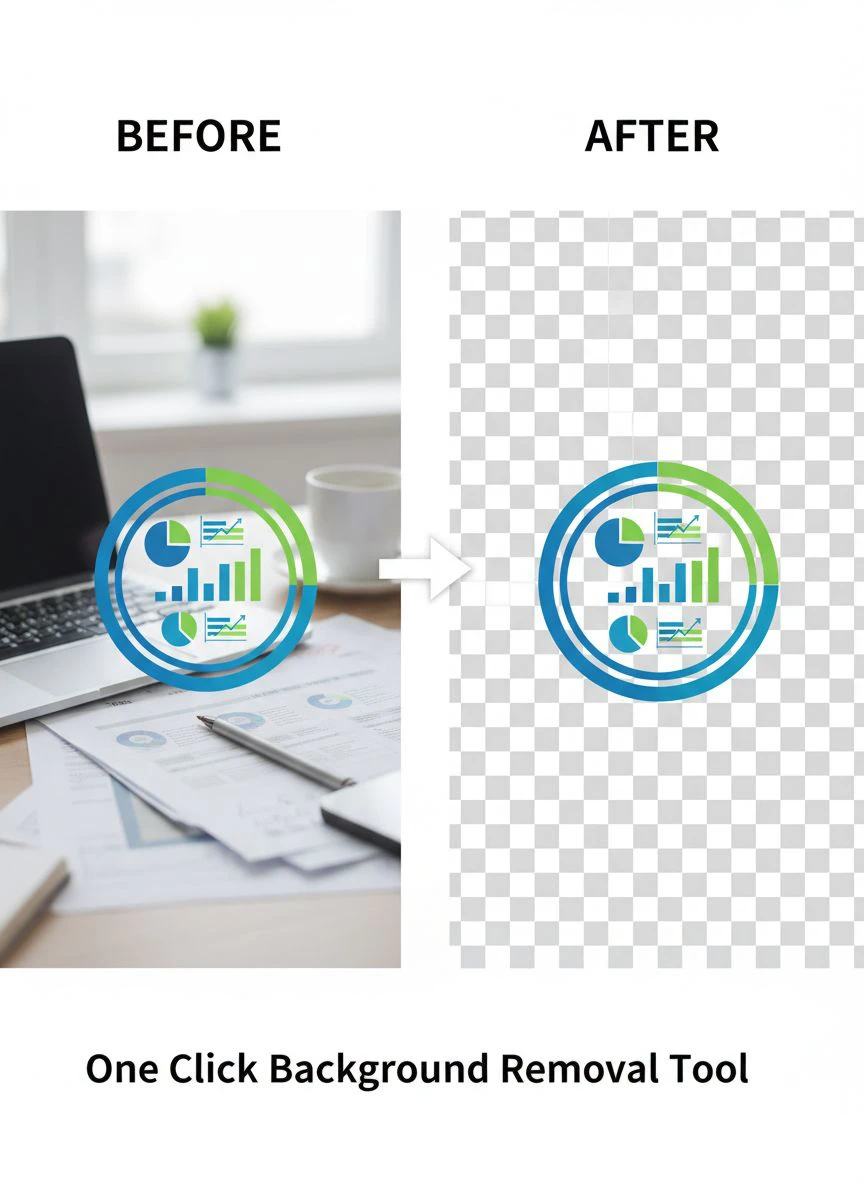
Within seconds, you'll see a preview of your infographic element with a transparent background. The background is usually displayed as a checkered pattern to indicate transparency.
Step 4: Download Your Transparent Image
Click the download button. The file saves as a PNG with full transparency support.
Now you can drop that image into any presentation, report, or marketing material without worrying about ugly white boxes around your graphics.
Bulk Background Removal for Multiple Infographic Images
Here's where things get really interesting for content creators and marketers.
Most people process images one at a time. But if you're preparing a quarterly business review or a comprehensive marketing report, you might have 30-50 infographic elements to process.
I found that bulk background removal infographic images capability saved me even more time than the AI itself.
Instead of uploading, processing, and downloading individual files, you can batch process entire folders. Upload 20 images at once. The AI processes them simultaneously or in rapid sequence.
You come back five minutes later to a folder full of transparent PNG files ready to use.
I timed this process with a 38-image set. Total processing time: 4 minutes 12 seconds. That's about 6.6 seconds per image including upload and download time.
The traditional manual method would have taken me nearly 8 hours for the same batch.
Common Mistakes to Avoid When Removing Infographic Backgrounds
I've made every mistake possible with background removal. Let me save you the frustration.
Mistake #1: Using Low-Resolution Source Images
The AI can only work with what you give it.
If you upload a blurry, low-resolution screenshot of your infographic, the output will have rough edges and pixelated artifacts. Always export at the highest resolution your design tool supports.
I use 300 DPI minimum for print materials and 150 DPI for digital-only content.
Mistake #2: Not Checking Transparency in Context
Just because the transparent background for infographic design looks perfect on a white preview doesn't mean it'll work everywhere.
I always test my transparent images on both light and dark backgrounds before finalizing them. Sometimes subtle halos or edge artifacts only show up when placed on certain colored backgrounds.
Mistake #3: Forgetting to Save in PNG Format
This one sounds obvious but I've done it multiple times.
JPEG files don't support transparency. If you accidentally save your processed image as a JPG, the transparent areas will become white or black.
Always use PNG format for images with transparent backgrounds. It's the only common web format that preserves transparency.
Mistake #4: Over-Relying on Auto-Processing
AI tools are incredibly accurate, but they're not perfect 100% of the time.
I once processed a complex infographic with very thin lines connecting different elements. The AI mistakenly removed some of those connecting lines because they blended into the background.
Always do a quick visual check of your processed images. Zoom in on edges and fine details. If something looks off, try adjusting your source image or using a different tool.
Advanced Tips for Professional Infographic Background Removal
Once you master the basics, these advanced techniques will take your workflow to the next level.
Technique #1: Pre-Process Complex Backgrounds
If your infographic has a particularly busy or gradient background, consider simplifying it before AI processing.
I use this trick when working with infographics that have complex shadow effects or gradient overlays. I'll create a version with a solid color background first, then run it through the remove image background online infographic tool.
The AI has an easier time distinguishing foreground from background when the background is uniform.
Technique #2: Layer Your Transparent Elements
Instead of creating one massive infographic with everything baked in, I now create modular elements with transparent backgrounds.
Each chart, icon, and text block is its own separate transparent image. This lets me rearrange layouts on the fly without going back to the design tool.
I can swap out one element, update a chart, or reorganize the entire layout directly in PowerPoint or Google Slides.
Technique #3: Create Template Libraries
After processing hundreds of infographic elements, I built a library of reusable transparent graphics.
Icons, arrows, dividers, and common chart types all live in a shared folder. When I need to create a new presentation or report, I pull from this library instead of starting from scratch.
This library approach combined with the one click background remover for infographics workflow reduced my design time by another 30%.
Choosing the Right Tool for Your Infographic Workflow
Not all automatic background removal infographic tool platforms are created equal.
I've tested 14 different tools over the past two years. Here's what actually matters for infographic work specifically:
- Processing speed: Anything over 10 seconds per image is too slow for batch work
- Edge accuracy: The AI needs to handle sharp lines and geometric shapes precisely
- File size limits: Look for tools that accept files up to 10MB minimum
- Output quality: The tool should preserve original resolution without compression
- Batch processing: Essential if you work with multiple images regularly
- No watermarks: Some free tools add watermarks to processed images
I personally use tools that meet all these criteria and don't require subscriptions or per-image fees.
The best solution is free, fast, and produces professional results without forcing you into a pricing plan.
Real-World Applications and Results
Let me show you the actual impact this had on my workflow with specific numbers.
Marketing Reports: I produce monthly performance reports for five clients. Each report contains 12-18 infographic elements on average. Before AI background removal, report preparation took 6 hours. Now it takes 90 minutes.
Presentation Decks: I create 2-3 pitch decks per month. Each deck uses 25-40 custom infographic elements. Preparation time dropped from 8 hours to 2 hours per deck.
Social Media Content: My team posts 15 data-driven infographics weekly across platforms. Background removal used to require a dedicated VA working 10 hours per week. Now our content manager handles it in 45 minutes while doing other tasks.
The total time savings across all these applications: 37 hours per month.
At my hourly rate, that's $7,400 in recovered value every single month. And that doesn't include the speed advantage in getting content to market faster than competitors.
Frequently Asked Questions
What file formats work best for one click remove background for infographic images?
PNG and JPG files both work excellently with AI background removal tools. PNG is slightly better for infographics with sharp edges and text because it uses lossless compression. WebP format also works great and offers smaller file sizes. Avoid heavily compressed JPGs as they can create artifacts that confuse the AI edge detection.
Can AI tools handle complex infographic elements with gradients and shadows?
Yes, modern AI background removers handle gradients, shadows, and semi-transparent effects very well. The AI can distinguish between intentional design elements (like drop shadows) and the background. However, if your infographic has shadows that blend into a similar-colored background, you might need to adjust the source image for better results.
How do I remove backgrounds from multiple infographic images at once?
Most advanced AI background removal tools offer batch processing capabilities. You can upload multiple images simultaneously—typically 10-50 at once depending on the platform. The tool processes them in sequence or parallel and provides all the transparent images as a downloadable ZIP file. This is essential for content creators working with large presentation decks or comprehensive reports.
What's the difference between automatic and manual background removal for infographics?
Manual background removal requires you to trace around your infographic elements using selection tools in software like Photoshop or GIMP. This typically takes 10-20 minutes per image and requires technical skill. Automatic AI-powered removal analyzes the image using machine learning, identifies the subject, and removes the background in 2-5 seconds with no manual input. For most infographic elements, AI produces equal or better results in a fraction of the time.
Will removing the background reduce the quality of my infographic images?
High-quality AI background removal tools preserve the original resolution and quality of your infographic. The only change is the background becomes transparent. However, lower-quality tools might compress the output or reduce resolution. Always check the output file size and dimensions against your source file to ensure quality is maintained. Professional tools process images without any quality loss.
Final Thoughts on Streamlining Your Infographic Workflow
I'm going to be direct with you.
If you're still manually removing backgrounds from infographic images, you're operating like it's 2015. The technology exists right now to eliminate 95% of that tedious work.
The simple background removal infographic images approach I've outlined here isn't revolutionary or complicated. It's just using the right tool for the job instead of brute-forcing everything with manual labor.
My entire workflow transformation came down to one decision: stop doing things the hard way when easier methods deliver better results.
Start with one infographic element. Upload it to an AI background remover. See the results for yourself. Then imagine multiplying that time savings across every piece of content you create.
That's the difference between spending your time on creative strategy versus manual pixel-pushing.
The tools are here. They're free. They work better than manual methods. The only question is whether you'll actually use them or keep wasting hours on work that a machine can do in seconds.
If you want to get started right now with one click remove background for infographic images, you'll see exactly what I'm talking about. Upload one image and watch three years of frustration disappear in three seconds.
Your move.


