
lunapic background remover: How to Make Transparent PNG Free

Your First 1 Edits Are on Us.
Get started instantly with 1 free credits. No credit card required.
LunaPic Background Remover: How to Make Transparent PNG Free
Picture this: you've got the perfect product photo, but the background is trash.
You need it gone, and you need it gone fast.
LunaPic background remover has been my go-to free solution for years when I need quick background removal without the bells and whistles of premium tools.
After removing thousands of backgrounds across different projects, I'm sharing everything that actually works.
No fluff, no nonsense - just the exact steps that get results.
What Makes LunaPic Background Remover Different
Here's what most people miss about LunaPic.
It's not an AI-powered automatic tool like remove.bg or Removedo.
Instead, it gives you manual control over every pixel.
This means more work upfront, but better precision for specific use cases.
The tool runs entirely in your browser - no downloads, no sign-ups, no watermarks.
Key features that matter:
- Magic Wand tool for similar color selection
- Set Transparent Color for one-click removal
- Eraser tool for manual cleanup
- Tolerance controls for fine-tuning
- Multiple export formats (PNG, GIF, JPG)
I've used LunaPic for logos, product photos, and simple graphics where the background contrast is clear.
It's not perfect for complex hair or intricate edges, but for clean cutouts, it delivers.
Getting Started: Upload and Prepare Your Image
How to make background transparent in lunapic free starts with the right image format.
Upload options in LunaPic:
- Drag and drop from your computer
- Upload from URL
- Use webcam capture
Best file formats for background removal:
- PNG (preserves quality)
- JPG/JPEG (most common)
- GIF (for simple graphics)
- WebP (newer format, good compression)
Pro tip from 10 years of editing: images with high contrast between subject and background work best.
White backgrounds are easiest to remove.
Complex backgrounds with similar colors to your subject will fight you every step.
Magic Wand Method: Quick Selection for Similar Colors
The Magic Wand is your first weapon of choice.
Lunapic magic wand settings for clean cutout depend entirely on your tolerance settings.
Here's my exact process:
- Click Edit → Magic Wand
- Set tolerance between 10-30 for clean backgrounds
- Click once on the background area
- Check if selection captures the entire background
- Adjust tolerance if needed
- Click "Transparent" to remove selected area
Tolerance settings that work:
- 5-15: Very similar colors only
- 20-40: Good for solid backgrounds with slight variations
- 50+: Aggressive selection (use carefully)
The magic happens when you get the tolerance just right.
Too low = multiple clicks needed.
Too high = cuts into your subject.
I always start at 20 and adjust from there.
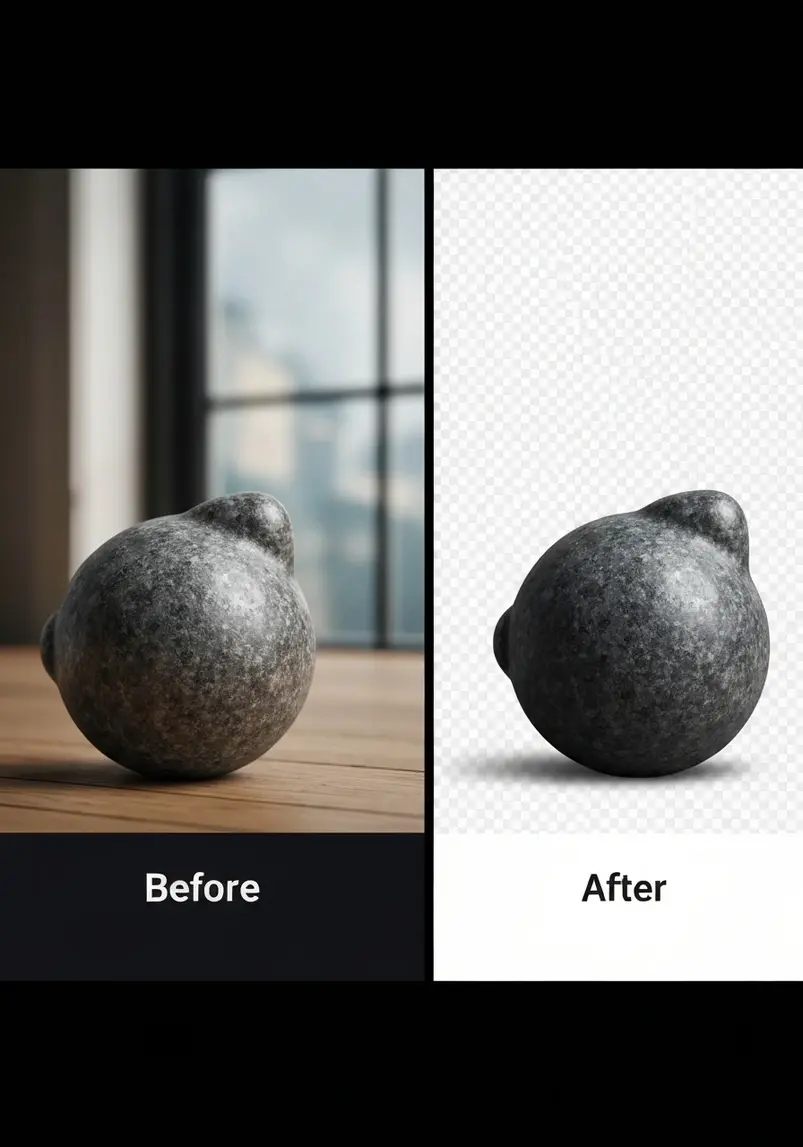
Set Transparent Color: One-Click Background Removal
Lunapic remove white background online free works best with the Set Transparent Color tool.
Navigate to Edit → Transparent → Set Transparent Color.
Lunapic set transparent color tolerance tips:
- Start with tolerance at 0 for pure solid colors
- Increase to 5-10 for slight color variations
- Use 15-20 for gradients or shadows
- Preview before applying changes
This method shines for:
- Product photos on white backgrounds
- Simple logos with solid color backgrounds
- Graphics with clear color separation
Real example: I had 50 product photos with pure white backgrounds.
Set Transparent Color with tolerance 5 removed every background perfectly in seconds each.
Compare this to manual selection that would take minutes per image.
Manual Cleanup: Eraser and Selection Tools
Even with perfect Magic Wand settings, you'll need cleanup.
Lunapic erase background for product photos requires the Eraser tool for precision work.
Eraser tool workflow:
- Select appropriate brush size
- Zoom in for detailed areas
- Erase remaining background pixels
- Use smaller brush for edges
- Check for halos or fringing
Lasso/Free Select for complex shapes:
- Trace around your subject manually
- Invert selection to target background
- Apply transparency to selected area
- Feather edges for smoother transition
Edge refinement techniques:
- Anti-alias: Smooths jagged edges
- Feather: Creates soft edge transition
- Smooth edges: Reduces harsh lines
The difference between amateur and professional results happens in this cleanup phase.
I spend 80% of my time here getting edges perfect.
Export Settings: Preserving Transparency
Lunapic transparent png download without watermark requires the right export format.
Critical export rules:
- Always use PNG for transparency
- JPG will fill transparent areas with white
- GIF supports transparency but lower quality
- WebP supports transparency with better compression
File → Save Image → PNG format.
Quality settings:
- High quality for professional use
- Medium for web use
- Low for quick sharing
Remove background from logo in lunapic transparent png workflow:
- Complete background removal
- Check for edge artifacts
- Save as PNG format
- Download immediately (no account needed)
- Test transparency in different applications
Pro tip: Always test your transparent PNG in the final application.
What looks good in LunaPic might have issues in PowerPoint or on websites.
When to Choose LunaPic vs Alternatives
LunaPic works best for:
- Simple backgrounds (white, solid colors)
- Logo background removal
- Basic product photography
- Quick edits without quality requirements
- Learning background removal techniques
When to use alternatives:
For AI-powered accuracy, Removedo delivers professional results in seconds.
Their AI handles complex hair, fur, and intricate edges that would take hours in LunaPic.
Other situations for different tools:
- Complex hair/fur: Use AI tools like remove.bg or Removedo
- Batch processing: Canva or Adobe Express
- Professional workflows: Photoshop or GIMP
- Mobile editing: PhotoRoom or dedicated apps
LunaPic vs. remove.bg accuracy:
- LunaPic: 70% accuracy, requires manual work
- remove.bg: 90%+ accuracy, fully automated
- Removedo: 95% accuracy with preserved resolution
Choose based on your time vs. quality requirements.
For more information on AI-powered alternatives, check out our guide on best free AI tools for background removal.
After a decade of background removal work, LunaPic remains valuable for specific use cases where manual control trumps automation speed.
The key is knowing when to use it and when to reach for more powerful tools like Removedo for professional results.
Master these LunaPic techniques, but don't limit yourself to just one tool in your background removal toolkit.
Frequently Asked Questions
How do I make a background transparent with LunaPic?
Use the Magic Wand tool or Set Transparent Color feature. Upload your image, select the background using tolerance settings between 10-30, and save as PNG format to preserve transparency.
Which LunaPic settings remove white background cleanly?
Set Transparent Color works best for white backgrounds. Use tolerance settings of 0-5 for pure white, or 5-15 for off-white backgrounds with slight variations.
How to refine edges after using Magic Wand in LunaPic?
Use the Eraser tool with a small brush size to clean up missed pixels. Apply feathering and anti-aliasing options to smooth rough edges and eliminate halos.
What file format should I use for transparency?
Always save as PNG format. JPG doesn't support transparency and will fill transparent areas with white. GIF supports transparency but with reduced quality.
Can LunaPic change the background color after removal?
Yes, after removing the background, use Edit → Canvas Color to add a new solid background, or layer your transparent image over a new background using the layering tools.
How does LunaPic compare to remove.bg for accuracy?
LunaPic requires manual work but gives precise control, achieving 70% accuracy with effort. Remove.bg and tools like Removedo offer 90%+ accuracy automatically but with less manual control.
Related: background remover lunapic How to remove background online free.
Related: remove bg webp Best AI Background Remover Tools.
Related: icons8 background remover Best pricing and features guide.
Try our free background remover tool for professional results.
Need high-volume processing? View our pricing plans.


