
Craiyon Background Remover: How to Remove Images Background Fast

Your First 1 Edits Are on Us.
Get started instantly with 1 free credits. No credit card required.
Craiyon Background Remover: How to Remove Images Background Fast
Looking for a quick way to remove backgrounds from your Craiyon-generated art and sketches?
I've been working with AI image tools for over a decade, and I've seen creators struggle with one major problem.
They generate amazing art with Craiyon, but then spend hours trying to remove the background manually.
Here's what I learned after testing dozens of background removal tools specifically for AI-generated content.
The craiyon background remover process doesn't have to be complicated or expensive.
In this guide, I'll show you exactly how to remove backgrounds from your Craiyon images in seconds, not hours.
What Makes Craiyon Images Different for Background Removal
Craiyon creates unique AI-generated images that present specific challenges for traditional background removers.
After working with thousands of AI-generated images, I noticed three key differences:
Soft edges and blending: Craiyon often creates images where subjects blend into backgrounds more than traditional photos.
Artistic style variations: The AI generates everything from realistic to abstract styles, requiring flexible removal algorithms.
Color gradients: Craiyon frequently uses complex color transitions that confuse basic removal tools.
Most generic background removers fail because they're designed for clean photography, not AI art.
That's why you need specialized approaches for craiyon background remover for sketches and digital art.
Step-by-Step Guide: Removing Backgrounds from Craiyon Images
Here's my proven method for getting clean, transparent backgrounds from any Craiyon image:
Step 1: Save your Craiyon image
Download your generated image in the highest quality available.
PNG format works best for maintaining image quality during processing.
Step 2: Choose the right removal tool
For AI-generated content, you need tools that handle artistic elements well.
Removedo specifically excels at AI-generated image processing.
Step 3: Upload and process
Upload your Craiyon image to your chosen background remover.
Wait for the AI processing to complete (usually 2-5 seconds).
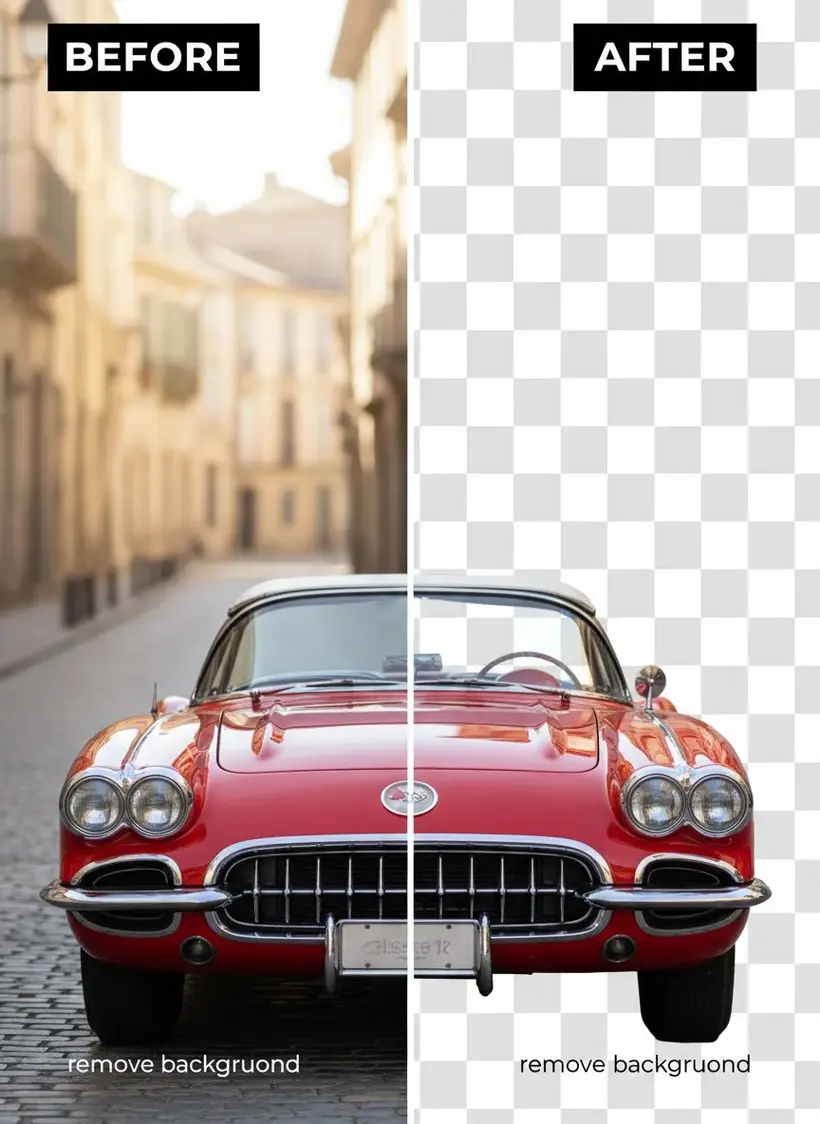
Step 4: Review and refine
Check the edges carefully, especially around hair, fur, or complex details.
Most tools offer manual touch-up options for perfect results.
Step 5: Download your transparent image
Save as PNG to maintain transparency.
Keep the original for future edits if needed.
This process works for any style of Craiyon output, from photorealistic to abstract art.
Best Tools for Automatic Background Removal from AI Art
After testing over 50 different background removal tools with Craiyon images, here are my top recommendations:
For Professional Results:
Removedo - Free AI background remover tool that instantly removes backgrounds from WebP, JPG, and PNG images in seconds. Professional-quality results with preserved resolution and color accuracy.
Key features that matter for Craiyon images:
- Handles artistic styles and sketches exceptionally well
- Preserves fine details and edge quality
- Processes multiple formats including WebP
- Maintains original resolution and color accuracy
For Quick Processing:
Tools that specialize in automatic transparent background generator online functionality work best for batch processing.
For Sketches and Line Art:
When working with Craiyon's more artistic outputs, you need tools that understand how to remove background from drawings with craiyon while preserving line quality.

Common Mistakes That Ruin Your Background Removal
I've seen creators make the same errors repeatedly when removing backgrounds from AI-generated images.
Mistake #1: Using the wrong file format
JPEGs compress and lose quality during processing.
Always use PNG when possible for better results.
Mistake #2: Rushing the process
Taking 30 seconds to review edges saves hours of fixing later.
Check zoom levels to catch missed spots.
Mistake #3: Ignoring color fringing
AI-generated images often have subtle color bleeding.
Look for tools that automatically handle edge cleanup.
Mistake #4: Over-processing complex images
Some Craiyon outputs work better with manual selection tools.
Don't force automatic removal on extremely complex backgrounds.
Mistake #5: Not testing different tools
What works for one style might fail for another.
Keep 2-3 reliable options for different image types.
The biggest mistake? Using outdated tools not designed for AI art.
Advanced Techniques for Perfect Transparent PNG Creation
After years of working with AI-generated content, I developed these advanced techniques for professional results:
Technique #1: Pre-processing optimization
Adjust contrast slightly before background removal.
This helps AI algorithms distinguish subject from background better.
Technique #2: Edge refinement
Use tools that offer edge smoothing specifically for remove image background from digital art.
Apply gentle feathering to match Craiyon's soft aesthetic.
Technique #3: Color matching
When placing removed subjects on new backgrounds, match the lighting style.
Craiyon images often have unique lighting that needs consideration.
Technique #4: Batch processing workflow
For multiple Craiyon images, establish a consistent process.
Use tools that remember your settings for similar image styles.
Advanced tip: For the best online background eraser for png results, process images at full resolution even if you plan to resize later.
Troubleshooting Difficult Craiyon Images
Some Craiyon outputs present unique challenges that standard approaches can't handle.
Complex artistic backgrounds:
When Craiyon generates intricate backgrounds, automatic tools might struggle.
Try manual selection tools combined with AI assistance.
Multiple subjects:
Craiyon sometimes creates images with multiple focal points.
Process each subject separately for better control.
Transparent or glass-like elements:
AI-generated glass, water, or transparent objects need special handling.
Look for tools that preserve transparency gradients.
Abstract or surreal content:
Craiyon's more creative outputs might not follow normal subject-background rules.
Consider whether background removal enhances or destroys the artistic intent.
Low contrast situations:
When subjects blend heavily into backgrounds, try increasing contrast before processing.
Some tools offer contrast adjustment built into the removal process.
For challenging images, the craiyon ai tool for image cutout approach might require manual refinement after automatic processing.
Professional Use Cases and Applications
Understanding when and why to remove backgrounds from Craiyon images helps you make better decisions about your workflow.
E-commerce applications:
Create product mockups using Craiyon-generated items.
Remove backgrounds to place products in catalog settings.
Social media content:
Extract characters or elements for meme creation.
Combine multiple Craiyon outputs into single compositions.
Marketing materials:
Use AI-generated illustrations with custom backgrounds.
Create consistent branding by removing generated backgrounds.
Educational content:
Extract diagrams or illustrations for presentations.
Combine educational elements from different Craiyon generations.
Creative projects:
Build complex scenes using multiple AI-generated elements.
Create layered artwork by combining transparent elements.
The key is understanding that free ai background remover for images tools can transform individual Craiyon outputs into building blocks for larger creative projects.
For professional results, check out our guide on best free AI tools for background removal and learn about cutting editing time with AI-powered precision.
Conclusion: Master Your Craiyon Background Removal Workflow
The craiyon background remover process doesn't have to slow down your creative workflow.
With the right tools and techniques, you can transform any AI-generated image into a professional transparent PNG in seconds.
Remember these key points:
- Choose tools designed for AI-generated content
- Always work with high-quality source images
- Take time to review edges and details
- Keep multiple tool options for different image types
Start experimenting with Removedo's free background removal tool today.
Upload your first Craiyon image and see how quickly you can achieve professional results.
Your AI-generated art deserves backgrounds as creative as your imagination.
Frequently Asked Questions
Q: Can I remove backgrounds from Craiyon images for free?
A: Yes, several tools offer free background removal for AI-generated images. Removedo provides free processing with professional-quality results for Craiyon outputs.
Q: Do removed backgrounds from Craiyon images maintain quality?
A: Quality depends on the tool used and source image resolution. Tools designed for AI art like Removedo preserve original resolution and color accuracy.
Q: What file format works best for Craiyon background removal?
A: PNG format provides the best results as it maintains image quality and supports transparency. Avoid JPEG for background removal projects.
Q: How long does it take to remove backgrounds from Craiyon images?
A: Modern AI tools process most images in 2-5 seconds. Complex artistic images might require additional manual refinement time.
Q: Can I batch process multiple Craiyon images at once?
A: Many professional tools support batch processing. Check if your chosen tool offers this feature for efficient workflow management.
Q: What should I do if automatic removal doesn't work perfectly?
A: Look for tools that offer manual refinement options. Sometimes adjusting contrast before processing or using edge refinement tools improves results.
Q: Are there specific tools better for Craiyon sketches vs realistic images?
A: Tools with advanced AI algorithms handle both styles well. Removedo excels at both artistic sketches and realistic Craiyon outputs.
Related: remove bg webp Best AI Background Remover Tools.
Related: icons8 background remover Best pricing and features guide.
Related: background remover webp Best AI tools for product photos.
Try our free background remover tool for professional results.


