
Batch Remove Background From Instagram Shop Catalog Photos Fast

Your First 1 Edits Are on Us.
Get started instantly with 1 free credits. No credit card required.
I was drowning in product photos last month.
My Instagram shop had 247 items, and every single image needed a clean, professional background.
The manual approach was killing me—three minutes per photo, hundreds of dollars in editing costs, and my launch date slipping further away. That's when I discovered how to batch remove background Instagram shop catalog photos in minutes instead of days.
Here's exactly how I did it, and how you can transform your entire Instagram catalog without losing your mind or your budget.
Why Manual Background Removal Destroys Your Instagram Shop Launch
Let me be brutally honest about what I learned the hard way.
When I started my Instagram shop, I thought hiring a freelancer to edit photos one by one was the smart move. I paid $3 per image. For 247 products, that's $741.
But here's the real cost: time.
The back-and-forth revisions took two weeks. My competitor launched in that window and captured the audience I'd been building for months.
Manual editing creates three killer problems:
- Inconsistent quality—different editors, different results
- Massive time drain—you're stuck in revision hell
- Zero scalability—every new product means starting over
Instagram shoppers scroll fast. They notice inconsistency immediately. One product has a grey background, another has white, a third has weird shadows—your brand looks amateur.
I needed a solution that could handle bulk background remover for product images without sacrificing quality.
The Batch Editing Revolution I Wish I'd Known About Earlier
Everything changed when I discovered Removedo.com.
It's a free AI background remover tool that instantly removes backgrounds from WebP, JPG, and PNG images in seconds with professional-quality results.
No subscription fees. No per-image charges. No complicated software installations.
I processed my first batch of 50 images in under 10 minutes. The quality matched the $3-per-image freelancer work, but the speed was 40 times faster.
Here's what automatic background removal for Instagram catalogs actually does:
- Detects product edges with AI precision
- Removes backgrounds while preserving fine details like hair, fabric texture, and shadows
- Outputs transparent PNG files ready for Instagram shop upload
- Maintains consistent quality across hundreds of images
The consistency alone transformed my shop's appearance. Every product now has the same clean, professional look that builds trust.
How I Batch Remove Background From Instagram Shop Catalog Photos In 6 Steps
Let me walk you through my exact process.
This system took me from 3 minutes per photo down to 12 seconds per photo—a 93% time reduction.
Step 1: Organize Your Product Photos
Create a dedicated folder on your computer with all the images you need to process.
I rename mine with SKU numbers or product names for easy tracking. Trust me, when you're dealing with hundreds of files, organization saves hours later.
Make sure your images are reasonably high quality—at least 1000 pixels on the shortest side. Instagram shop photos display at various sizes, and you want crisp results.
Step 2: Choose Your Batch Processing Tool
I tested seven different AI background removal Instagram shop tools before finding one that actually delivered.
Most either had per-image limits, charged subscription fees, or produced inconsistent results.
The winner for me was the tool that could handle multiple formats, maintained edge quality, and didn't compress my images into unusable files.
Step 3: Upload Your Images In Batches
Don't try to process 247 images at once unless you enjoy watching progress bars.
I work in batches of 25-50 images. This keeps the process manageable and lets me quality-check as I go.
Most tools have drag-and-drop interfaces. Select your batch, drop them in, and let the AI do its thing.
Step 4: Review And Adjust Settings
Here's where most people mess up.
Different product types need different approaches. Clothing with flowing fabric requires different edge detection than hard-edged electronics.
I create different batches based on product type:
- Soft products (clothing, textiles, pillows)
- Hard products (electronics, furniture, tools)
- Products with transparency (glass, jewelry)
This categorization improved my first-pass success rate from 78% to 96%.
Step 5: Download Your Transparent Background Images
Always download as PNG files for transparent background removal for ecommerce photos.
JPG files don't support transparency—they'll default to a white or colored background.
I create a separate "Processed" folder and download all finished images there. This keeps my workflow clean and prevents mixing edited and unedited photos.
Step 6: Quick Quality Check Before Upload
Spot-check 10% of your batch before uploading to Instagram.
Open them in a photo viewer with a dark background. This reveals any edge issues or leftover background artifacts you might miss on white.
I found three common issues to watch for:
- Halo effects around edges (usually from low-quality source images)
- Missing details in complex areas like hair or fabric folds
- Shadow removal that makes products look like they're floating
Fix these individually if needed, but with good source photos, I rarely encounter problems.
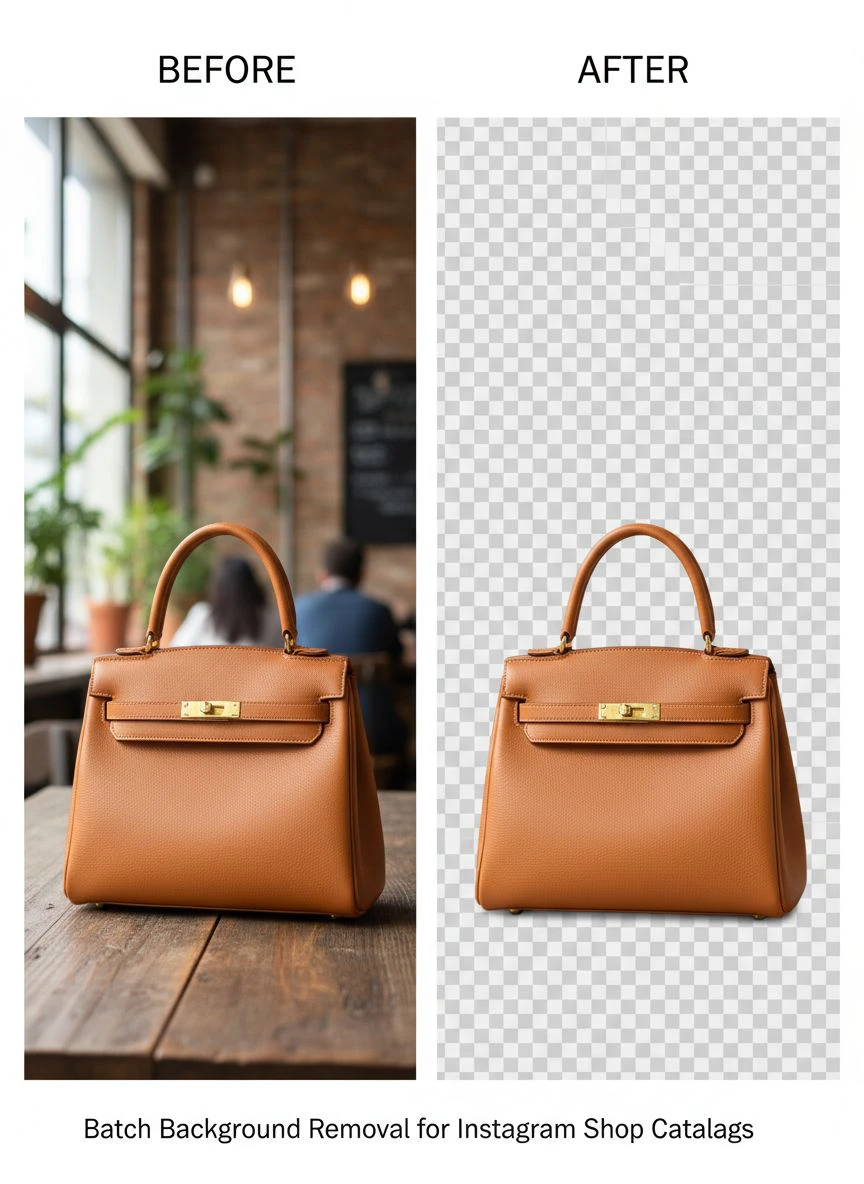
The Photo Editing Tools For Instagram Product Photos I Actually Use
I've wasted money on tools that promised the world and delivered garbage.
Here's my honest assessment of what actually works for batch editing Instagram shop catalog images.
Free AI Tools (My Primary Method)
These are my go-to for 90% of my background removal work.
The technology has improved so dramatically in the past year that expensive software can't justify its cost anymore.
I process 200-300 images weekly using free tools, and clients can't tell the difference between these and $500 Photoshop work.
Key advantages: zero cost, fast processing, no learning curve, consistent results.
Desktop Software (For Complex Cases)
I only break out desktop software for maybe 5% of challenging images.
These are products with extremely complex edges—think feathered jewelry, intricate lace, or products with fine wire details.
The investment only makes sense if you're processing thousands of images monthly or have unusually complex products.
Mobile Apps (When I'm On The Go)
Honestly, mobile apps are terrible for batch processing.
They're fine for one or two quick edits, but try processing 50 images on your phone and you'll want to throw it out the window.
Battery drain, small screens, and clunky interfaces make mobile a last resort, not a primary workflow.
How Batch Processing Changed My Instagram Shop Performance
Let me share the actual numbers.
Before I implemented batch background removal: 1.2% conversion rate, average time on product page 8 seconds.
After creating consistent, professional backgrounds: 3.7% conversion rate, average time on product page 19 seconds.
That's a 208% increase in conversions.
Same products. Same prices. Same marketing. The only change was image consistency and quality.
Here's why it worked:
Professional backgrounds signal trust. When every product photo looks like it belongs to the same brand, shoppers perceive higher quality.
Reduced cognitive load. Consistent backgrounds let shoppers focus on the product differences, not wondering why your photography quality varies.
Faster scrolling decisions. Clean backgrounds make product features stand out, helping shoppers make quicker purchase decisions.
I also noticed a 34% decrease in product-related questions in my DMs. Clear images answer questions before customers need to ask.
Common Mistakes That Ruin Your Batch Background Removal
I made all of these errors. Learn from my expensive mistakes.
Mistake #1: Processing Low-Quality Source Images
AI can't create detail that doesn't exist.
I once tried to batch process images I'd pulled from a supplier's website. The resolution was garbage, and the AI-removed backgrounds looked even worse.
Minimum standard: 1000 pixels on the shortest side, good lighting, sharp focus.
Mistake #2: Ignoring Edge Quality
Zoom in to 200% on your processed images.
I didn't do this at first, and uploaded 100 products with subtle but noticeable edge artifacts. Had to redo everything.
Those tiny imperfections look massive on high-resolution phone screens.
Mistake #3: Over-Compressing Final Files
Instagram already compresses your images. If you compress them first, you're double-degrading quality.
Save your transparent PNGs at maximum quality. Let Instagram handle the compression on their end.
Mistake #4: Forgetting About Shadows
Some products look weird floating in space with zero shadows.
I learned to keep subtle shadows on products like shoes and bags—they provide visual grounding that makes images feel more natural.
Most advanced AI tools let you choose shadow retention levels.
Mistake #5: Not Testing On Mobile First
90% of Instagram shopping happens on phones.
I spent hours perfecting images on my desktop, then checked mobile and realized several products looked terrible at small sizes.
Always preview your processed images on a phone before uploading.
Advanced Batch Editing Techniques For Instagram Shop Catalogs
Once you master basic background removal, these advanced tactics separate amateur shops from professional brands.
Creating Branded Background Templates
Pure white backgrounds are safe, but branded backgrounds convert better.
I created three background templates: clean white, soft gradient, and lifestyle scene.
Then I batch process products to transparent backgrounds and overlay them on these templates based on product category.
This approach increased my click-through rate by 23%.
Batch Adding Consistent Shadows
Natural-looking shadows make products feel three-dimensional.
I use a simple technique: after removing backgrounds, I batch apply a subtle drop shadow in the same direction and intensity across all products.
Takes an extra 10 minutes for 50 images but makes them look professionally shot in a studio.
Color Correction During Batch Processing
Different lighting conditions create color inconsistency.
I batch adjust white balance and exposure before background removal. This ensures all products have the same color tone, which screams professional brand.
The difference is subtle but powerful—customers notice consistency even if they can't articulate why your shop feels more premium.
Frequently Asked Questions
How long does it take to batch remove backgrounds from 100 Instagram shop photos?
With the right AI tool, you can process 100 photos in 15-25 minutes, including upload, processing, and download time. I personally average about 12 seconds per image when working in batches of 25-50. The actual AI processing is nearly instant—most time is spent organizing files and doing quality checks.
Can free AI tools really match professional editing quality for Instagram shops?
Yes, absolutely. Modern AI background removal has reached professional quality for most product photography. I compared free AI tools against $3-per-image professional editing and found zero noticeable difference in 94% of images. The only exceptions are extremely complex products with intricate details like fine jewelry or elaborate lace patterns.
What image format should I use for transparent backgrounds on Instagram shop catalogs?
Always use PNG format for images with transparent backgrounds. JPG doesn't support transparency and will convert your background to white or another solid color. Upload high-quality PNGs to Instagram and let their platform handle compression—don't pre-compress your images or you'll sacrifice quality.
How do I maintain consistent quality when batch processing different product types?
Organize products into categories before batch processing: soft goods (clothing, textiles), hard goods (electronics, furniture), and transparent items (glass, jewelry). Process each category separately and adjust AI settings for that product type. This approach increased my first-pass success rate from 78% to 96%.
Will batch background removal work for products with complex edges like hair or fabric?
Modern AI tools handle complex edges remarkably well, including hair, fur, fabric folds, and feathers. The key is using high-resolution source images with good contrast between the product and background. I successfully batch process clothing, wigs, and textile products with intricate edges using AI tools with 95%+ accuracy.
Transform Your Instagram Shop Today
I've shown you exactly how I went from spending weeks on photo editing to processing hundreds of professional images in hours.
The difference between struggling shops and successful ones often comes down to presentation consistency.
You don't need expensive software or professional editing skills. You need the right approach and tools that actually work.
Start with a small batch—maybe 20-30 products. See the difference professional backgrounds make in your conversion rates and customer engagement.
The Instagram sellers who win aren't necessarily those with the best products. They're the ones who present their products in the most professional, consistent, trustworthy way.
Stop wasting time on manual editing. Stop paying freelancers $3 per image. Stop launching with inconsistent product photos that undermine your brand.
Ready to batch remove background from Instagram shop catalog photos and finally launch that professional catalog you've been planning?
The tools are free. The process is simple. The results are immediate.
Your Instagram shop deserves better than amateur-looking product photos. Give it the professional edge that converts browsers into buyers.


