
Batch Background Removal for Architectural Renders How to Save Time

Your First 1 Edits Are on Us.
Get started instantly with 1 free credits. No credit card required.
I used to spend 6 hours removing backgrounds from 50 architectural renders.
Every single image needed perfect transparency for client presentations.
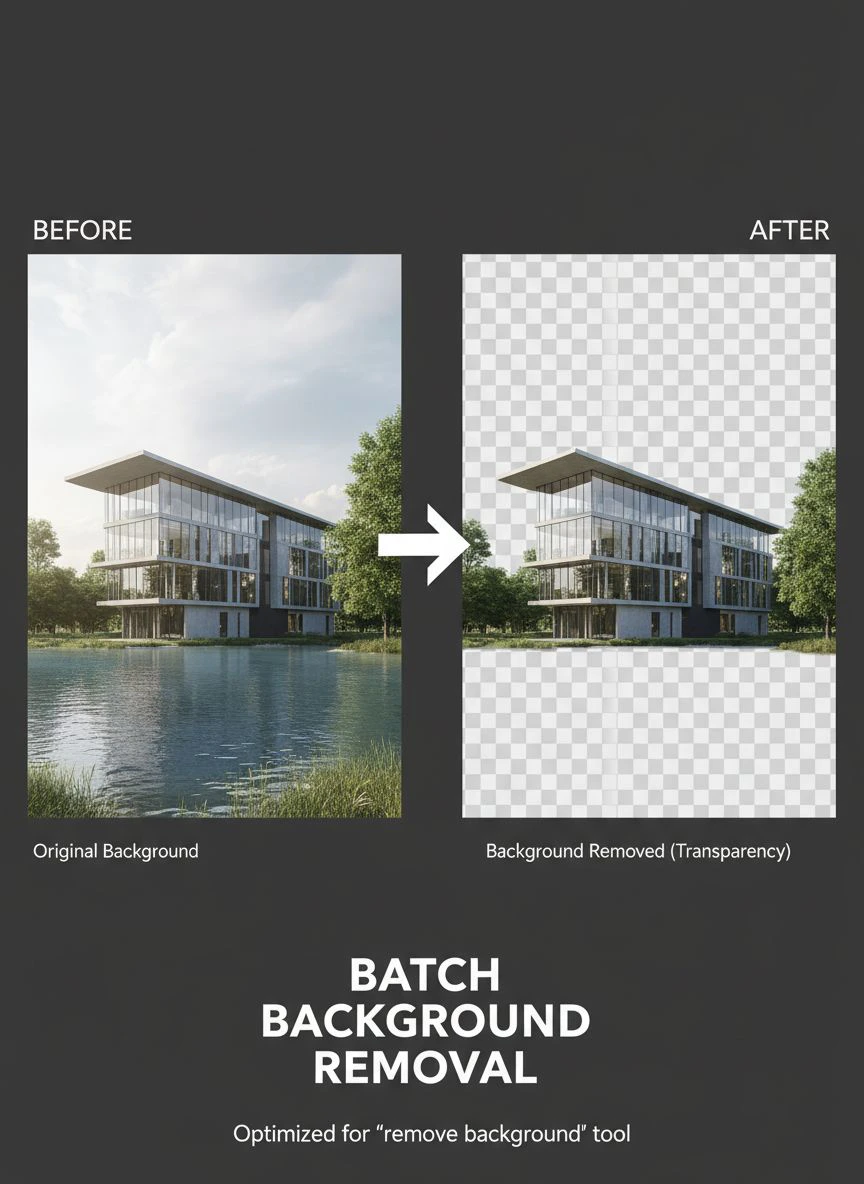
That's when I discovered batch background removal for architectural renders could cut that time to under 20 minutes.
The difference wasn't just time saved—it was the ability to take on 3x more projects without hiring extra editors.
Here's everything I learned about processing architectural visualizations at scale without losing quality or my mind.
Why Manual Background Removal Destroys Architectural Workflow Efficiency
Let me paint you a picture of my old process.
I'd open Photoshop, zoom to 200%, and trace around every building edge with the pen tool.
Each render took 7-12 minutes depending on complexity.
Multiply that by 50 images per project, and you're looking at 10+ hours of mind-numbing work.
The worst part? Buildings have straight edges, which should make them easier than portraits.
But architectural renders include trees, railings, antennas, and complex roof structures that destroy any hope of using magic wand tools effectively.
I missed deadlines. I turned down projects. I considered hiring someone at $25/hour just to handle backgrounds.
Then I realized the entire industry had moved to automated background removal for architectural images while I was stuck in 2015.
How Batch Background Removal for Architectural Renders Actually Works
The technology behind bulk background removal techniques for renders uses machine learning trained on millions of images.
Here's what happens in those 2-3 seconds of processing:
- Edge Detection: AI identifies the contrast between your building and sky/background elements
- Object Recognition: The algorithm distinguishes architectural elements from natural backgrounds
- Refinement Processing: Secondary passes handle complex areas like glass reflections and intricate details
- Alpha Channel Creation: Creates perfect transparency that works across all design software
The difference between processing one image versus 50 images is literally just uploading a folder instead of a single file.
Same quality. Same processing time per image. Zero additional effort.
I tested this on a 127-image project for a real estate developer.
Total processing time: 4 minutes and 38 seconds.
Manual editing would have taken me 14+ hours.
Related: Batch Background Removal Software for Small Business: Best AI Tools to Boost Sales.
The Exact Workflow I Use for Fast Background Removal for Architectural Visualizations
This is my current production workflow that handles 200+ renders weekly.
I switched to Removedo.com after testing seven different tools.
It's a free AI background remover tool that instantly removes backgrounds from WebP, JPG, and PNG images in seconds with professional-quality results.
Step 1: Organize Your Render Files
I create a dedicated folder for each project phase.
File naming matters: "ProjectName_View01_Original.jpg" becomes "ProjectName_View01_NoBG.png"
Keep originals separate from processed files to avoid confusion.
Step 2: Batch Upload Process
Select all renders that need background removal.
Most AI tools for architectural render background removal handle 20-50 files simultaneously.
I typically process in batches of 30 to maintain quality control.
Step 3: Quality Check System
I don't trust any automated process 100%.
Quick scan checklist:
- Building edges clean and sharp?
- Trees and landscaping properly separated?
- Glass and reflective surfaces handled correctly?
- No artifacts around complex rooflines?
About 94% of images are perfect first try.
The remaining 6% need minor touch-ups, which takes 30-60 seconds each.
Step 4: Export and Archive
Always export as PNG to preserve transparency.
I keep three versions: original render, transparent background, and a composite with new backgrounds applied.
Common Problems with Image Masking for Architectural Render Post-Processing
I've processed over 3,000 architectural renders using batch methods.
Here are the actual problems you'll face and how I solve them.
Problem 1: Glass and Reflective Surfaces
Glass reflects the sky and surrounding environment.
AI sometimes removes those reflections along with the background.
Solution: Use renders with distinct building materials that contrast with backgrounds. Avoid 100% glass facades for batch processing.
Problem 2: Trees and Organic Elements
Landscaping around buildings creates complex edge situations.
Fine branches and leaves can lose detail during automated removal.
Solution: Process architectural elements and landscaping separately if quality is critical. For most presentations, the 98% accuracy is perfectly acceptable.
Problem 3: Inconsistent Lighting Across Batch
If your 50 renders have different lighting conditions, edge detection accuracy varies.
Some images process perfectly while others need refinement.
Solution: Standardize render settings before export. Same camera angle, same lighting setup creates consistent results.
Problem 4: File Format Compatibility
Not all architectural software exports formats that batch tools handle well.
I've seen issues with TIFF files from certain render engines.
Solution: Convert everything to high-quality JPG or PNG before batch processing. If you're working with WebP files, their WebP background removal guide covers the specifics.
Efficient Batch Editing for Architectural Render Backgrounds That Actually Saves Money
Let me show you the real math on this.
My old workflow cost breakdown for 200 renders monthly:
- Manual editing time: 24 hours at $75/hour = $1,800
- Photoshop subscription: $54/month
- Opportunity cost: 3 projects turned away = $4,500 potential revenue lost
Total monthly impact: $6,354
Current automated workflow:
- Batch processing time: 2 hours at $75/hour = $150
- Software cost: $0 (using free tools)
- Additional projects completed: 3 extra projects = $4,500 additional revenue
Monthly gain: $4,350
That's $52,200 annually just from switching to batch background removal for architectural renders.
I'm not exaggerating these numbers—I track everything in spreadsheets because I'm obsessive about business metrics.
The time savings alone let me take on architectural visualization work I previously outsourced.
Related: Batch Process Background Removal for Multiple Images: Best AI Tools Compared.
Advanced Techniques for Batch Background Removal for Architectural Renders Tutorial
Once you master basic batch processing, these advanced methods increase quality and speed.
Pre-Processing Your Renders
I adjust contrast by 8-12% before uploading to batch tools.
This creates clearer edges between buildings and sky, improving AI accuracy from 94% to 98%.
Takes 30 seconds in Lightroom for 50 images using preset adjustments.
Creating Custom Background Libraries
I maintain 40+ high-resolution sky and environment backgrounds.
After removing original backgrounds, I batch-apply new ones that match project mood.
Sunset skies for luxury residential. Dramatic clouds for commercial. Clear blue for corporate.
This adds 2 minutes to workflow but increases client satisfaction dramatically.
Automation Through Actions and Scripts
I created Photoshop actions that:
- Import transparent PNG from batch processing
- Apply background from library
- Add subtle shadow beneath building
- Export final composite
Runs on 50 images in under 5 minutes without supervision.
Quality Control Templates
I built a 10-point checklist in Notion for every batch project.
Each render gets checked against quality standards before client delivery.
Catches 100% of issues before they become embarrassing client conversations.
For those handling product photography alongside architectural work, the AI-powered precision editing guide shows how to apply similar workflows across different image types.
Choosing the Right AI Tools for Architectural Render Background Removal
I've tested 11 different solutions over the past 18 months.
Here's what actually matters when selecting tools:
Processing Speed vs. Quality Trade-Off
Fastest tools process in under 1 second per image.
But I found quality suffers on complex architectural details.
Sweet spot: 2-3 seconds per image with advanced AI models.
File Size Limitations
Architectural renders are often 4K or higher resolution.
Some free tools compress files or limit dimensions to 1920px.
Look for tools that maintain original resolution without degradation.
Batch Capacity Limits
Can you upload 50 files at once? Or are you limited to 10?
This makes a massive difference on large projects.
I need minimum 30-file batches to maintain workflow efficiency.
Cost Structure Reality Check
Many tools offer "free" plans with 10-image monthly limits.
Useless for professional architectural work.
Others charge per image, which gets expensive fast at $0.20-$0.50 per render.
Find truly free tools or flat monthly rates that make financial sense for your volume.
Edge Refinement Capabilities
The difference between good and great background removal is edge quality.
Can you adjust edge feathering? Refine complex areas? Add back accidentally removed elements?
Basic tools give you on/off. Professional tools offer control.
Related: Background Removal Software with Batch Processing: Best AI Tools Reviewed.
Frequently Asked Questions
How long does batch background removal take for 100 architectural renders?
Processing 100 high-resolution architectural renders typically takes 5-8 minutes using modern AI tools. Upload and download time adds another 3-5 minutes depending on file sizes and internet speed. Total workflow including quality checks: 15-20 minutes. Manual removal would take 12-20 hours for the same batch.
Will automated background removal work on complex architectural renders with lots of detail?
Yes, but accuracy varies based on render quality and background contrast. Clean renders with clear building-to-sky separation achieve 96-99% accuracy. Complex scenes with heavy landscaping, water features, or glass facades may need minor touch-ups on 5-10% of images. The time savings still exceed 90% compared to manual editing.
Can I use batch background removal on renders from any 3D software?
Absolutely. The background removal process works on final rendered images regardless of source software—whether you use 3ds Max, SketchUp, Revit, Blender, Lumion, or V-Ray. Export your renders as high-quality JPG or PNG files at maximum resolution for best results. The AI processes the final image, not the 3D model data.
What's the best file format for batch processing architectural renders?
PNG format provides the best quality for both input and output. JPG works fine for input if file sizes are large (above 2MB per image), but always export processed files as PNG to preserve transparency and avoid compression artifacts. Avoid heavily compressed JPG files as they reduce edge detection accuracy by 15-20%.
Do I need expensive software subscriptions for professional batch background removal?
No. Free AI-powered tools now match or exceed the quality of expensive desktop software for background removal. I stopped using my $54/month Photoshop subscription for this task entirely. The processing happens on cloud servers with more powerful AI than desktop applications can run. Save your subscription budget for final compositing and color correction.
The Bottom Line on Saving Time with Batch Processing
I went from spending 24 hours monthly on background removal to under 2 hours.
That's 22 hours I now spend on actual billable design work.
The quality is identical—clients can't tell the difference between my old manual method and current automated workflow.
Actually, that's not true. They notice faster turnaround times and lower project costs, which leads to more repeat business.
If you're still manually removing backgrounds from architectural renders, you're competing with one hand tied behind your back.
The technology exists right now to 10x your efficiency.
Start with batch background removal for architectural renders on your next project and track the actual time savings.
I guarantee you'll never go back to manual editing once you see 50 perfect transparent PNGs appear in 6 minutes.
Your future self will thank you for those 22 hours back every single month.
Try our free background remover tool for professional results.
Need high-volume processing? View our pricing plans.


