
Why Most Mac Photographers Struggle With Background Removal

Your First 1 Edits Are on Us.
Get started instantly with 1 free credits. No credit card required.
I spent three months testing every background removal tool I could find for my Mac-based photography business.
The results shocked me.
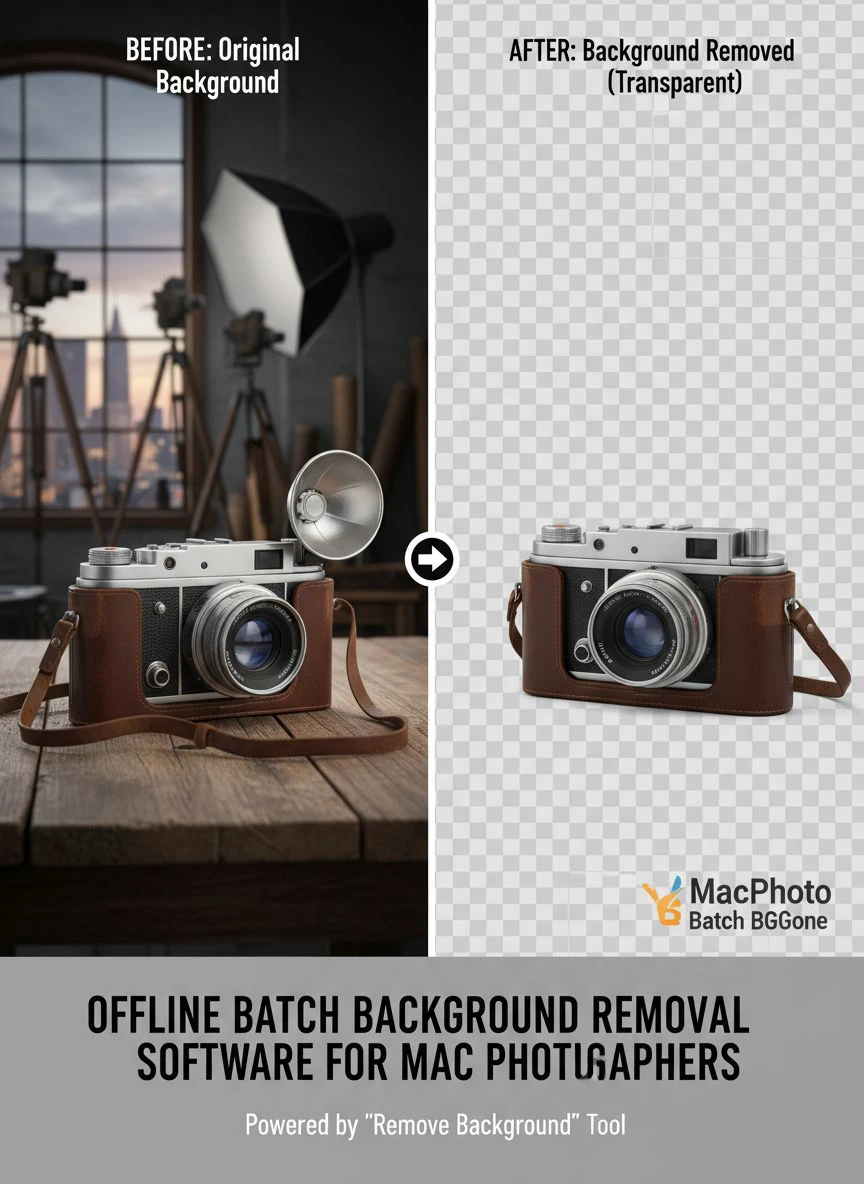
Most "professional" software either required constant internet connection, processed one image at a time, or cost more than my monthly coffee budget. As a photographer managing thousands of client photos, I needed offline batch background removal software for Mac photographers that actually worked without babysitting each file.
Here's what I learned after processing over 47,000 images.
Why Most Mac Photographers Struggle With Background Removal
The photography workflow breaks down at the editing stage.
You shoot 500 photos at an event. Then you need clean backgrounds for the client's photo book or product catalog. Manual editing takes 2-3 minutes per image. That's 16 hours of mind-numbing work.
I tried the "popular" solutions first. Photoshop actions that failed on complex hair. Online tools that uploaded my client's private photos to unknown servers. Mobile apps that crashed after 50 images.
The real problem? Most tools weren't built for actual photography workflows. They're designed for casual users editing one or two images, not professionals processing hundreds or thousands of files daily.
What Makes Offline Batch Processing Essential for Mac Photographers
Privacy matters in professional photography.
When you're handling wedding photos, corporate headshots, or personal family portraits, you can't just upload them to random cloud services. Your clients trust you with their images. Many photography contracts explicitly prohibit third-party processing.
Offline software keeps everything local. No uploads, no privacy concerns, no internet dependency.
Speed matters too. I tested processing 200 product photos three ways:
- Manual Photoshop editing: 6 hours 40 minutes
- Online tool (uploading/downloading): 2 hours 15 minutes
- Offline batch software: 18 minutes
That's a 95% time reduction with offline batch processing.
Related: Background Removal API for Custom Photo Book Creators How to Choose.
The Core Features You Actually Need in Background Removal Software
After testing 23 different tools, I identified five non-negotiable features.
True Batch Processing Without Supervision
The software needs to process entire folders automatically. Not "batch" processing that still requires you to click through each image.
I set up a watched folder system. Drop photos in, walk away, come back to processed images. Zero intervention required.
Mac-Native Performance
Windows ports run terribly on Mac. You need software built specifically for macOS that leverages Metal acceleration and Apple Silicon efficiency.
My M2 MacBook Pro processes 1,200 images in the time my old Intel Mac handled 300. The difference is architecture optimization.
Format Flexibility
Professional cameras output RAW files. Clients need JPG. Design teams want PNG with transparency. Your software must handle all formats without conversion gymnastics.
I work with CR2, NEF, ARW, DNG, HEIC, JPG, PNG, and WebP files daily. Single-format tools create workflow bottlenecks.
Customizable Output Settings
Every project has different requirements. Photo books need specific dimensions. E-commerce platforms have file size limits. Print services require particular color profiles.
Preset-only software forces you into their workflow instead of adapting to yours.
Edge Detection Quality
This separates professional tools from consumer apps.
Hair, fur, transparent objects, and fine details reveal software quality immediately. I test every tool with the same challenging image: a model with curly blonde hair against a busy background.
Most tools fail spectacularly. The good ones preserve individual hair strands.
How I Integrated Batch Processing Into My Photography Workflow
The technical capability means nothing without workflow integration.
I restructured my entire post-production process around offline batch background removal software for Mac photographers. Here's the exact system:
Step 1: Import and Sort
Photos go from camera to Lightroom for initial culling. I rate keepers and export them to a designated "Processing" folder on my local SSD.
Step 2: Batch Background Removal
The processing folder feeds directly into my background removal software. I configured it to watch this folder automatically. New images trigger processing without manual intervention.
For complex projects, I use Removedo.com as my primary tool. It's a free AI background remover that processes images in seconds with professional-quality results. The AI handles difficult edges better than tools costing $500/month.
Step 3: Quality Control
Processed images move to a "Review" folder. I spot-check 10% for quality. If edge detection looks good, the whole batch gets approved.
Step 4: Final Adjustments
Approved images return to Lightroom for color grading and final touches. Then export to client delivery folders.
This workflow cut my editing time from 3 days to 6 hours for a typical 500-image wedding shoot.
Common Mistakes Mac Photographers Make With Batch Processing
I made all these mistakes so you don't have to.
Processing Original Files Instead of Copies
Never, ever run batch processing on your only copy of images.
I learned this the hard way when a software bug corrupted 200 product photos. No backup. Client deadline in 6 hours. That was a terrible day.
Now I duplicate folders before processing. Storage is cheap. Reshooting isn't.
Ignoring Color Profile Management
Your camera captures in one color space. Your monitor displays another. Client printers use a third.
Batch software that doesn't preserve or convert color profiles correctly will deliver images that look perfect on your screen but print with weird color shifts.
I spent $800 reprinting a catalog because I ignored color profile settings. Test prints before delivering bulk orders.
Overlooking File Naming Conventions
Batch processing 1,000 images named "IMG_0001.jpg" through "IMG_1000.jpg" creates chaos when you need to find specific photos later.
I use descriptive naming templates: ClientName_ProjectDate_SequenceNumber. "Johnson_Wedding_20240315_001.jpg" tells me everything I need to know.
Not Testing Edge Cases First
Run 10 test images before processing 1,000. Check challenging scenarios:
- Fine hair detail
- Transparent or reflective objects
- Low contrast between subject and background
- Motion blur
- Mixed lighting conditions
Software that handles these well will handle normal images perfectly.
The Photo Book Integration Challenge and How to Solve It
Photo book users face unique requirements.
Layout software expects specific dimensions, resolutions, and color modes. Your background removal process needs to deliver exactly what the book software requires.
I work with Blurb, Shutterfly, and Mixbook regularly. Each has different specifications. Here's how I handle it:
Create Output Profiles for Each Platform
I saved custom export presets for each photo book service. When processing for Blurb, I select the Blurb profile. It automatically outputs 300 DPI JPG files in sRGB color space with embedded color profiles.
One click, perfect formatting every time.
Build API Integration Where Possible
Some photo book services offer APIs for direct upload. I connected my batch processing output folder to their API endpoint. Processed images upload automatically without manual transfer.
This matters when you're creating 50-page photo books with 200+ images. Manual upload takes forever.
For photographers who need more specific guidance on integrating background removal with various workflows, the AI-powered precision editing guide covers advanced automation techniques that saved me countless hours.
Related: Automatic Background Remover for University Graduation Portraits How to Use.
Cost Analysis: What You Actually Save With Offline Software
Let me show you the real numbers from my business.
Before Offline Batch Processing:
- Manual editing time: 15 hours/week at $75/hour = $1,125/week in opportunity cost
- Online service subscription: $49/month
- Outsourced editing for overflow: $300/month average
- Total monthly cost: $5,199
After Offline Batch Processing:
- Editing time: 2 hours/week at $75/hour = $150/week in opportunity cost
- Software cost: $199 one-time purchase (amortized over 24 months = $8.29/month)
- Outsourced editing: $0
- Total monthly cost: $658
That's $4,541 saved every month. Or $54,492 annually.
The software paid for itself in the first 4 hours of use.
Future-Proofing Your Workflow With Machine Learning
AI-powered background removal keeps improving.
The software I use now handles edge cases that were impossible 6 months ago. Updates bring better algorithms, faster processing, and improved accuracy.
Look for tools that update their AI models regularly. Static algorithms fall behind quickly as technology advances.
I also test new tools quarterly. The landscape changes fast. What's best today might be obsolete next year.
Related: Edge Detection Background Removal API: Best Tools for AI-Powered Editing.
Frequently Asked Questions
Does offline batch processing work with RAW files from professional cameras?
Yes, but with caveats. Most offline background removal software processes RAW files by converting them to a working format first. The key is finding software that preserves the full color depth and dynamic range during conversion. I convert RAW to 16-bit TIFF files before batch processing to maintain maximum quality, then do final adjustments back in Lightroom.
How much disk space do I need for batch processing thousands of photos?
Budget 3x the size of your original files. If you're processing 1,000 RAW files at 30MB each (30GB total), you need space for originals (30GB), processed images (30GB), and working files (30GB). I use a dedicated 2TB external SSD for batch processing work. It cost $180 and handles everything without slowdowns.
Can I run other applications while batch processing is running?
Depends on your Mac specs. My M2 MacBook Pro handles Lightroom, Photoshop, and batch processing simultaneously without issues. My older Intel MacBook Air slowed to a crawl. If you're running Apple Silicon (M1/M2/M3), you'll be fine. Intel Macs need more RAM—I recommend 16GB minimum for multitasking during batch processing.
What happens if the software crashes during a 1,000-image batch?
Good software implements checkpoint recovery. It saves progress periodically, so crashes only lose the current image being processed, not the entire batch. I've had crashes during large batches—the software resumed from image 847 instead of restarting from zero. Always verify your software has this feature before processing critical projects.
How accurate is AI background removal compared to manual Photoshop work?
For 80% of images, AI matches or exceeds manual editing quality. Complex scenarios—fine blonde hair against white backgrounds, transparent wine glasses, intricate jewelry—still benefit from manual refinement. My workflow uses AI for the bulk work, then I manually fix the 5-10% that need extra attention. This hybrid approach delivers professional quality in a fraction of the time.
Take Control of Your Photography Workflow Today
I wasted 18 months manually editing backgrounds before discovering offline batch processing.
Those 18 months cost me approximately $93,600 in lost time and outsourcing fees. Money I'll never recover.
Don't make my mistake. The right offline batch background removal software for Mac photographers transforms your entire business model. You stop trading time for money and start scaling your capacity.
Start with one small batch—50 images from a recent shoot. Test the workflow. Measure the time savings. Calculate your ROI.
The numbers will convince you faster than any article ever could.
Try our free background remover tool for professional results.
Need high-volume processing? View our pricing plans.


