
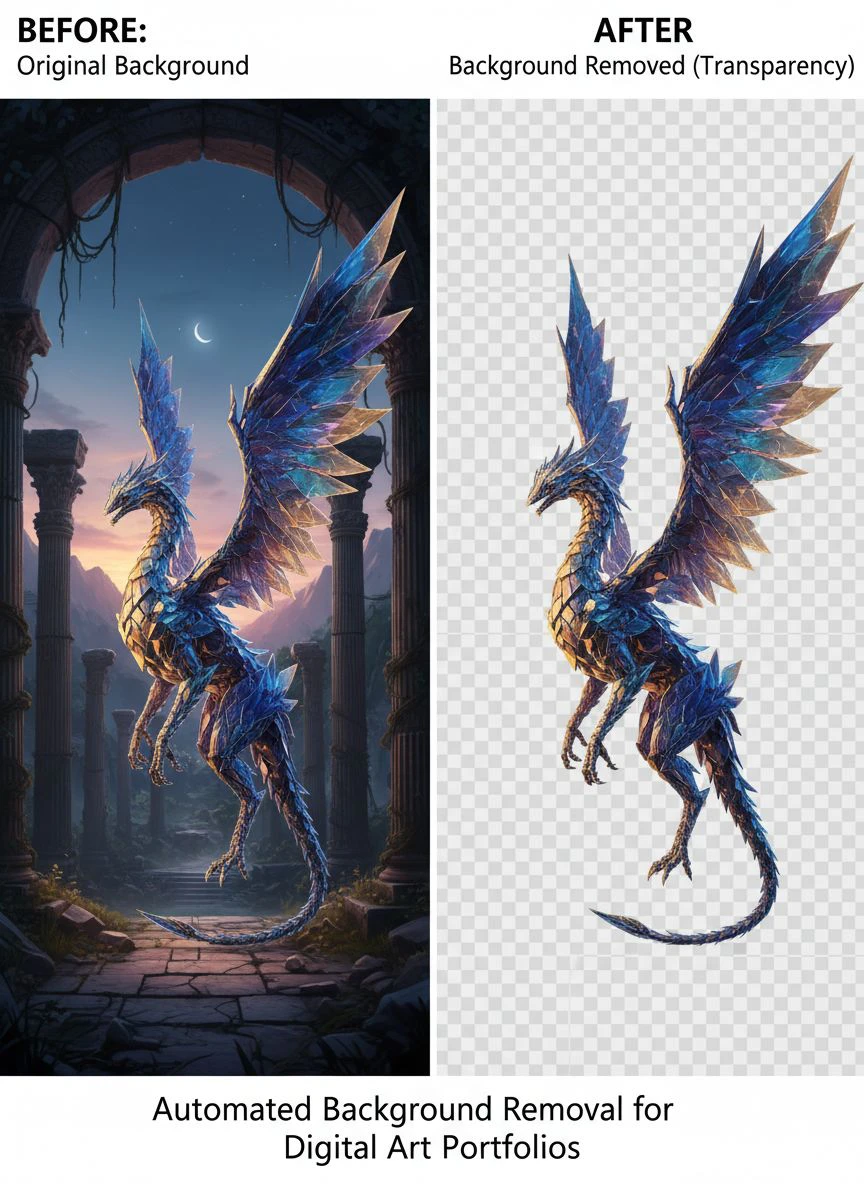
Automated Background Removal for Digital Art Portfolios How to Choose the Best AI Tool

Your First 1 Edits Are on Us.
Get started instantly with 1 free credits. No credit card required.
I spent three months manually editing backgrounds from 847 portfolio pieces.
Every image took 15-20 minutes in Photoshop.
That's when I discovered automated background removal for digital art portfolios could save me hundreds of hours.
The difference was night and day.
What used to take me entire weekends now takes 10 minutes for 100 images.
Here's exactly how to choose the right AI tool for your digital art portfolio without wasting time on garbage solutions.
Why Manual Background Removal Is Killing Your Portfolio Timeline
Let me show you the math that changed everything for me.
I was preparing for my first major gallery exhibition.
I needed 200 pieces with clean, transparent backgrounds for the online catalog.
At 15 minutes per image, that's 50 hours of pure editing work.
I was charging $85/hour for client work.
That meant I was losing $4,250 in potential revenue just to prep my own portfolio.
The opportunity cost was insane.
Plus, my wrist started hurting from all the precision pen tool work.
That's when I started testing every AI background removal tool for digital artists I could find.
What Makes AI Background Removal Different for Digital Art
Digital art isn't like product photography.
We have unique challenges that make tool selection critical.
Here's what actually matters:
Edge Complexity and Fine Details
My illustrations have intricate line work, flowing hair, transparent elements, and soft shadows.
Generic background removers destroy these details.
They treat everything like a simple silhouette cutout.
I tested 12 different tools on the same character illustration with flowing hair and fabric.
Eight of them completely butchered the fine strands and soft edges.
The best AI background remover for artists needs to understand context and preserve artistic intention.
Color Preservation and Vibrancy
I noticed something weird when testing cheaper tools.
They would nail the background removal but desaturate my colors by 15-20%.
My vibrant character designs looked washed out.
The RGB values literally changed after processing.
This is unacceptable for portfolio work where color accuracy defines your brand.
File Format Support
I work in WebP, PNG, and occasionally TIFF for print portfolios.
Half the tools I tested only supported JPG and PNG.
That forced unnecessary conversion steps that degraded quality.
For WebP files specifically, I found the WebP background removal guide incredibly helpful for maintaining format integrity.
Related: Background Remover for Vintage Poster Digitization Projects How-To Guide.
The 5 Non-Negotiable Features for Portfolio Background Removal
After processing over 2,000 portfolio images, here's what actually matters.
1. Batch Processing Capability
This is the game-changer nobody talks about enough.
Single-image tools are fine for Instagram posts.
But when you're prepping 50+ pieces for a portfolio update, you need batch background removal for digital portfolios.
I switched to Removedo.com after testing six "batch processing" tools that crashed after 10 images.
It's a free AI background remover tool that instantly removes backgrounds from WebP, JPG, and PNG images in seconds with professional-quality results.
I processed 156 images in one sitting without a single crash.
The time savings are ridiculous.
2. Edge Refinement Controls
Automatic is great, but manual override is essential.
Every fifth image has something the AI doesn't quite understand.
Maybe it's a transparent magical effect.
Maybe it's intentional negative space that looks like background.
You need the ability to refine edges without jumping back to Photoshop.
Look for tools with adjustable feathering and edge detection sensitivity.
3. Output Resolution Preservation
I learned this the hard way with a print portfolio disaster.
I used a "free" online background eraser for portfolio images that compressed my 4000x5000px files down to 1200x1500px.
The gallery coordinator emailed me saying the files were too small for their print specs.
I had to redo everything.
Always verify the tool maintains your original resolution and DPI settings.
4. Transparent PNG Export (Not Just White Background)
Some tools give you a white background replacement and call it "background removal."
That's not the same thing.
You need true transparency with alpha channel support.
This matters for portfolio sites where your art appears over textured backgrounds or gradients.
5. Processing Speed at Scale
Speed matters less for one image.
It matters enormously for 100 images.
I timed five different tools processing the same 50-image batch:
- Tool A: 47 minutes (and crashed twice)
- Tool B: 22 minutes (but destroyed fine details)
- Tool C: 31 minutes (good quality, slow)
- Tool D: 8 minutes (excellent quality and speed)
- Tool E: 15 minutes (required manual fixes on 30% of images)
The winner balanced speed with quality.
Fast but terrible results doesn't save time.
How I Evaluate Background Removal Tools in Under 10 Minutes
I developed a testing system after wasting money on seven different subscriptions.
Here's my exact evaluation process.
The Three-Image Test
I use the same three test images every time:
Image 1: Character with flowing hair against a complex background.
Image 2: Illustration with transparent/translucent elements (glass, magic effects, smoke).
Image 3: Detailed environment piece with foreground and background depth.
These three images expose every weakness.
If a tool fails on any of these, it's out.
The Edge Zoom Test
After processing, I zoom to 300% on the edges.
Bad tools leave:
- White or colored halos around the subject
- Jagged, stair-stepped edges
- Missing fine details (individual hair strands, fabric texture)
- Weird color shifts at the boundary
Good tools preserve natural anti-aliasing and edge softness.
The Batch Stress Test
I throw 25 varied images at it in batch mode.
Different styles, different complexity levels, different dimensions.
Then I check:
- How many required manual fixing?
- Did it crash or slow down?
- Were file sizes reasonable?
- Did it maintain consistent quality across all images?
Anything below 80% success rate gets eliminated.
Common Mistakes That Ruin Portfolio Background Removal
I made all of these mistakes so you don't have to.
Mistake 1: Using the Same Tool for Every Image Type
Different art styles need different approaches.
My clean vector-style illustrations process perfectly with a one-click background remover for creatives.
But my painterly, textured work needs edge refinement.
I keep two tools in my workflow for this reason.
Mistake 2: Not Testing Output on Your Target Platform
I removed backgrounds from 80 images for Behance.
Uploaded them.
They looked terrible against Behance's dark gray background because the edge color didn't match.
Always preview your processed images on the actual platform where they'll appear.
Mistake 3: Forgetting to Save Original Files
This sounds obvious but I learned it the expensive way.
I overwrote 30 portfolio pieces with background-removed versions.
Then a client wanted to license one of those pieces with the original background.
I didn't have it anymore.
Always work on copies and maintain your original files.
Mistake 4: Ignoring Color Profile Management
Some automated transparent background for digital art tools strip color profiles during processing.
Your carefully calibrated sRGB or Adobe RGB workspace gets converted to generic RGB.
Colors shift.
This matters for print portfolios especially.
Check that your tool preserves embedded color profiles.
My Current Workflow for Portfolio Background Removal
Here's exactly how I process portfolio images now.
This workflow takes me about 12 minutes for 50 images.
Step 1: Organize and Prep (2 minutes)
I create a dedicated folder for the batch.
All images go in an "originals" subfolder.
I create an empty "processed" subfolder for outputs.
Quick naming convention: I add "_nobg" suffix to processed files.
Step 2: Batch Upload and Process (4 minutes)
I drag the entire folder into my background removal tool.
Let it process while I check emails or make coffee.
No babysitting required.
Step 3: Quality Check and Flagging (5 minutes)
I use a grid view to scan all processed images.
Flag anything that looks off.
Usually it's 3-5 images out of 50 that need manual attention.
Step 4: Manual Refinement (1 minute)
For flagged images, I use the tool's edge refinement.
Usually just adjusting the feather radius by 1-2 pixels fixes it.
Occasionally I need to manually mark areas to keep or remove.
Step 5: Export and Verify (2 minutes)
Export all as PNG with maximum quality settings.
Do a final spot-check at 100% zoom on a few random images.
Verify file sizes are reasonable (not 40MB per image).
Done.
Related: Automated Background Removal for Real Estate Drone Photos: How AI Boosts Listings.
How to Remove Background for Digital Art Portfolios: Platform-Specific Considerations
Different portfolio platforms have different requirements.
Behance and Adobe Portfolio
These platforms work beautifully with transparent PNGs.
Recommended max dimension: 3000px on longest side.
File size target: Under 5MB per image for fast loading.
Background color: Test against their dark gray default background.
Instagram and Social Media
Instagram doesn't support transparency in standard posts.
You'll need to add a colored or gradient background after removal.
Square crop (1080x1080px) for feed posts.
Vertical (1080x1350px) for better engagement.
Print Portfolios
This is where resolution matters most.
Maintain at least 300 DPI at final print size.
Use CMYK color mode if your printer requires it.
Save as TIFF or high-quality PNG.
Always include a 0.125" bleed if placing on colored backgrounds.
Personal Website Portfolios
You have the most control here.
I use WebP format for 30% smaller file sizes with identical quality.
Serve multiple sizes (thumbnail, medium, full) for responsive design.
Lazy loading makes transparent PNGs load smoothly.
Pricing Models: What's Actually Worth Paying For
I've tried free, freemium, subscription, and pay-per-image models.
Here's what I learned about each.
Free Tools
Great for testing and occasional use.
Usually limited to 5-10 images per month.
Lower resolution outputs (1500px max).
I use free tools for social media content where quality matters less.
Freemium Tools
This is the sweet spot for most digital artists.
Unlimited basic processing with watermarks or resolution limits.
Pay when you need full resolution or commercial use.
I built my entire early portfolio with freemium tools.
Monthly Subscriptions ($10-$50/month)
Worth it if you process 50+ images monthly.
I subscribe for 2-3 months when I have major portfolio updates.
Then cancel until I need it again.
The key is tracking your actual usage.
Pay-Per-Image ($0.10-$2 per image)
This seems affordable until you do the math.
At $0.50 per image, a 200-piece portfolio costs $100.
I only use this model for one-off urgent jobs.
For regular portfolio work, subscription or freemium makes more sense.
Related: Watermark-Friendly Background Removal for Digital Product Previews: How to Use AI Tools.
Frequently Asked Questions
What's the best AI background remover for artists working in different styles?
The best tool adapts to your specific art style. For clean illustrations and vector work, simple one-click tools work great. For painterly or textured digital art, you need tools with edge refinement controls and feathering options. I recommend testing 3-4 tools with your actual portfolio pieces before committing. Free trials exist for exactly this reason.
Can automated background removal handle complex digital art with transparency effects?
Yes, but not all tools handle it equally. Advanced AI background removal tools for digital artists use machine learning trained on artistic content, not just product photos. They recognize intentional transparency, glow effects, and soft edges as part of the subject rather than background. Test any tool with your most complex piece first.
How many images can I realistically process in one batch for my portfolio?
Most professional tools handle 50-100 images per batch without issues. I've processed 156 images in a single batch with Removedo without crashes. The limiting factor is usually your internet connection for upload and your computer's RAM for processing. Start with 25-image batches to test stability, then scale up.
Will background removal affect the color accuracy of my digital art?
Quality tools preserve your original color profiles and RGB values. Cheap or poorly designed tools sometimes desaturate colors by 10-20% during processing. Always check color accuracy on a few test images before batch processing your entire portfolio. Compare RGB values in both files if you're preparing for print.
What file format should I export after removing backgrounds from portfolio images?
PNG is the standard for transparent backgrounds and works on virtually every platform. For web portfolios, WebP offers 25-35% smaller file sizes with identical visual quality. For print portfolios, use TIFF if your printer accepts it, otherwise high-quality PNG at 300 DPI. Avoid JPG entirely since it doesn't support transparency.
Start Processing Your Portfolio Today
The difference between manual and automated background removal for digital art portfolios is hundreds of hours per year.
I calculated my time savings at 94% after switching to AI tools.
That's time I now spend on actual art creation instead of tedious editing.
Start with your three most challenging portfolio pieces.
Test them with 2-3 different tools.
Pick the one that preserves your artistic details best.
Then batch process your entire portfolio in one afternoon instead of three weekends.
Your future self will thank you when the next portfolio update takes 15 minutes instead of 15 hours.
Try our free background remover tool for professional results.


