
Remove Background from Logo to Make Transparent PNG: Best Tools & Tips

Your First 1 Edits Are on Us.
Get started instantly with 1 free credits. No credit card required.
I spent three days redesigning my company logo last year.
Looked perfect in the design software.
Then I tried putting it on our website with a white background behind it, and it looked like a child's art project.
The background clashed with everything, created ugly boxes around the logo, and made our brand look cheap.
That's when I learned I needed to remove background from logo to make transparent PNG files that actually work across different platforms.
I tested 12 different tools over two weeks.
Some were garbage, others were expensive, and a few actually delivered.
If you need best free tools to make logo background transparent without wasting hours like I did, this guide will save you time and money.
Why You Need Transparent PNG Logos (And Why I Wasted $400 Learning This)
Here's what nobody tells you about logo files.
When your designer sends you a logo, it usually comes with a white or colored background.
That background is fine for certain uses, but it destroys your flexibility.
I learned this the hard way when I paid a print shop $400 to print 1,000 business cards.
My logo had a white background square around it.
On white cards, you could see the subtle box outline.
It looked terrible.
I had to reorder everything with a proper transparent logo background.
A transparent PNG logo lets you place your logo anywhere without that ugly background box.
Website headers with colored backgrounds? Check.
Social media posts with images? Check.
Marketing materials with patterns or photos? Check.
The PNG format specifically supports transparency, unlike JPG files which always have a background color.
This is why every professional brand asset library includes PNG logo versions with transparent backgrounds.
The 3 Tools I Actually Use (After Testing 12)
I wasted two full weeks testing every background remover tool I could find.
Most were slow, produced terrible quality, or charged per image.
Here are the only three I still use, depending on what I need.
For 90% of Logo Background Removal: Removedo
I switched to Removedo.com after burning through paid credits on other services.
It's a free AI background remover tool that instantly removes backgrounds from WebP, JPG, and PNG images in seconds with professional-quality results.
No subscriptions, no per-image fees, no sign-ups required.
I process about 40 logos per month for client projects, and Removedo handles 90% of them perfectly.
Upload your logo, wait 2-3 seconds, download your transparent PNG.
The AI accurately detects edges, handles fine details like text, and preserves quality.
For simple to moderately complex logos, this is the fastest path to a clean transparent logo background.
For Complex Logos with Shadows: Photoshop
When I have a logo with intentional shadows, gradients, or very fine details, I use Adobe Photoshop.
The manual control lets me preserve shadows while removing the background.
But here's the reality: Photoshop costs $54.99/month, and it takes 10-15 minutes per logo if you know what you're doing.
I only use it for maybe 5-10% of logos where AI tools struggle.
For Bulk Processing: Canva Pro
When I need to process 50+ logos in one session, I use Canva Pro's Background Remover.
It costs $12.99/month, includes unlimited removals, and has a decent batch workflow.
Quality isn't quite as good as Removedo for individual logos, but the bulk processing saves time.
For most people reading this, you need Removedo.
It's free, it's fast, and it works.
Related: Remove Background Tool with Transparent PNG Export: Best AI Solutions Reviewed.
Step-by-Step Logo Background Removal Online (Under 60 Seconds)
Let me walk you through the exact step by step logo background removal online process I use.
This is the easy way to edit logo background for transparency without any technical skills.
I timed myself doing this yesterday: 38 seconds from start to finish.
Step 1: Locate your logo file
Find your logo file on your computer.
It can be JPG, PNG, or WebP format—doesn't matter.
Step 2: Open your background remover tool
Go to your chosen tool (I use Removedo for 90% of logos).
No account creation needed.
Step 3: Upload your logo
Drag and drop your logo file or click to browse and select it.
The tool will automatically start processing.
Step 4: Wait for AI processing
This takes 2-5 seconds depending on file size.
The AI analyzes your logo and removes the background automatically.
Step 5: Review the result
Check the preview to make sure edges look clean.
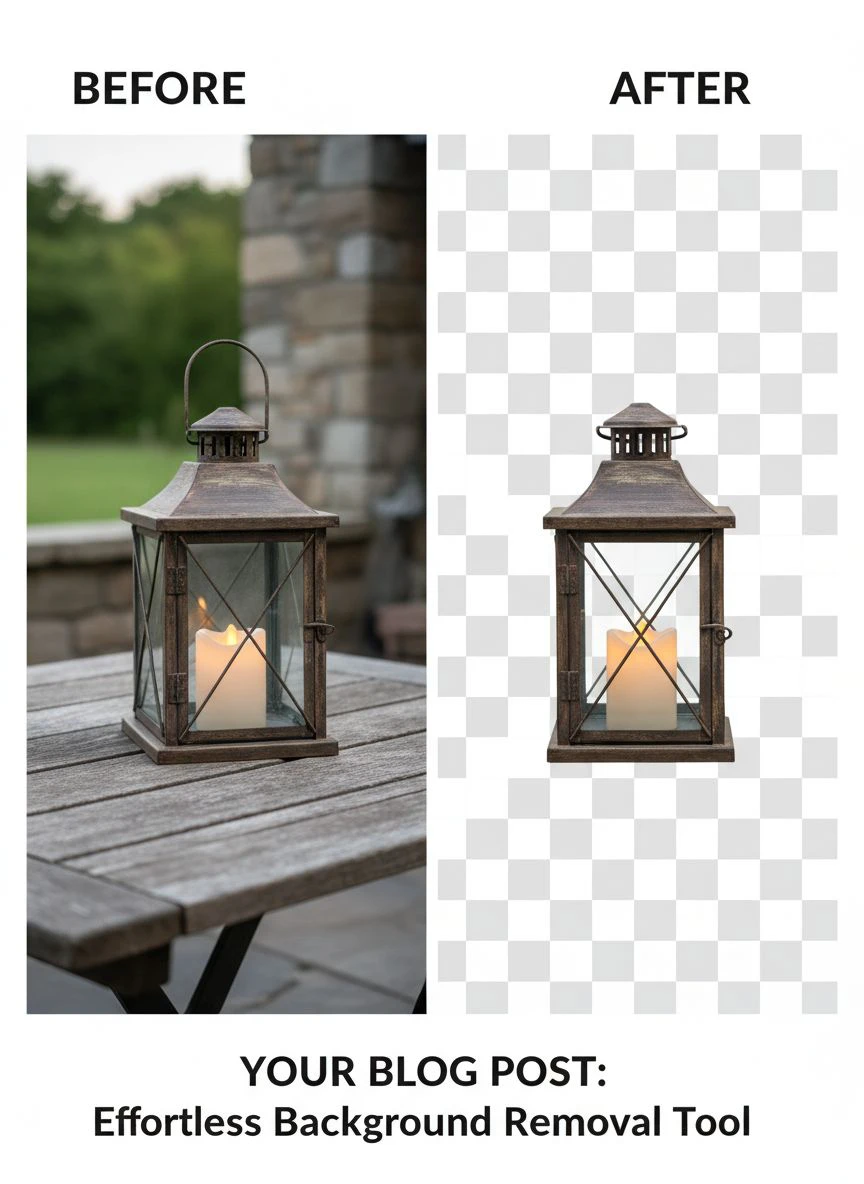
Most tools show you a checkered background pattern where transparency was created.
Step 6: Download your transparent PNG
Click download and save your new transparent PNG logo.
That's it.
No complicated settings, no manual tracing, no technical knowledge required.
This simple method to make background transparent online works for 90% of logos.
How to Remove Background from Complex Logo with Shadows
Here's where most people get stuck.
Your logo has a drop shadow, or a gradient, or very fine text details.
You try an AI tool and it either removes the shadow (which you wanted to keep) or leaves weird artifacts.
I dealt with this exact problem on a client's vintage-style logo last month.
It had an intentional drop shadow that was part of the design.
Every AI tool I tried removed the shadow along with the background.
Here's what actually works to remove background from complex logo with shadows:
Technique 1: Layer Separation
If you have the original design file (AI, PSD, or layered PNG), check if the shadow is on a separate layer.
You can remove just the background layer and keep the shadow layer intact.
This preserves the exact shadow your designer created.
Technique 2: Shadow Reconstruction
Remove the entire background including shadow using an AI tool.
Then recreate the shadow in Photoshop or Canva as a new effect layer.
This gives you a clean transparent background with a controlled shadow.
Takes about 5 extra minutes but looks professional.
Technique 3: Manual Selection in Photoshop
Use Photoshop's Select Subject or Quick Selection tool.
Manually refine the selection to include the shadow area you want.
Invert the selection and delete just the background.
This is the most precise method but requires Photoshop skills and time.
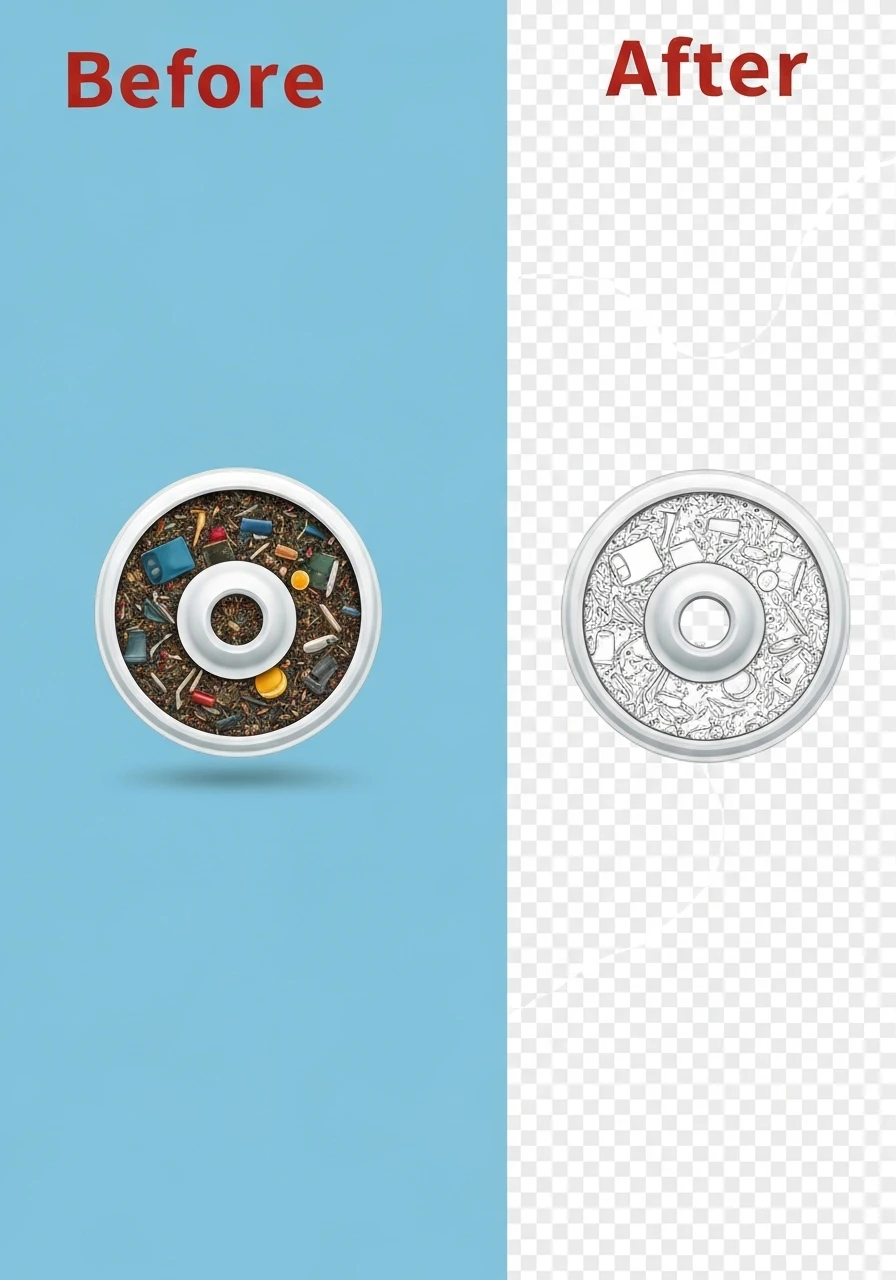
For logos with fine text details, AI tools like Removedo actually handle them better than I expected.
The edge detection is sharp enough to preserve small text without fringing.
How to Save Logo as Transparent PNG Without Quality Loss
This is where people screw up even after removing the background correctly.
They export the file wrong and lose quality or transparency.
I've received dozens of "transparent" logos from clients that still had white backgrounds because they saved them as JPG.
Here's exactly how to save logo as transparent PNG without quality loss:
File Format Requirements
You MUST save as PNG format.
Not JPG, not GIF, not WebP (unless your tool specifically supports WebP transparency).
PNG is the standard format for transparent logo backgrounds.
Specifically, you want PNG-24, not PNG-8.
PNG-24 supports full transparency with millions of colors.
PNG-8 only supports 256 colors and can create ugly banding on gradients.
Export Settings That Matter
When your background removal tool offers export options, choose these settings:
- Format: PNG (PNG-24 if the option exists)
- Transparency: Enabled (should be automatic)
- Quality: Maximum or 100% (some tools compress by default)
- Resolution: Keep original size or higher
- Color profile: sRGB for web use
Resolution Guidelines
For web use: 1000-2000 pixels wide is plenty.
For print: At least 300 DPI at the size you'll print it.
I always keep one high-resolution version (3000+ pixels wide) as my master file.
Then I create smaller versions for specific uses: website header (500px), social media (1200px), print materials (high-res).
File Size Optimization
Transparent PNG files can get large, especially for complex logos.
I use a tool called TinyPNG to compress PNG files after export.
It reduces file size by 60-70% without visible quality loss.
This matters for website loading speed.
A 2MB logo file will slow down your website; a 200KB file won't.
Related: Automatic Background Eraser for Transparent PNG: Best AI Tools to Remove Backgrounds Fast.
Common Mistakes That Cost Me Hours (And How to Avoid Them)
I've made every possible mistake with logo background removal.
Here are the five that cost me the most time, and how you can avoid them.
Mistake 1: Jagged Edges and Pixelation
Your logo looks great in the editor, then you place it on your website and the edges look like they were cut with safety scissors.
This happens when you start with a low-resolution logo file.
The fix: Always start with the highest resolution version of your logo you can find.
If your logo file is under 500 pixels wide, it's probably too small.
You can't add quality that isn't there in the original file.
Mistake 2: White Fringe or Halo Effect
You remove the background, but there's a thin white outline around your logo.
Looks terrible on dark backgrounds.
This happens because of anti-aliasing—the original logo had semi-transparent pixels blending with the old background.
The fix: Some tools have a "defringe" or "remove white matte" option.
In Photoshop, go to Layer > Matting > Defringe and set it to 1-2 pixels.
This removes that white outline.
Mistake 3: Accidentally Saving as JPG
I see this constantly.
Someone does all the work to remove the background, then saves the file as JPG.
JPG doesn't support transparency.
It converts transparent areas to white (or whatever your background color is set to).
The fix: Always double-check you're saving as PNG.
When in doubt, check the file extension: it should be ".png" not ".jpg".
Mistake 4: Over-Compressing and Losing Quality
File size too big, so you export at low quality to shrink it.
Now your logo looks blurry or has compression artifacts.
The fix: Export at maximum quality first.
Then use a proper PNG compression tool that preserves visual quality while reducing file size.
Don't use the "quality slider" in your export dialog—that destroys quality.
Mistake 5: Wrong Color Mode
Your logo looks perfect on your computer, then someone else opens it and the colors are completely different.
This happens with color profile mismatches.
The fix: Always use sRGB color mode for web graphics.
If you're preparing for print, ask your printer what color profile they need (usually CMYK).
How to Remove White Background from Logo in Photoshop (When You Need Control)
Most people don't need Photoshop for basic logo background removal.
But if you have complex requirements or already own Photoshop, here's the fastest method.
I use this workflow when AI tools don't give me enough control.
Photoshop Method (5-Minute Version)
Step 1: Open your logo file in Photoshop.
Step 2: If the layer is locked (shows "Background" in the layers panel), double-click it to unlock.
Step 3: Go to Select > Subject (or use the Object Selection Tool).
Photoshop's AI will automatically select your logo.
Step 4: If the selection isn't perfect, use Select > Select and Mask to refine edges.
Increase edge detection, smooth the selection, and feather slightly (0.5-1px).
Step 5: Invert the selection (Select > Inverse or Ctrl+Shift+I on Windows, Cmd+Shift+I on Mac).
Step 6: Press Delete to remove the background.
You'll see the checkered transparency pattern appear.
Step 7: Export as PNG: File > Export > Export As, choose PNG format, check transparency.
This gives you pixel-perfect control over edge quality.
But honestly, for 90% of logos, the AI tools are faster and just as good.
I only use Photoshop when I need to manually adjust specific areas or preserve complex shadows.
Related: Remove Gradient Background from Vector Logo Designs: How to Master It Fast.
Frequently Asked Questions
What's the best free tool to remove background from logos?
I've tested dozens of free background removal tools.
Removedo consistently gives the best results for logos without requiring sign-ups or credits.
It handles clean logos, text-based logos, and moderately complex designs with excellent edge quality.
For free tools, the main alternatives are Remove.bg (limited free credits) and Canva Free (lower quality than paid version).
But Removedo's unlimited free processing with professional quality makes it the clear winner for most users.
Can I remove background from a JPG logo and save it as transparent PNG?
Yes, absolutely.
The original format doesn't matter—you can start with JPG, PNG, or even WebP.
Background removal tools work on any image format.
What matters is that you export the final result as PNG to preserve the transparency.
Just upload your JPG logo, remove the background, and download as PNG.
The transparency will be created during the background removal process.
Why does my transparent logo still show a white box in some places?
This happens for three common reasons.
First, you might have actually saved it as JPG instead of PNG—check your file extension.
Second, some applications don't support PNG transparency (like older versions of PowerPoint).
Third, you might be viewing it in a program that displays transparent areas as white by default.
Try opening your PNG file in a browser or image editor that shows transparency as a checkered pattern—if you see the checkered pattern, your transparency is intact.
How do I maintain logo quality when removing the background?
Start with the highest resolution version of your logo you can get.
Never upscale a small logo—that just adds blur, not detail.
Use AI-based tools instead of basic "magic wand" background removers—they preserve edges better.
Export at maximum quality settings when saving your PNG.
If file size is too large, compress afterward with a tool like TinyPNG rather than reducing export quality.
These steps ensure your logo stays crisp and professional-looking.
Can I use transparent PNG logos on all social media platforms?
Mostly yes, but with some quirks.
Instagram, Facebook, and LinkedIn all support PNG transparency in posts and profile pictures.
Twitter supports it for profile pictures and most post images.
However, some platforms convert images to JPG automatically when you upload them, which removes transparency.
If your transparent logo shows up with a white background after uploading, the platform probably converted it.
Try placing your logo on a colored background before uploading to those platforms.
Your Logo Background Removal Action Plan
Here's exactly what to do right now.
Locate your logo file—the highest resolution version you have.
Open Removedo or your preferred background removal tool.
Upload your logo and let the AI process it (takes under 5 seconds).
Download your transparent PNG file.
Test it by placing it on different colored backgrounds in a design tool or document.
If edges look clean and there's no white box, you're done.
If you see issues like jagged edges or white fringe, try starting with a higher resolution original or use the Photoshop method for manual control.
Save your transparent PNG in multiple sizes: one high-res master file (3000px+), one for web use (1000-2000px), and one optimized for social media (1200px).
The simple process to remove background from logo to make transparent PNG takes less than 60 seconds once you know the right tools.
I spent two weeks and $400 learning this the hard way.
You just got it in 10 minutes.
Now go make your logo look professional everywhere it appears.
Try our free background remover tool for professional results.


