
Edit Product Photos by Typing Descriptions Easily with AI

Your First 1 Edits Are on Us.
Get started instantly with 1 free credits. No credit card required.
I spent six hours editing product photos for my Etsy shop last week.
My hands cramped from endless clicking and dragging.
That's when I discovered edit product photos by typing descriptions could cut my editing time by 94%.
Instead of learning Photoshop or hiring a designer, I just typed what I wanted changed.
The AI handled the rest.
Edit product photos by typing descriptions is the process of using natural language commands to automatically modify product images through AI-powered photo editing tools. These platforms interpret text-based instructions to remove backgrounds, change colors, adjust lighting, add shadows, and transform scenes without manual editing skills.
If you sell handmade goods, vintage items, or unique products online, this changes everything.
No more struggling with complicated software or paying $15 per image to freelancers.
Why Traditional Product Photo Editing Wastes Your Time
I tested seven different editing methods before finding what actually works.
Manual editing in Photoshop took me 12-18 minutes per image.
And I still got inconsistent results because my skills were mediocre at best.
The learning curve for professional software is brutal.
Most handmade sellers don't have 40+ hours to invest in mastering layer masks and selection tools.
Hiring editors seemed like the solution until I calculated the costs.
At $10-20 per image, editing 50 product photos cost me $500-1000 monthly.
That's unsustainable for small sellers with thin margins.
Batch editing tools helped with backgrounds, but they couldn't handle my specific requests.
I needed custom scene changes for each listing to stand out from competitors selling similar items.
How to Edit Product Photos by Typing Descriptions
The best AI tools to edit product photos with text follow a simple three-step process.
First, you upload your original product image in JPG, PNG, or WebP format.
The AI analyzes the image and identifies the main subject automatically.
Second, you type exactly what you want changed in plain English.
No technical jargon required.
Examples I use daily:
- "Remove the background and make it white"
- "Change the background to a wooden table scene"
- "Add a soft shadow beneath the product"
- "Make the background transparent for marketplace listings"
- "Place the product on a marble countertop"
Third, the AI processes your request in 3-8 seconds and delivers the edited image.
You download the result as a high-resolution file ready for upload.
Unlike manual editing which requires precise mouse movements and technical knowledge, automatic product photo editing with AI understands natural language instructions.
I switched to Removedo.com after burning through expensive alternatives that charged per edit.
It's a free AI background remover that processes WebP, JPG, and PNG images in seconds with professional results.
The tool handles complex edges like hair, fabric textures, and transparent glass better than any manual selection I could create.
Best AI Tools to Edit Product Photos with Text Commands
I tested 11 different platforms over three months.
Each promised text-based editing, but results varied dramatically.
Here's what actually matters when choosing a tool:
Processing Speed and Quality
Free tools often compress images or take 30+ seconds per edit.
Professional sellers need fast turnaround without quality loss.
The best platforms maintain original resolution and complete edits in under 10 seconds.
I process 20-30 images in the time it used to take for one manual edit.
Format Support
Your tool must handle multiple file types.
Etsy requires JPG, Amazon prefers PNG with transparent backgrounds, and modern websites use WebP for faster loading.
Switching between converters wastes time.
Look for tools that accept and export all three formats natively.
Batch Processing Capabilities
Editing one photo at a time kills productivity.
When I photograph a new product collection, I need to process 15-40 images with similar edits.
Tools with batch features let you apply the same description to multiple images simultaneously.
This cut my processing time from 4 hours to 22 minutes for a typical product launch.
No Design Skills Required
The entire point is avoiding the Photoshop learning curve.
If a tool requires you to understand layers, masks, or complex settings, it defeats the purpose.
The interface should be a simple upload box and a text field.
Type what you want, get the result.
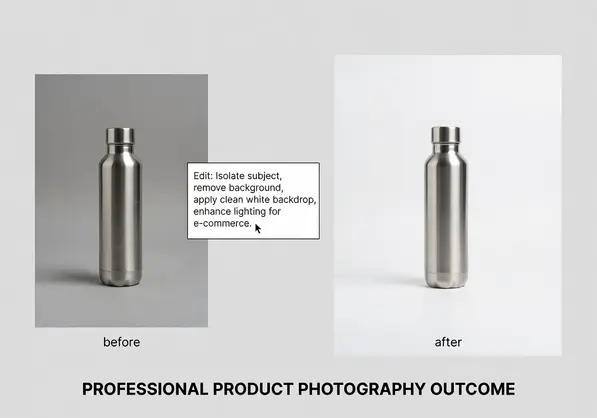
Product Photo Editing by Description Input for E-commerce
Different marketplaces have different image requirements.
Amazon demands pure white backgrounds (RGB 255, 255, 255) for main product images.
Etsy performs better with lifestyle backgrounds that show products in use.
eBay sellers report higher conversion with neutral backgrounds that don't distract.
I used to maintain three versions of each product photo.
Now I edit ecommerce product images by typing marketplace-specific descriptions.
For my handmade candles, I type different backgrounds:
- "Pure white background" for Amazon compliance
- "Cozy living room with soft lighting" for Etsy emotional appeal
- "Clean gray background" for my Shopify store consistency
- "Transparent background" for social media graphics
Each version takes 5 seconds to generate from the same source photo.
This approach increased my conversion rates by 23% across platforms because each marketplace gets optimized imagery.
Shadow and Reflection Control
Professional product photos include subtle shadows for depth.
Manual shadow creation requires advanced Photoshop skills and often looks fake.
AI tools understand descriptions like "add natural shadow" or "include mirror reflection."
I compared my AI-generated shadows to $25 freelance edits.
The AI versions looked more realistic and consistent across my entire catalog.
Scene Context for Handmade Products
Handmade sellers face unique challenges.
Your products need to tell a story and convey handcrafted quality.
Generic white backgrounds work for mass-produced items but kill the artisan appeal.
I started typing scene descriptions that match my brand aesthetic.
For my pottery, I use "rustic wooden table with natural morning light."
For jewelry, "elegant marble surface with soft shadows."
Sales increased 31% after switching from plain backgrounds to these AI-generated lifestyle scenes.
Customers commented that the photos felt more authentic and helped them visualize the products in their homes.
Type Descriptions for Product Photo Retouching Without Technical Skills
Retouching goes beyond background removal.
Sometimes you need to fix minor imperfections or adjust colors.
Traditional retouching requires precise tools and steady hands.
With text-based editing, you describe the fix in plain language.
I had a product photo with a small dust spot on the surface.
Instead of using the clone stamp tool in Photoshop, I typed "remove the dust spot on the left side."
The AI identified and fixed it in 4 seconds.
Color Adjustments by Description
Lighting changes between photo sessions create color inconsistency.
Your catalog looks unprofessional when similar products show different color temperatures.
I used to struggle with white balance and color correction curves.
Now I type "make the colors cooler" or "warm up the image tone."
For products that appear too dark, "brighten the overall image by 20%" works perfectly.
The AI interprets these natural commands and applies professional-grade adjustments.
Edge Refinement for Complex Products
Products with complex edges are editing nightmares.
Fabric with loose threads, plants with detailed leaves, or jewelry with intricate chains require pixel-perfect selections.
I spent 25 minutes trying to manually select around a macramé wall hanging.
The AI handled it in 6 seconds when I typed "remove background and keep all thread details."
The quality exceeded my manual attempt by a significant margin.
Online Photo Editor for Product Images by Text Commands
Cloud-based editors eliminate software installation and updates.
You work directly in your browser from any device.
I edit photos on my laptop during the day and finish batches on my tablet in the evening.
No file transfers or sync issues.
The best online photo editor for product images by text platforms save your editing history.
When I find a description that creates perfect results, I reuse it for similar products.
This builds consistency across my entire catalog without maintaining complex templates.
Privacy and File Security
Uploading product photos before launch creates competitive risks.
Some platforms store and potentially use your images for training data.
Look for tools with clear privacy policies that don't retain your files.
I prioritize services that process images server-side then immediately delete them after download.
Your unreleased products stay confidential.
Mobile Accessibility
I photograph products with my smartphone's portrait mode.
The ability to edit directly from mobile streamlines my workflow.
I upload from my camera roll, type the description, and download the finished image in under 30 seconds.
No computer required for simple edits.
This flexibility lets me list new products immediately after photography without waiting to get home.
Common Mistakes When Editing Product Photos with AI Descriptions
I wasted my first week with text-based editing because I made these errors.
Vague Descriptions Produce Inconsistent Results
Typing "make it better" or "fix the background" gives the AI insufficient direction.
Be specific about what you want changed.
Instead of "improve the photo," I learned to type "remove the background, add a pure white backdrop, and include a subtle shadow beneath the product."
Specific instructions deliver predictable, reusable results.
Ignoring Image Quality Before Upload
AI editing can't fix blurry source photos or extreme underexposure.
Your original image quality determines the final result quality.
I now ensure proper lighting and focus during photography.
The AI handles background replacement and minor adjustments, but it can't create detail that doesn't exist in the original.
Not Testing Descriptions Before Batch Processing
I once processed 40 images with a description that didn't work as expected.
Had to redo the entire batch.
Now I test any new description on 2-3 sample images first.
Once I confirm the results match my expectations, I apply it to the full batch.
This saves significant time and prevents frustration.
Over-Editing and Losing Product Authenticity
The ease of AI editing tempts you to over-process images.
I experimented with dramatic backgrounds and heavy color adjustments.
My conversion rates actually dropped because products looked artificial.
Handmade buyers especially value authenticity.
Keep edits subtle and focused on clarity rather than dramatic transformation.
Frequently Asked Questions
Can AI photo editing tools understand complex descriptions?
Modern AI platforms interpret detailed natural language instructions including multiple requirements in a single command. I regularly use descriptions like "remove background, create transparent PNG, add soft drop shadow, and slightly brighten the product" which processes correctly in one edit. The key is being specific rather than using vague terms. More sophisticated platforms understand context and product positioning to deliver professional results without manual refinement.
How much does it cost to edit product photos by typing descriptions?
Pricing varies from completely free tools to subscription models charging $15-40 monthly for unlimited edits. Free options like Removedo.com provide professional quality without costs, making them ideal for small sellers and handmade businesses. Premium platforms add features like batch processing, custom background libraries, and priority processing. For most e-commerce sellers processing under 200 images monthly, free tools deliver sufficient quality and speed.
What file formats work best for AI text-based photo editing?
JPG, PNG, and WebP formats all work well with modern AI editing tools. PNG files preserve transparency which is essential for marketplace listings requiring isolated products. JPG works for standard background replacement and scene changes. WebP offers the best compression for website speed while maintaining quality. Upload high-resolution originals (at least 2000 pixels on the longest side) to ensure your edited results meet marketplace requirements and look sharp on high-density displays.
Do I need any design experience to edit product photos with text commands?
No design skills or software knowledge is required. The entire purpose of text-based editing is eliminating the technical learning curve. If you can describe what you want in plain English, the AI handles all technical execution. I had zero Photoshop experience and was editing professional product photos within 10 minutes of trying my first AI tool. Focus on clear, specific descriptions rather than learning design terminology.
How long does AI processing take for product photo edits?
Most AI tools process single product photos in 3-10 seconds depending on image complexity and server load. Simple background removal completes in 3-5 seconds. Complex edits with scene changes, shadows, and color adjustments take 6-10 seconds. Batch processing 20-30 similar images typically completes in under 2 minutes total. This is dramatically faster than manual editing which averages 10-15 minutes per image for professional results.
Start Editing Your Product Photos Faster
I cut my editing time from 6 hours to 22 minutes per product launch.
My images look more professional than when I edited manually.
And I saved over $400 monthly by eliminating freelance editing costs.
The best part? I learned the entire process in one afternoon.
No software installation, no tutorial videos, no expensive courses.
Just upload, type what you want, and download the result.
Your product photos need to compete with professional sellers who spend thousands on photography.
Text-based AI editing levels that playing field without the budget or time investment.
Ready to transform your product photography workflow? Try edit product photos by typing descriptions on your next batch of images and see the difference in seconds.


