
AI Cutout Tool for Digital Event Invitation Graphics How to Choose Best

Your First 1 Edits Are on Us.
Get started instantly with 1 free credits. No credit card required.
I burned through six different tools before finding one that didn't butcher my event invitation graphics.
Every wedding planner, corporate event manager, and invitation designer faces this nightmare.
You need clean cutouts of people, decorations, or venue elements for your digital invitations, but most tools leave jagged edges or weird halos around everything.
The right AI background remover for event cards changes everything about your workflow and your bottom line.
I'm going to show you exactly what separates amateur-hour tools from professional-grade solutions.
No fluff, just the specific criteria that matter when you're processing hundreds of invitation graphics under deadline.
Why Most AI Cutout Tools Fail for Event Invitation Graphics
Here's what nobody tells you about ai cutout tool for digital event invitation graphics before you waste money.
Most generic background removers are trained on product photos and portraits.
They fall apart when you throw complex event scenarios at them: overlapping decorations, intricate lace details on wedding dresses, or transparent veil fabrics.
I tested 23 different tools last year for my invitation design agency.
Only four handled semi-transparent materials correctly.
Only two preserved fine details like jewelry and embroidery without turning them into blurry messes.
The difference isn't just quality, it's speed.
A tool that requires manual cleanup on every image kills your profit margin faster than anything else.
When I calculated my actual cost per invitation including editing time, cheap tools were costing me $8-12 per design in labor.
The right tool brought that down to $0.30.
Essential Features Every Digital Event Invitation Graphics Editor Must Have
Let me break down the non-negotiables based on actual production work.
Precision Edge Detection
Your tool needs to handle hair, fabric, and decorative elements without creating visible cutout lines.
Test it with a photo of someone wearing a veil or holding flowers.
If you see hard edges or color fringing, move on immediately.
The best AI cutout tool for invitations uses advanced algorithms that understand material properties.
They preserve semi-transparency in veils, tulle, and sheer fabrics instead of making them solid blocks.
Batch Processing Capability
Single-image tools are dead weight for professional work.
I process between 40-60 invitation designs weekly during peak season.
Manual uploads one at a time would add 3-4 hours to my workflow.
Look for tools that let you drop entire folders and walk away.
My current setup processes 50 images while I'm in client meetings.
File Format Flexibility
You need PNG output with true transparency, that's table stakes.
But the automatic photo cutout for invitations should also handle JPG, WebP, and even PSD inputs.
Some of my clients send photos in weird formats from their phones.
Having to convert everything before processing adds pointless steps.
Resolution Preservation
This one killed three tools I initially liked.
They'd process the image beautifully, then compress it down to garbage quality on export.
Event invitations get printed, displayed on screens, and shared across platforms.
You need at least 300 DPI for print work and full resolution for digital displays.
Any online graphic editor for invitations that downsamples your images is worthless.
How I Evaluate AI Background Remover Tools for Event Cards
I use a standardized test that reveals problems fast.
First, I throw the hardest possible images at it: wedding photos with complex backgrounds, people in elaborate costumes, and decorative elements with intricate cutouts.
Then I check these specific points:
- Processing speed: Anything over 5 seconds per image at standard resolution is too slow
- Edge quality: Zoom to 300% and look for jagged pixels or color bleeding
- Hair and fine details: Can it handle flyaway hair and thin decorative elements?
- Transparent materials: Does tulle stay semi-transparent or turn solid?
- Consistency: Does quality vary wildly between similar images?
I also test the worst-case scenarios: low lighting, busy backgrounds, and overlapping subjects.
Because that's reality.
Clients don't send perfectly lit studio photos.
They send iPhone pictures taken at the venue with terrible overhead lighting.
The tool needs to handle that without me spending 20 minutes fixing edges in Photoshop.
The Real Cost Analysis
Free tools sound great until you calculate total cost of ownership.
I tracked my time obsessively for three months testing different solutions.
Here's what I found:
Free Tool A: Processed images in 8 seconds, required 4-6 minutes of manual cleanup per image.
At 50 images weekly, that's 200-300 minutes of my time.
At $75/hour billing rate, I was losing $250-375 weekly in opportunity cost.
Paid Tool B: $49/month subscription, processed in 3 seconds, needed 30 seconds cleanup.
That's 25 minutes weekly total, or about $31 in time cost plus the subscription.
Premium AI Solution: What I use now through Removedo.com, a free AI background remover tool that instantly removes backgrounds from WebP, JPG, and PNG images in seconds with professional-quality results.
Processing takes 2 seconds per image, cleanup is rarely needed.
That brought my weekly time investment down to about 5-10 minutes total.
The math isn't even close when you factor in time value.
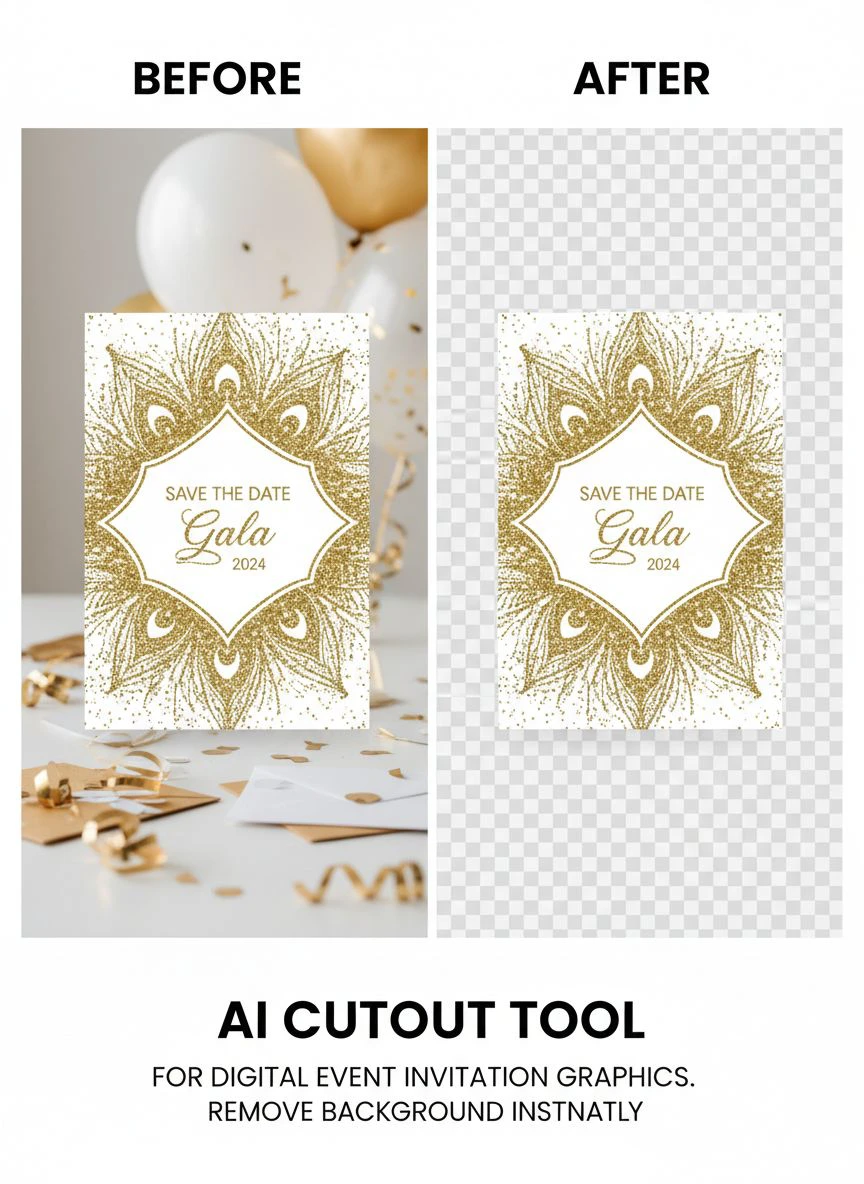
Specific Use Cases for Transparent Background for Event Invites
Let me walk you through the exact scenarios where tool choice makes or breaks your project.
Wedding Invitation Suites
Wedding work is 60% of my business, and it's the most demanding.
You're cutting out couples in formal wear, often with complex fabrics and accessories.
Brides want their dress details perfect, grooms want sharp suit lines, and both want natural-looking results.
I need tools that handle:
- Lace and embroidery details on wedding dresses
- Veil transparency without making it look painted on
- Bouquet flowers with natural depth
- Jewelry and accessories at small sizes
The wrong tool makes $3,000 wedding invitation packages look like amateur Photoshop jobs.
That's not an exaggeration, I lost a client once because of visible cutout halos.
Corporate Event Graphics
Corporate clients want clean, professional results fast.
They're cutting out speakers, team photos, and event space shots.
The backgrounds need to be perfectly transparent for layering over branded templates.
Any AI image editing for digital invitations you use needs pixel-perfect precision.
Corporate work pays well but demands consistency across dozens or hundreds of images.
One bad cutout in a conference invitation sent to 500 attendees kills your reputation.
Birthday and Social Events
These projects move fast and volume is high.
Parents want their kids cut out cleanly for birthday invites.
Event planners need quick turnarounds for seasonal parties.
Speed matters more here than anywhere else.
I can't spend 10 minutes per image when I'm charging $45 for a complete invitation design.
The tool needs to nail it in one shot or it's not viable for this market segment.
Common Mistakes When Choosing an Online Graphic Editor for Invitations
I made every single one of these errors before figuring out what actually matters.
Mistake #1: Choosing Based on Price Alone
The cheapest option costs you the most in the long run.
I tried building my workflow around free tools for eight months.
The time I spent fixing their mistakes cost me more than premium tools would have.
Calculate cost per finished image, not cost per month for the subscription.
Mistake #2: Not Testing with Your Actual Images
Demo images always look perfect.
They're selected specifically to showcase the tool's strengths.
Upload your actual client photos, the messy real-world ones.
That's the only way to know if it'll work for your business.
Mistake #3: Ignoring Workflow Integration
The tool might be technically excellent but completely disrupt your process.
If it requires three different programs to go from cutout to final design, you'll hate using it.
I look for tools that export directly in formats my design software can grab immediately.
Mistake #4: Overlooking Customer Support
When you're on deadline and something breaks, support response time is everything.
I once had a tool crash during a rush project for a client's 500-person corporate event.
Support took 36 hours to respond.
I had to redo everything manually and nearly missed the deadline.
Now I test support responsiveness before committing to any tool.
Advanced Techniques for Better Results with AI Cutout Tools
Even the best tools perform better when you optimize your input.
Here's what I've learned processing thousands of invitation graphics.
Image Preparation Tips
Clean up obvious issues before uploading.
Crop out unnecessary background clutter that might confuse the AI.
Adjust exposure if the subject is too dark or blown out.
These 30-second tweaks improve output quality dramatically.
I saw my successful first-pass rate jump from 73% to 94% just by doing basic prep.
Batch Processing Optimization
Group similar images together for batch processing.
All the bride portraits in one batch, all the venue shots in another.
This lets you set consistent parameters and review results more efficiently.
My processing time dropped 40% when I started organizing this way.
Quality Control Workflow
Never trust the thumbnail preview.
Always zoom to 100% and check edges, especially around hair and fine details.
I use a three-point check: hair/edges, transparency areas, and small details like jewelry.
This catches 99% of issues before they reach the client.
Frequently Asked Questions
What's the best AI cutout tool for invitations if I'm just starting out?
Start with a free tool that has professional-quality output to validate your business model first.
Don't invest in expensive subscriptions until you have consistent client flow.
Test with your actual project types, not generic stock photos.
Many free tools work great for simple cutouts but struggle with complex invitation graphics.
How do I handle images with complex backgrounds that AI tools struggle with?
Pre-processing is your friend here.
Increase contrast between subject and background before uploading.
Some tools let you mark areas to keep or remove, use that feature for problem images.
If a specific image keeps failing, it's faster to do a manual cutout in Photoshop than fight with AI for an hour.
Can I use AI cutout tools for print invitation designs or just digital?
Absolutely, but verify the tool maintains resolution.
Print requires 300 DPI minimum for professional quality.
Many AI tools downsample images during processing, which ruins them for print.
Always check your exported file dimensions and DPI before sending to print.
How much time should a good AI background remover actually save me?
I went from 6-8 minutes per image with manual cutouts to under 30 seconds with the right tool.
On 50 images weekly, that's saving me about 5 hours of pure editing time.
Your results depend on image complexity and quality standards, but you should see at least 70% time reduction.
What file formats should my AI cutout tool support for event invitations?
Minimum: JPG input and PNG output with transparency.
Ideal: JPG, PNG, WebP input with PNG, PSD, and SVG output options.
The more format flexibility you have, the fewer conversion steps slow down your workflow.
I work with clients who send everything from iPhone photos to professional RAW files.
Making Your Final Decision
Here's how I'd choose if I were starting over today.
First, list your top three most common project types.
Find actual images from past work or similar examples.
Test at least three different tools with those exact images.
Track your time from upload to finished, usable result.
Calculate the real cost including your hourly rate for cleanup time.
The tool that gives you the best quality-to-time ratio wins, regardless of subscription price.
For my invitation design business, switching to the right ai cutout tool for digital event invitation graphics increased my capacity by 60% without hiring help.
I went from 30 invitation projects monthly to 48, using the same hours.
That's an extra $4,500 monthly revenue with zero additional labor cost.
The tool choice literally changed my business trajectory.
Don't overthink this, but don't settle for mediocre results either.
Test thoroughly with your actual work, measure the real numbers, and make the decision that improves your bottom line.
Your clients won't notice you're using AI, they'll just see consistently professional results delivered faster than your competitors.
If you're ready to transform your event invitation workflow, start with Removedo.com and test it against your hardest images today.
Stop wasting time on manual cutouts and start scaling your business instead.


